
Moderating a live show allows you to actively support the creator, interact with viewers, and manage products and chat activity in real time. This article explains how to moderate a live show in the Content → Shows section of the LIVEBUY Dashboard and which tools are available to you as a moderator.
How to Join a Live Show as a Moderator
-
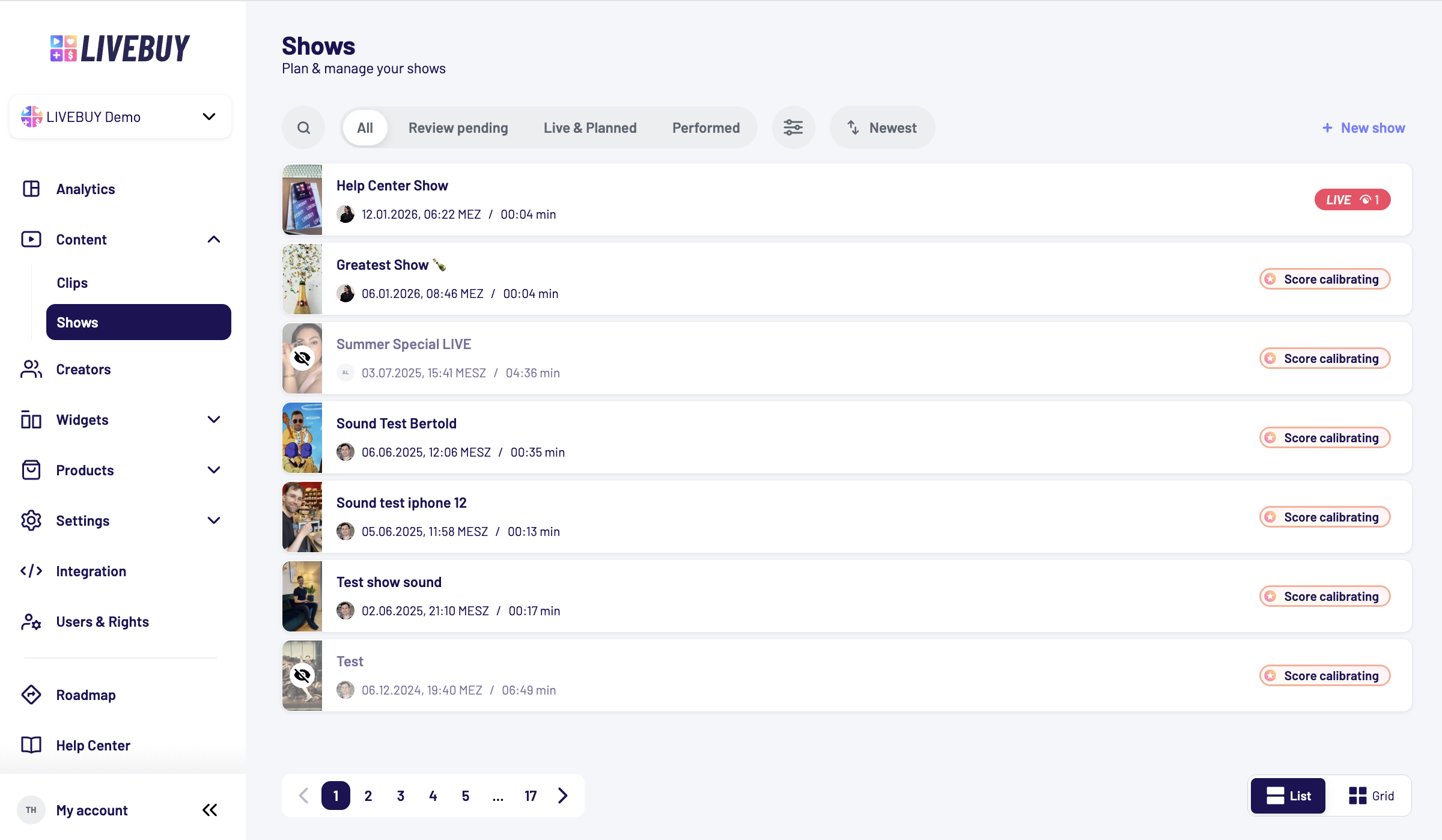
Go to Content → Shows in the LIVEBUY Dashboard.
-
In the show overview, find a show marked with the red “Live” status.
-
Next to the status, you’ll see a number indicating how many viewers are currently watching the show.
-
-
Click on the live show to open the show panel.
-
Click Moderate show.
The LIVEBUY Player opens, and you automatically join the live show as a moderator.
First-Time Moderator Setup
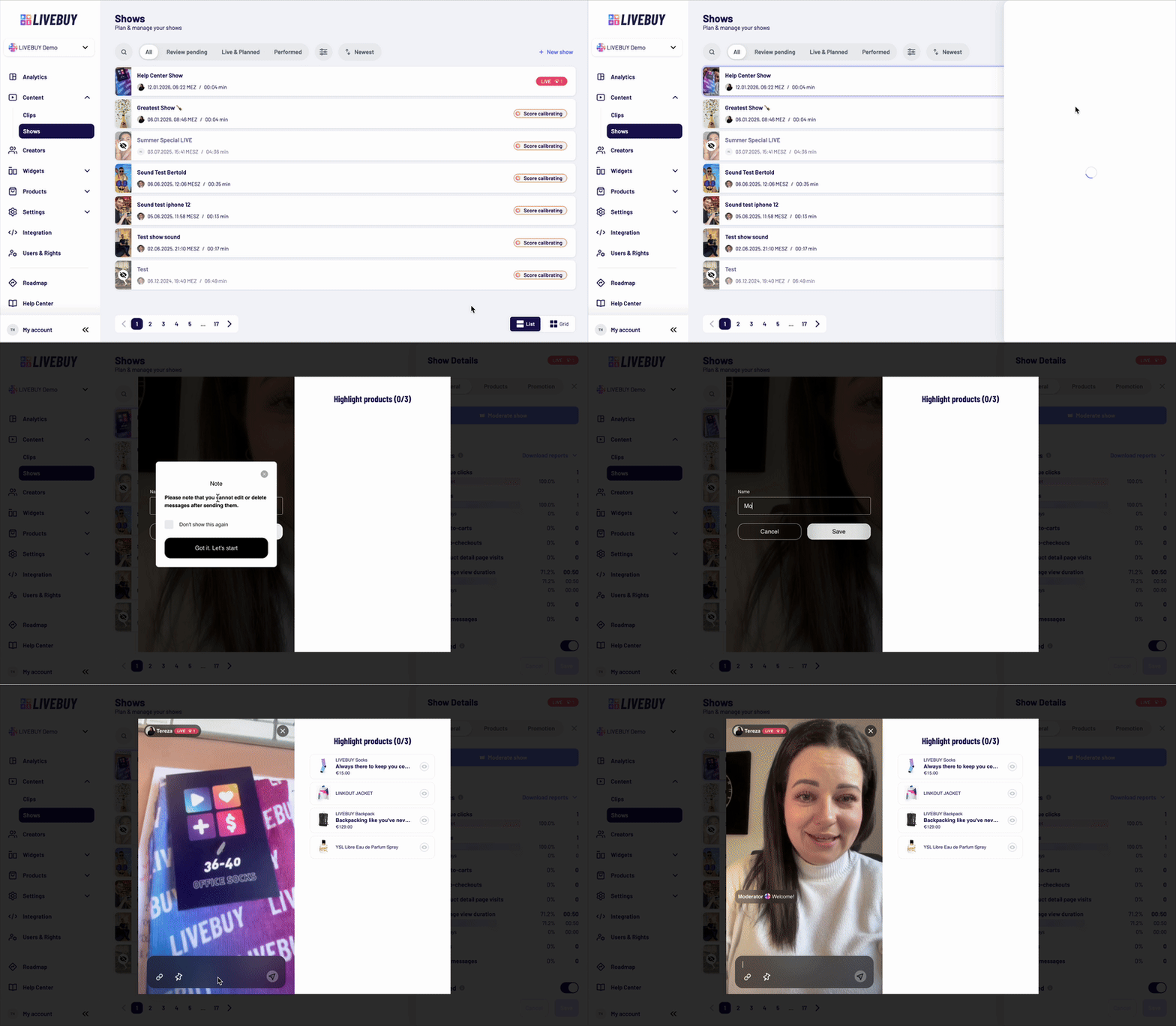
If you are joining this specific show as a moderator for the first time, a popup appears informing you that:
-
Messages sent by moderators cannot be edited or deleted
-
This also applies to messages shown in the replay
Confirm the message by clicking “Got it! Let’s start”.
You will then be asked to enter a moderator name. This can be:
-
Your real name
-
A nickname
-
Your shop’s name
Once you join:
-
A small shop icon (your shop logo) appears next to your name
-
Your moderator messages are highlighted in the chat
-
Viewer messages are displayed normally
Note:
It is possible to have more than one moderator in a live show. All moderators are displayed with the shop icon and highlighted messages.
You can now send your first message in the chat to welcome your viewers.
Overview of the Moderator Player
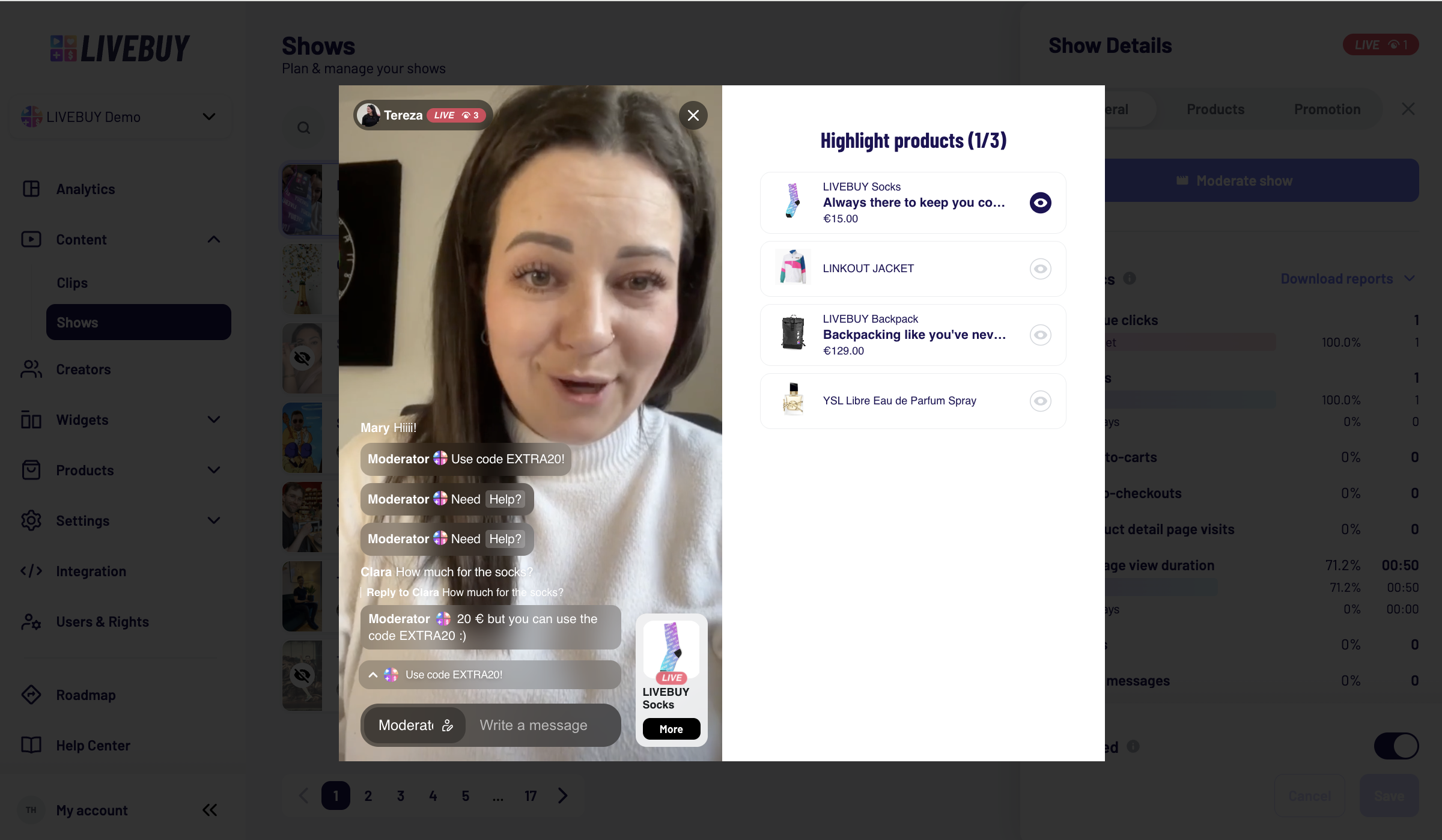
In the Moderator Player, you will see:
-
Top left corner
-
Creator icon and name of the creator currently hosting the show
-
Live status
-
A viewer count showing how many people are watching the show in real time
-
-
Right side of the player
-
A white box containing all products added to the show
-
Changing Your Moderator Name
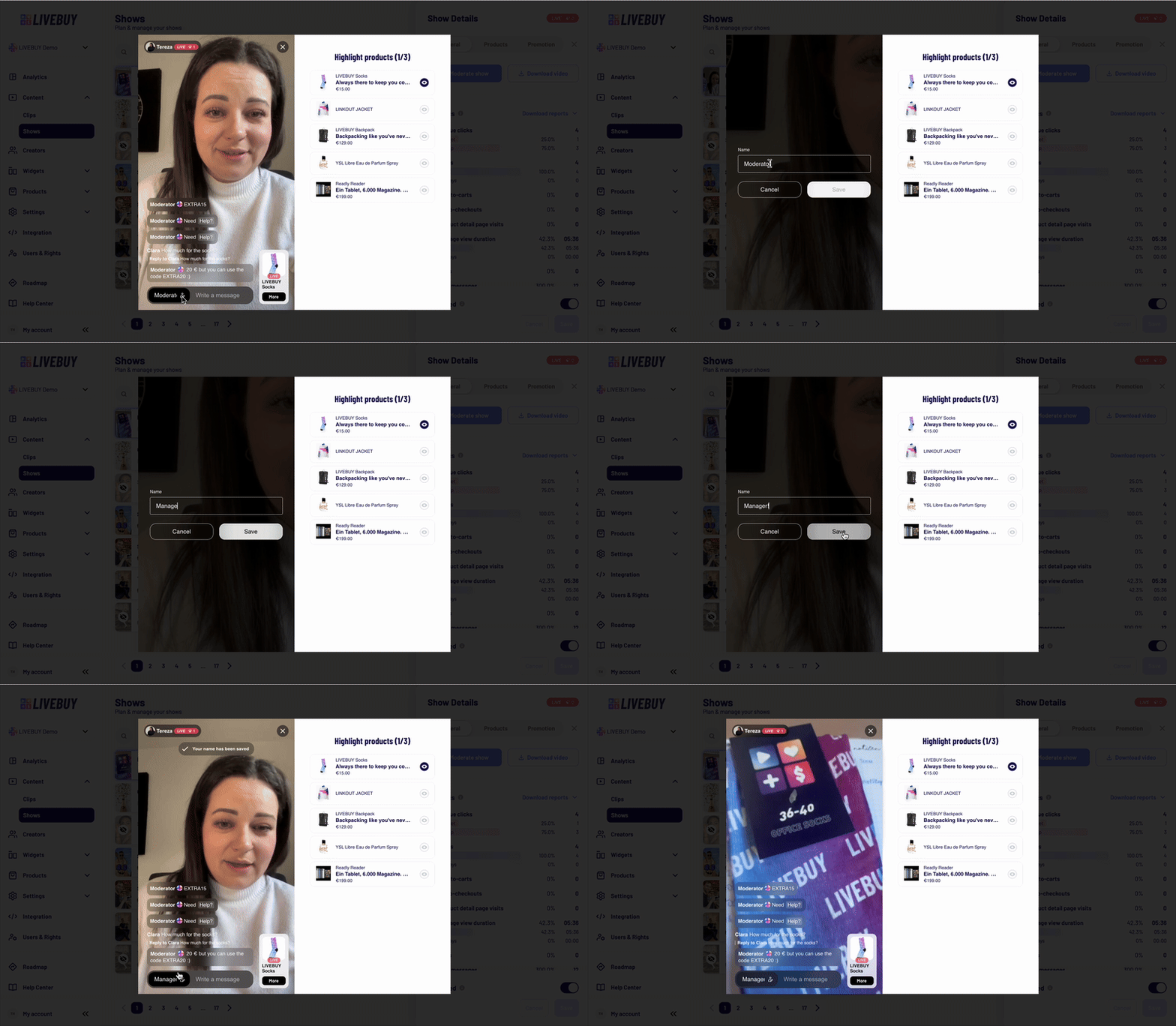
You can change your moderator name at any time during the live show:
-
Click on your name in the chat input field.
-
The rename interface opens.
-
Enter a new name and click Save.
Important:
-
Only future messages will show the new name
-
Previously sent messages keep the original moderator name in the player chat
-
In the replay, messages remain associated with the name used when they were sent
Highlighting Products During the Live Show
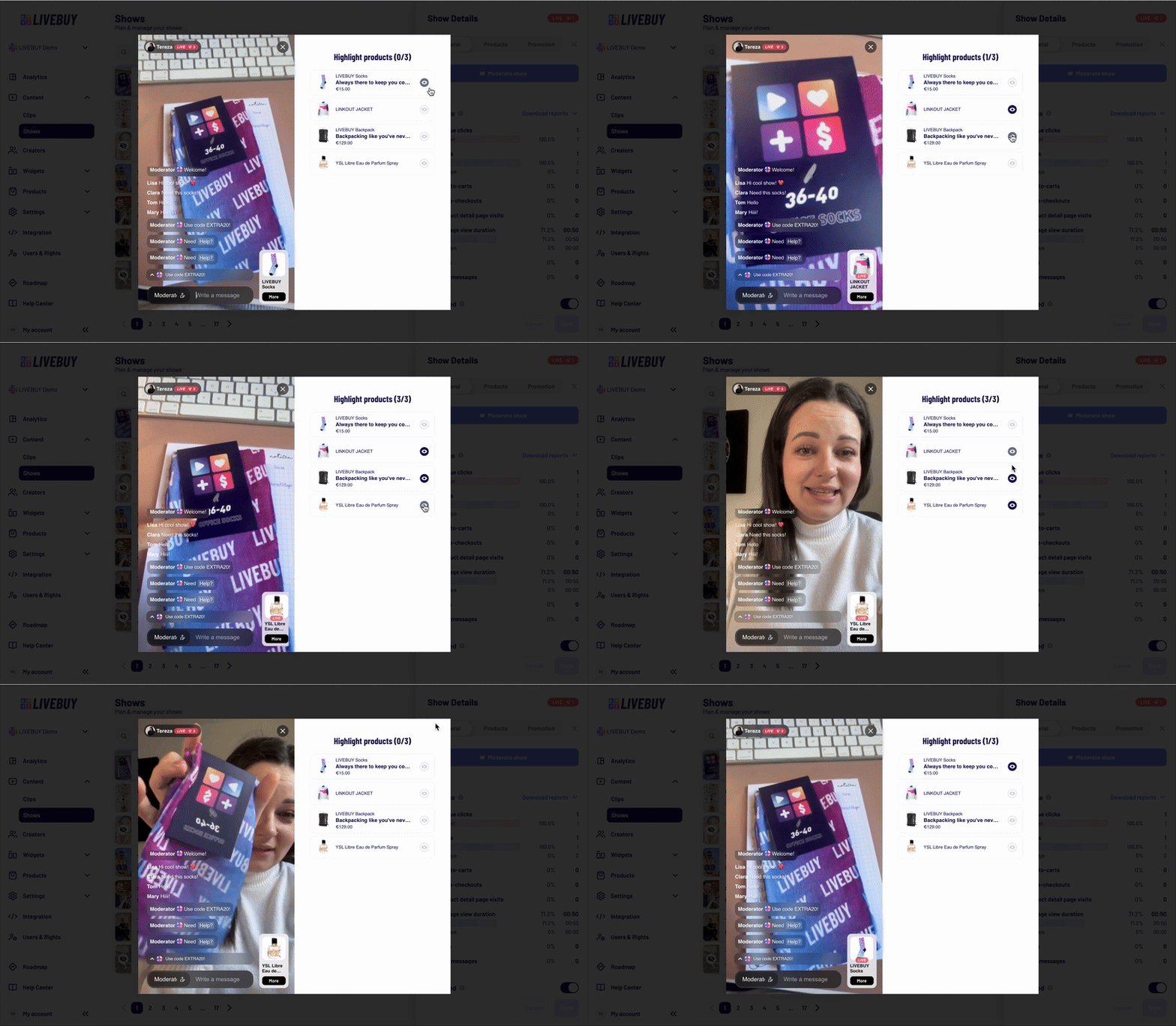
As a moderator, you can highlight products so viewers can easily see which product is currently being presented. You can highlight up to 3 products by adding a small “Live” Badge to the product (see in the GIF below) but only the last highlighted product is “always on visible” until you highlight another product or “unhighlight” it. The “always on visible” product changes then either to another highlighted product or the first product of your show.
-
In the product list on the right side of the player, find the product you want to highlight.
-
Click the eye icon next to the product.
-
The highlighted product is immediately shown to viewers
-
Clicking the eye icon again removes the highlight
-
You can change the highlighted product at any time
This feature is also available to the streamer in the LIVEBUY App.
Adding Products During a Live Show
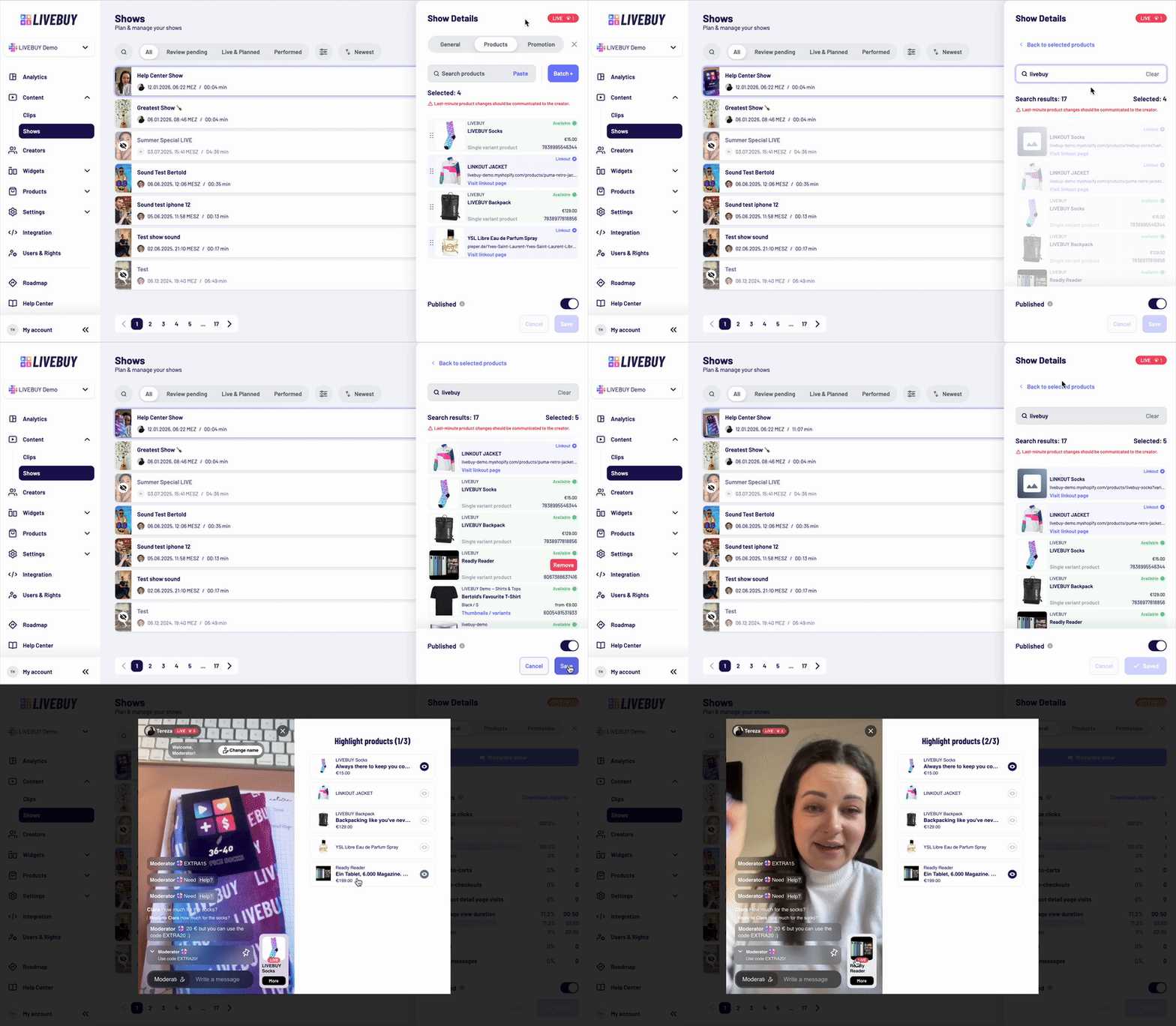
If products were forgotten or the creator decides to present additional items during the show, you can still add products during a currently running live show”.
-
Leave the Moderator Player.
-
Open the Products tab of the live show in the Dashboard.
-
Add the required products.
-
Save the show.
-
Return to Moderate show to continue moderating.
Note:
Last-minute product changes should always be communicated to the creator.
For more details, see the Plan a Live Show article.
Replying to Viewer Comments
Viewers can ask questions in the chat that may not be addressed by the creator during the show.
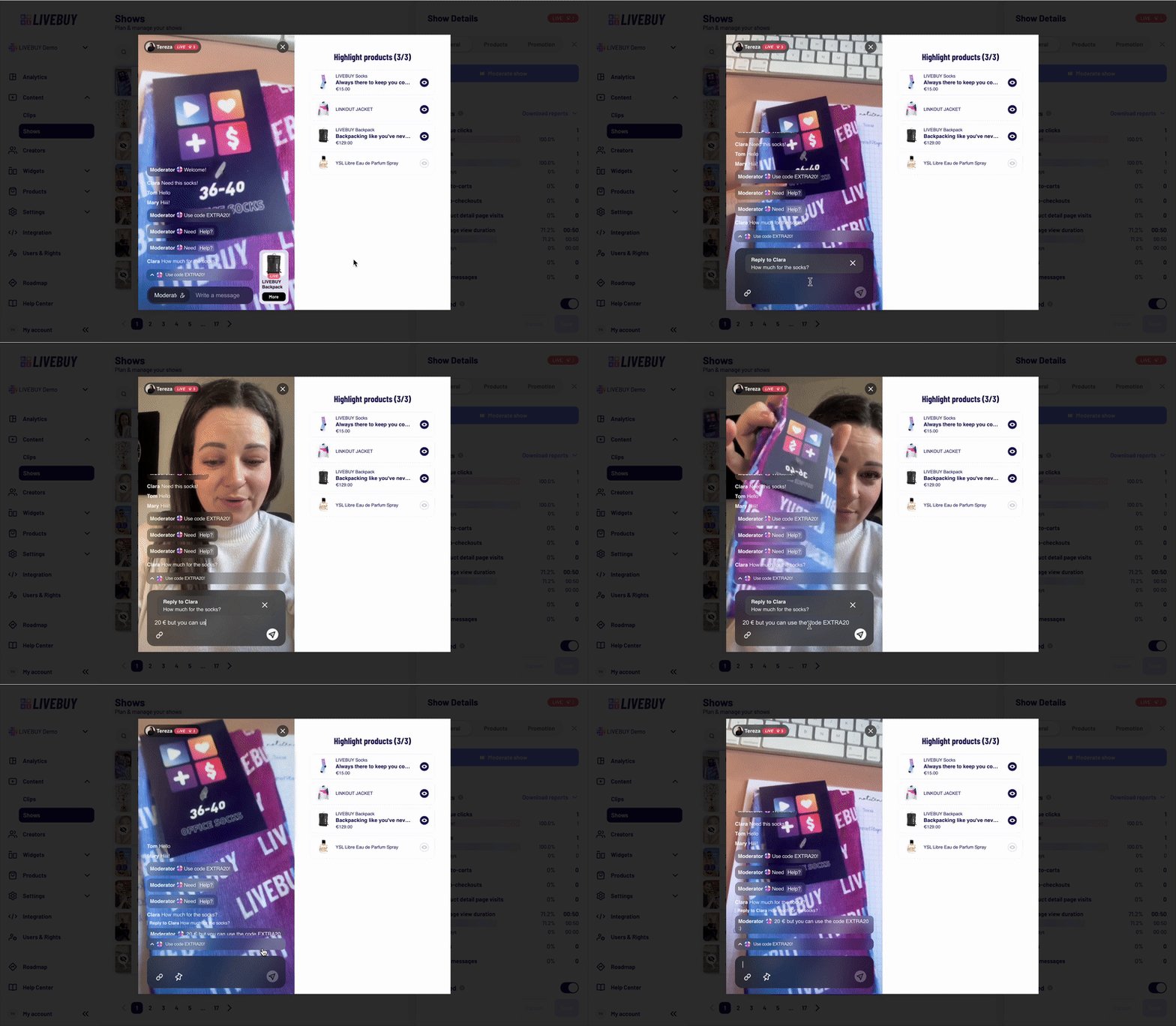
To reply to a specific comment:
-
Click on the viewer’s comment.
-
Select Reply.
-
Enter your message and send it.
Your reply is displayed with a visual reference showing which comment you responded to. When the reference comment is too long and not showing the whole comment, the viewer can click on it and it shows the whole comment.
Shadow Banning Viewers with Inappropriate Behavior
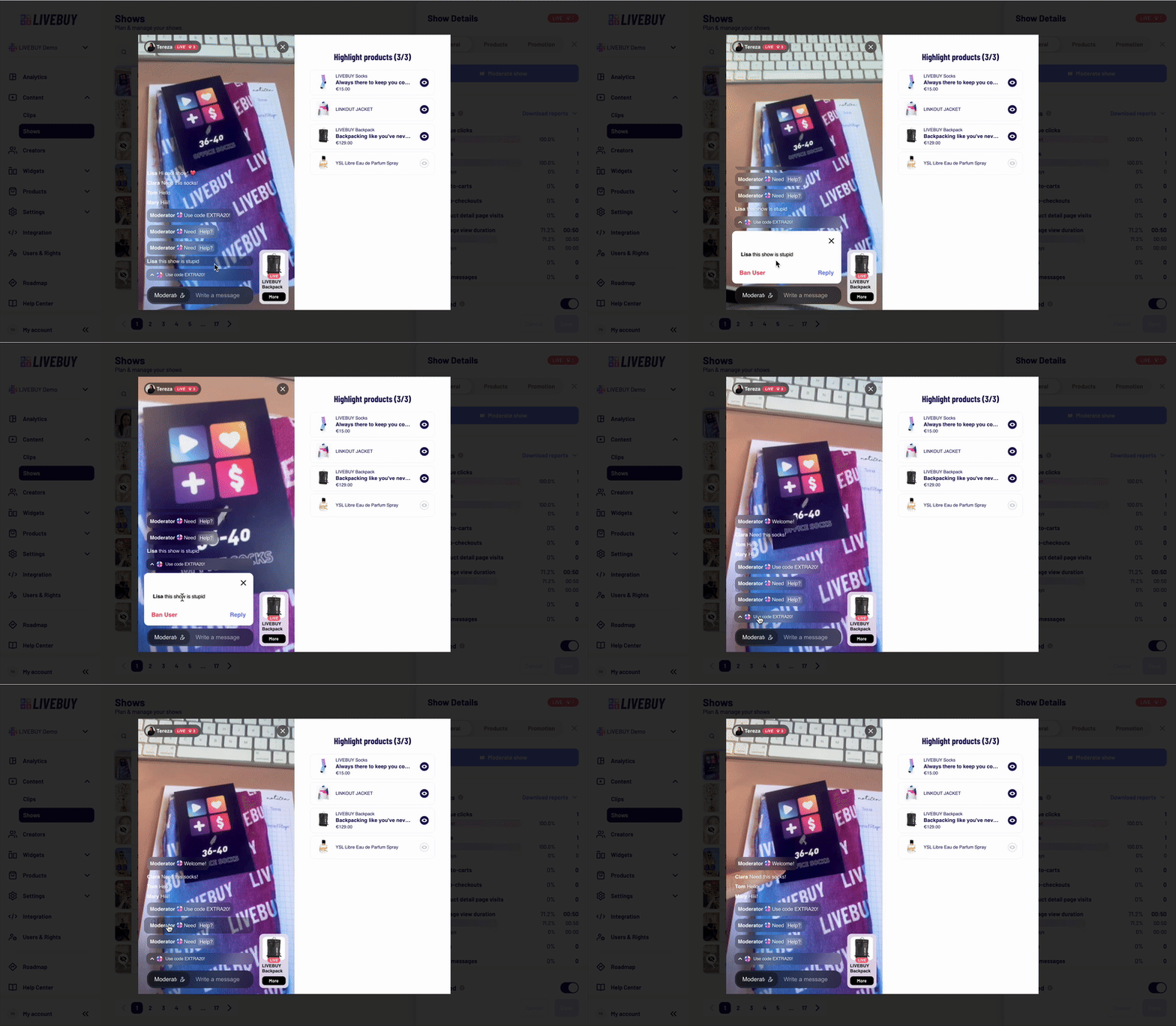
If a viewer behaves inappropriately or uses unfriendly language, you can ban them from the chat.
-
Click on the viewer’s comment.
-
Select Ban user.
The user will be shadow banned:
-
They can still watch the show and write messages
-
Their messages are no longer visible to moderators or other viewers. They will still see their own messages and ideally won’t notice that they have been shadow banned — nothing changes for them.
If you want to automatically ban users based on specific words or nicknames, please contact the LIVEBUY support team to configure an auto-ban word list.
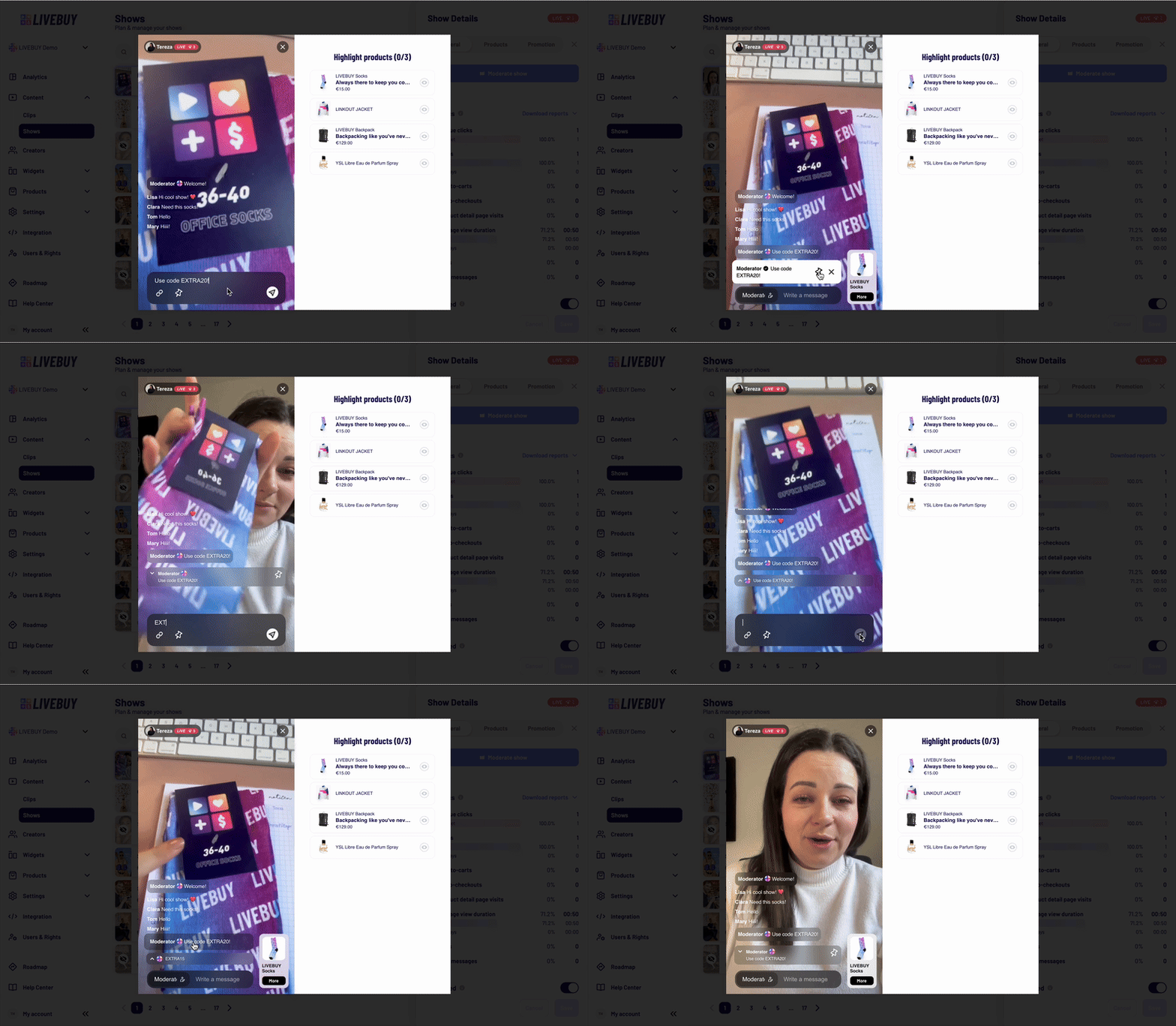
Pinning Moderator Messages
You can pin important moderator messages to keep them visible throughout the show, for example:
-
Show information
-
Discount codes
-
Important announcements
You can pin messages in two ways:
-
Tap one of your sent messages and select the pin icon
-
Select the pin icon before sending a new message to pin it immediately
Tap the pin icon again to unpin the message.
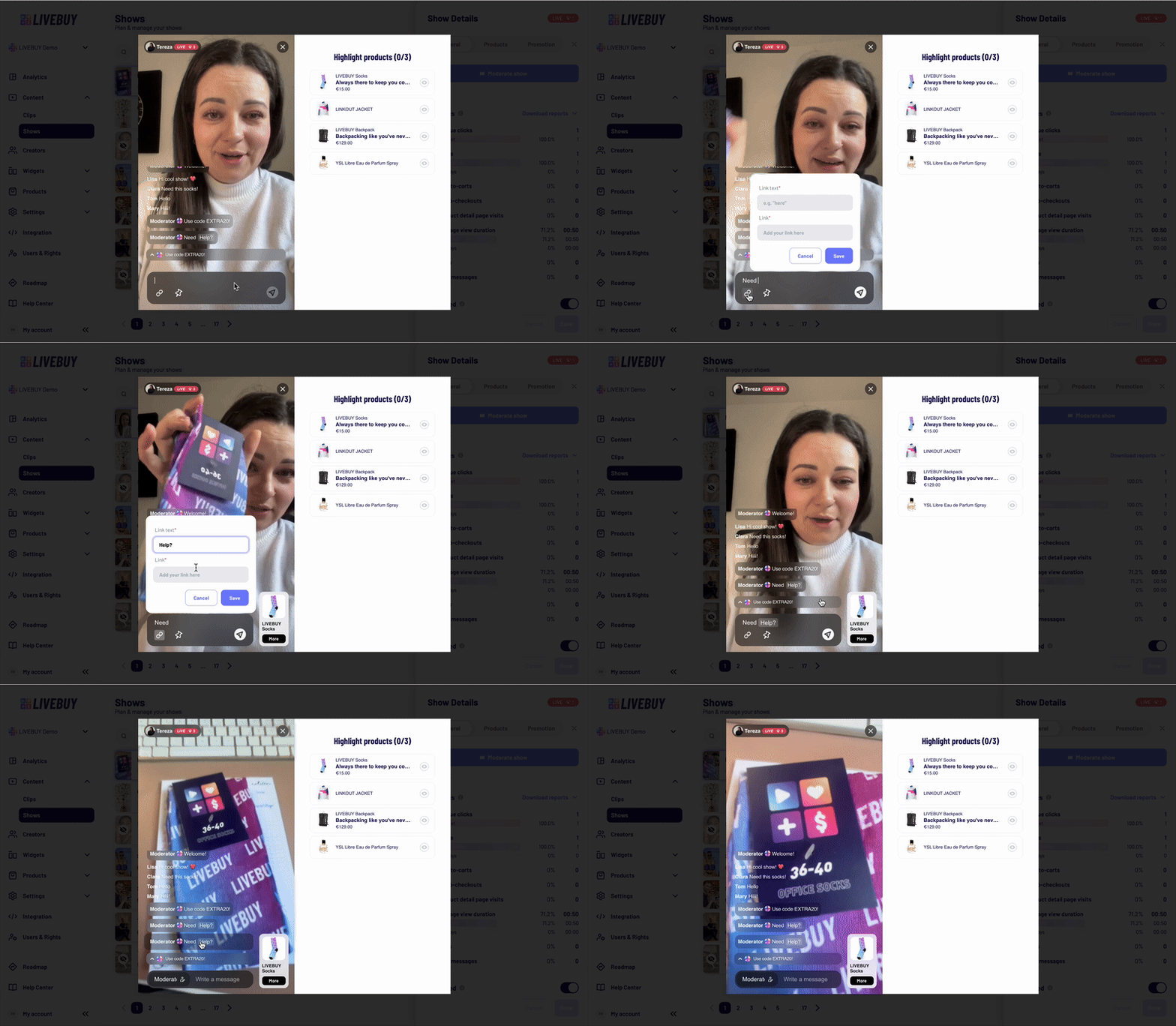
Adding Links to the Chat
As a moderator, you can add links to your chat messages.
-
Tap the link icon in the chat input field.
-
Add an external or internal link by paste a full URL to a link text
All links open in a new browser tab when clicked.
Test Mode
Live shows that are currently running in Practice Mode are clearly labeled as such in the LIVEBUY Dashboard.
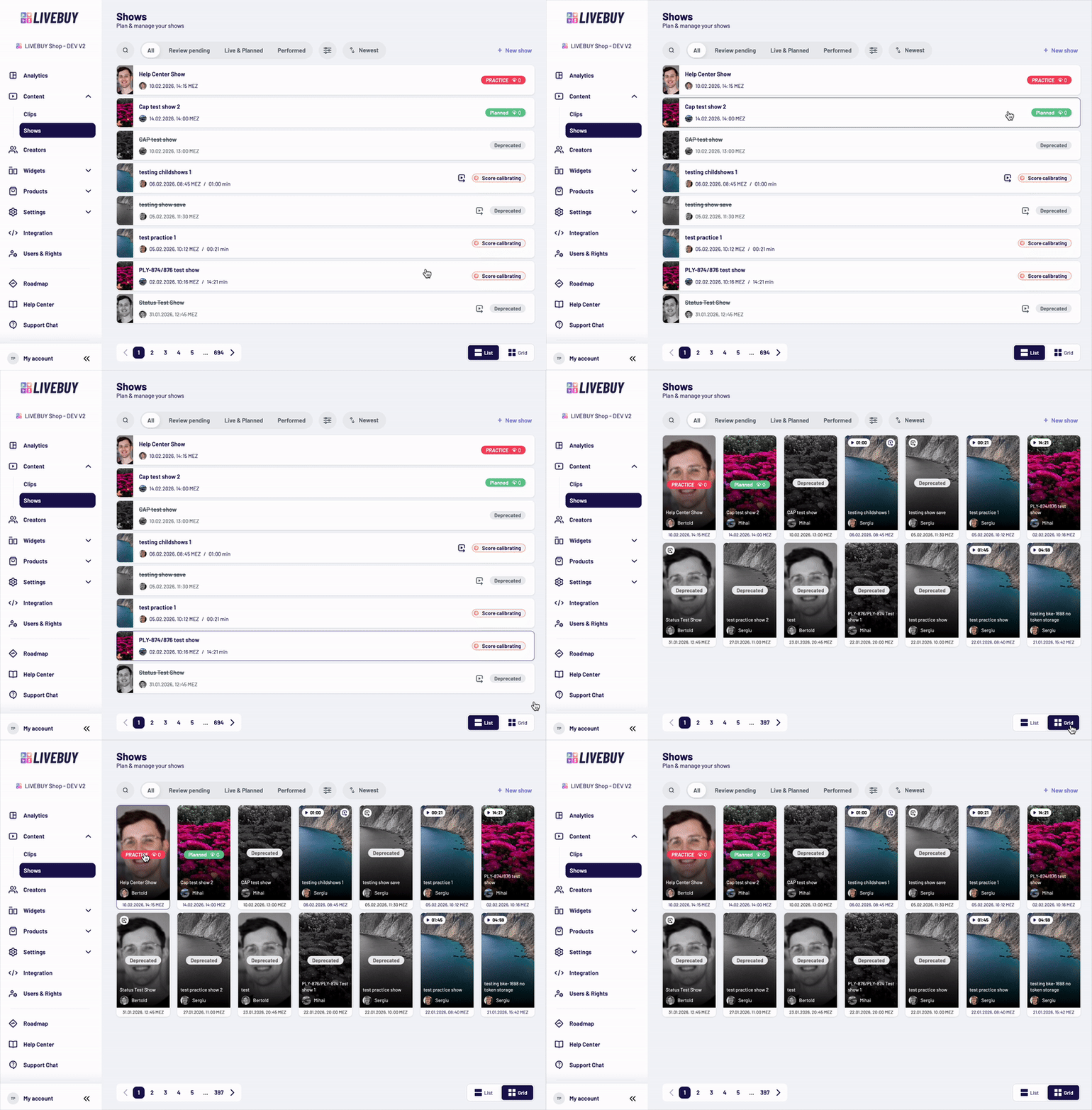
You can open a Practice Mode live show directly from the Dashboard, just like a regular live show.
Within Practice Mode, all moderating features and controls are fully available. This allows you to test and familiarize yourself with the moderation tools in a safe environment — without affecting a real live audience.
Practice Mode is ideal for:
-
Testing moderation workflows
-
Training team members
-
Getting comfortable with the Dashboard controls before going live
All moderation options function the same way as they do during an actual live show.
Summary
Moderating a live show enables you to:
-
Join live shows directly from the Dashboard
-
Interact with viewers via highlighted moderator messages
-
Highlight and manage products in real time
-
Add products during the live show
-
Reply to comments, pin messages, add links, and ban users if needed
-
Use the test mode to familiarize yourself with the moderation tools
Effective moderation helps create a smooth, engaging, and professional live shopping experience for your viewers.