
The Creator Management section in the LIVEBUY Dashboard allows you to manage all creators who work with your shop. Here you can invite new creators, review applications, manage permissions and contracts, and maintain creator profiles.
Creator Overview
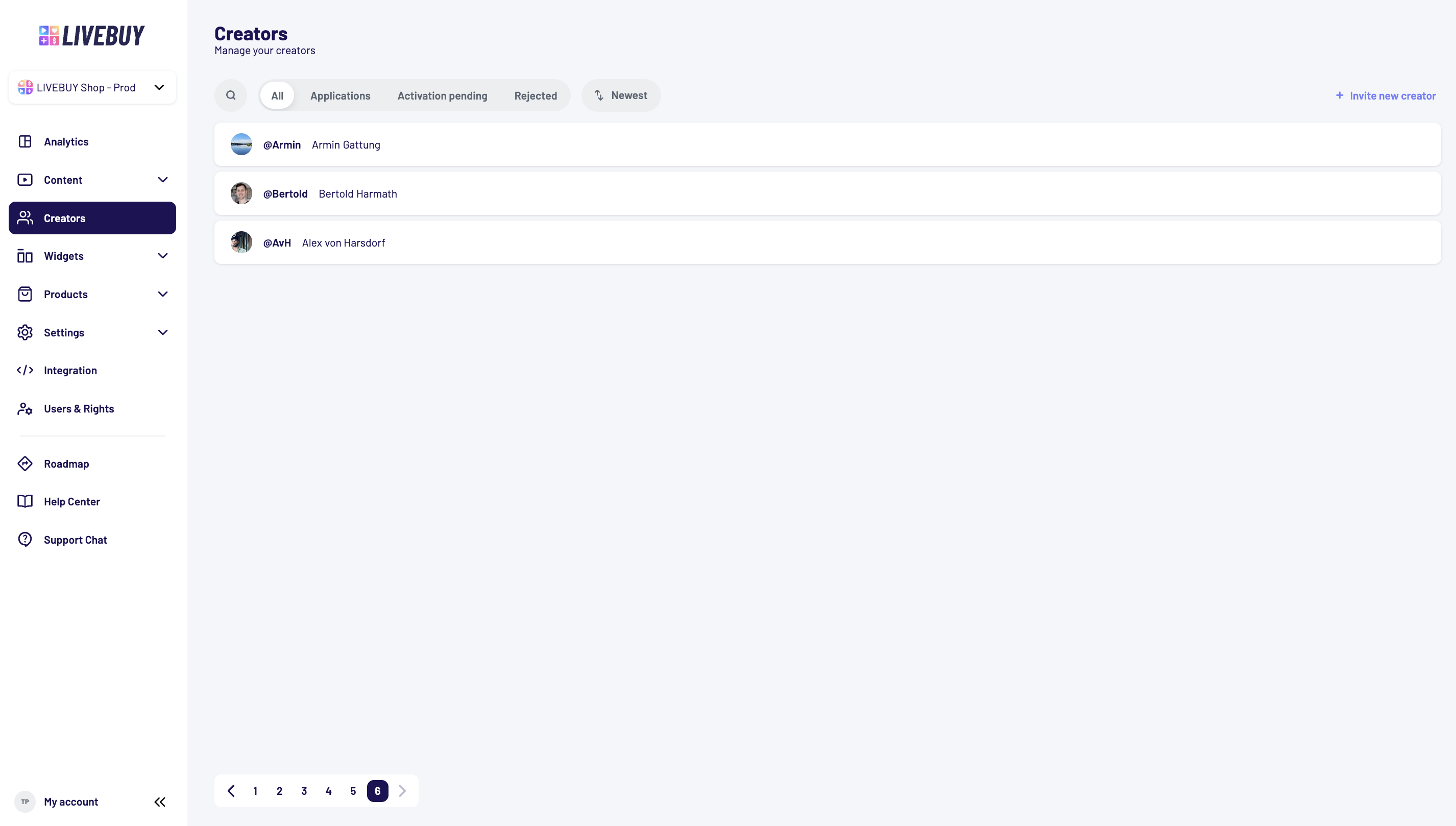
In the Creator Overview, you can see all creators associated with your shop and their current status. The overview is organized into several tabs:
-
All: Displays all creators linked to your shop.
-
Applications: Shows creators who are currently in the application process and awaiting approval or rejection.
-
Activation pending: Lists creators who have been invited but have not yet activated their account via the activation email.
-
Rejected: Contains creators who were rejected during the application process.
Creator Status
-
If no status is displayed, the creator is active
-
Other visible statuses include:
-
Activation pending
-
Approval pending
-
Rejected
(Approval pending and rejected statuses only appear when an application process is used)
-
Search and Sorting
-
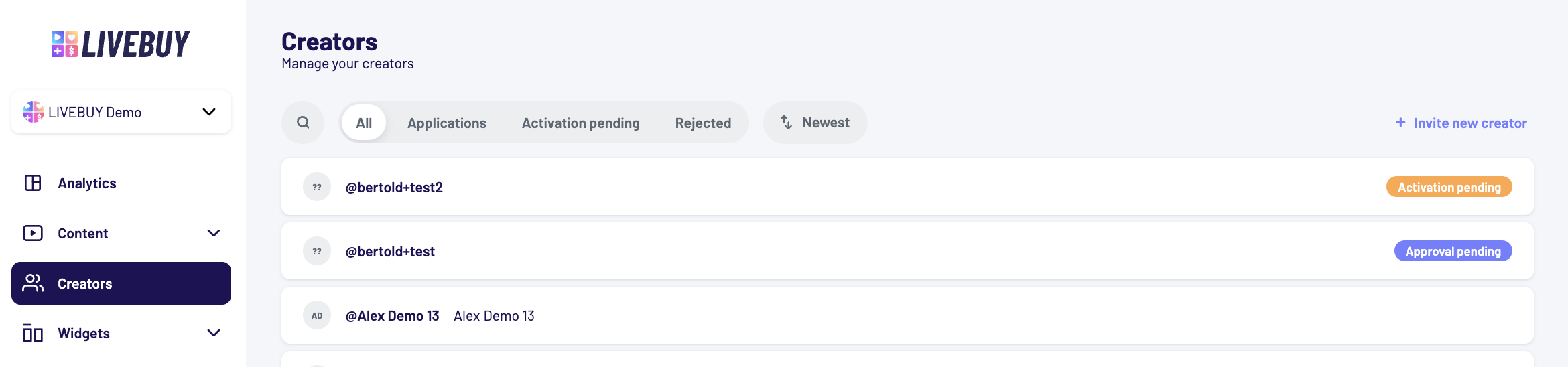
Use the search bar to find creators by:
-
Nickname
-
Name
-
Email address
-
-
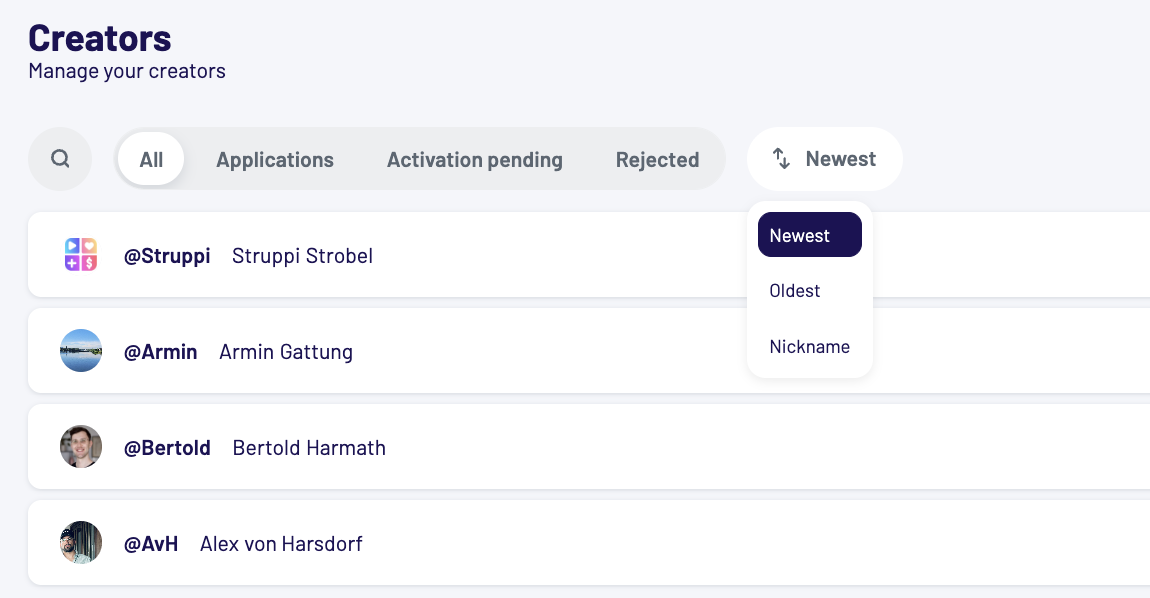
You can sort creators using the following options:
-
Newest
-
Oldest
-
Nickname
-
Adding New Creators
There are two ways to add creators to your shop:
1. Creator Application Process
If your shop requires an application process, creators can apply to join your shop. Within the dashboard, you can:
-
Review applications
-
Approve or reject creators
If you need support setting up an application process, the LIVEBUY team can assist you.
2. Invite a Creator Directly
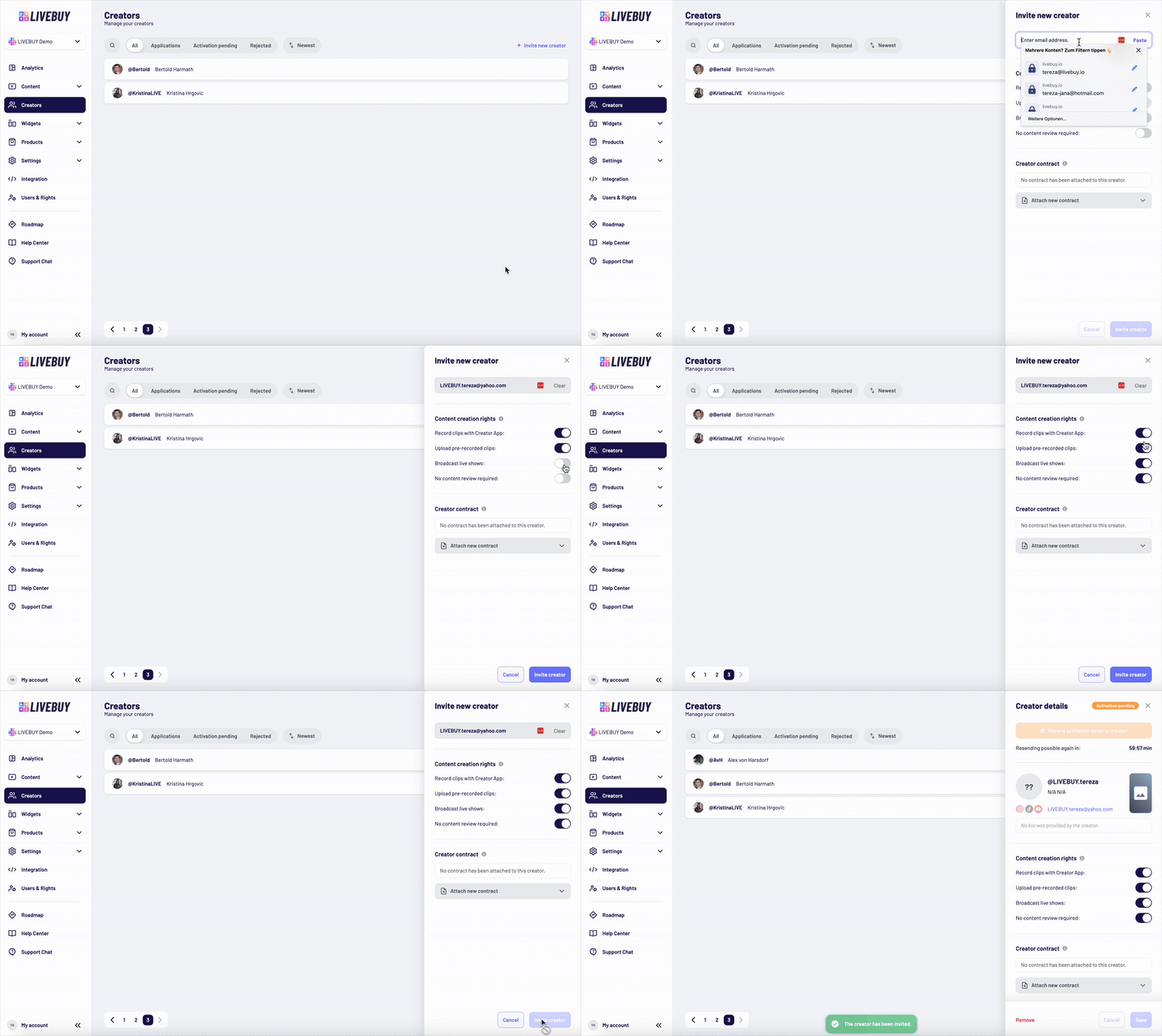
To invite a creator directly from the dashboard:
-
Click Invite new creator
-
Enter the creator’s email address
-
Configure the creator’s permissions
-
(Optional) Attach a creator contract
-
Select an existing standard contract.
-
Or upload an individual, one-off contract for that creator.
-
-
Click Invite creator to save and send the invitation
If a creator already works in another LIVEBUY shop:
-
You can invite the creator like a new creator
-
The creator uses the same profile across all shops
-
The creator can switch between shops in the Creator App
The creator will receive an email from LIVEBUY with an activation link.
Creator Permissions
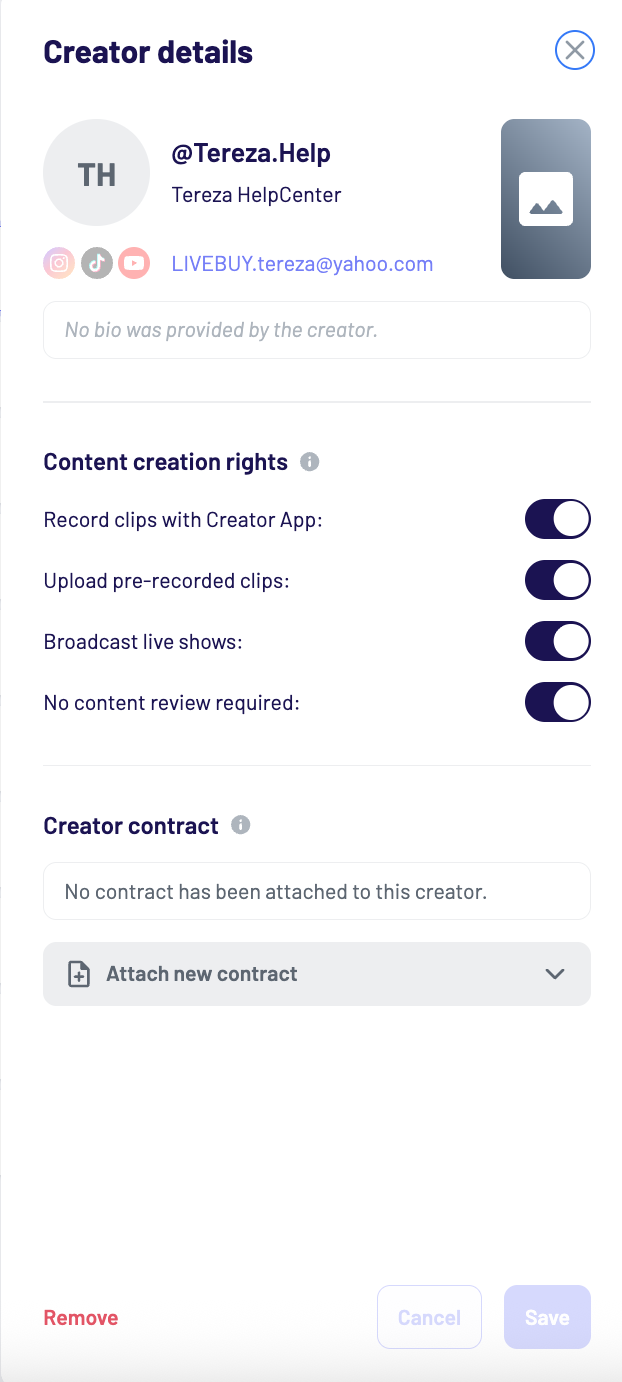
You can enable or disable creation rights using toggle switches. These rights can be changed at any time later in the creator panel.
Available permissions:
-
Record clips with the Creator App
Allows creators to record and upload clips using the Creator App.
(Does not allow uploading pre-recorded clips by itself.) -
Upload pre-recorded clips
Allows creators to upload pre-recorded clips.
Requires “Record clips with the Creator App” to be enabled. -
Broadcast live shows
Allows creators to host live shows using the Creator App. -
No content review required
Content from this creator does not require review before it is published.
This permission is recommended only for trusted creators and helps reduce review workload.
Creator Contracts
You can manage creator contracts directly in the creator profile.
Attaching a Contract
-
Attach a contract by:
-
Selecting an active standard creator contract from the dropdown, or
-
Uploading an individual PDF contract (max. 5 MB)
-
-
The contract name is taken from the file name and cannot be changed
-
Creators can see the contract content, but not the file name
Immutability After Attaching
-
Once a contract is attached:
-
It cannot be modified or deleted
-
This action is irreversible
-
-
Please ensure the correct contract is selected before attaching
Contract Acceptance
-
After attaching a contract:
-
The creator receives an email to review and accept it
-
The creator’s account is temporarily blocked until acceptance
-
Once accepted:
-
The account is automatically unblocked
-
The creator receives a confirmation email with a download link
-
-
Replacing a Contract
-
You can replace an existing contract at any time
-
Each replacement:
-
Temporarily blocks the creator’s account
-
Requires the creator to accept the new contract
-
Legal Disclaimer
The Creator Contract feature is a convenience tool only.
LIVEBUY does not provide legal advice and does not guarantee the validity or enforceability of any uploaded agreement. You are solely responsible for ensuring legal compliance. We strongly recommend consulting your legal advisors before using this feature.
Creator Invitation & Activation
After clicking Invite creator:
-
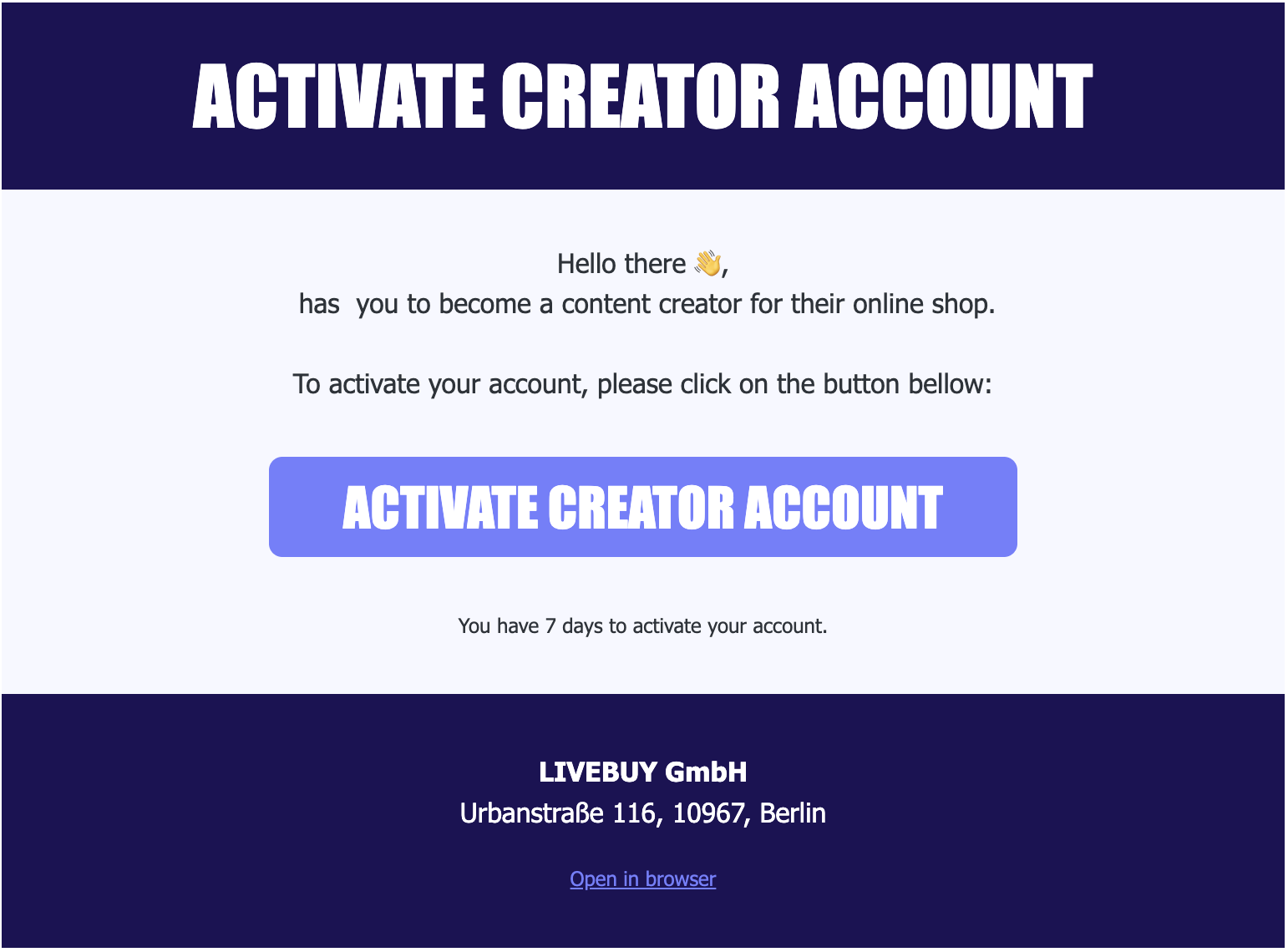
The creator receives an email with an activation link
-
The activation link:
-
Is valid for 7 days
-
Expires automatically after that
-
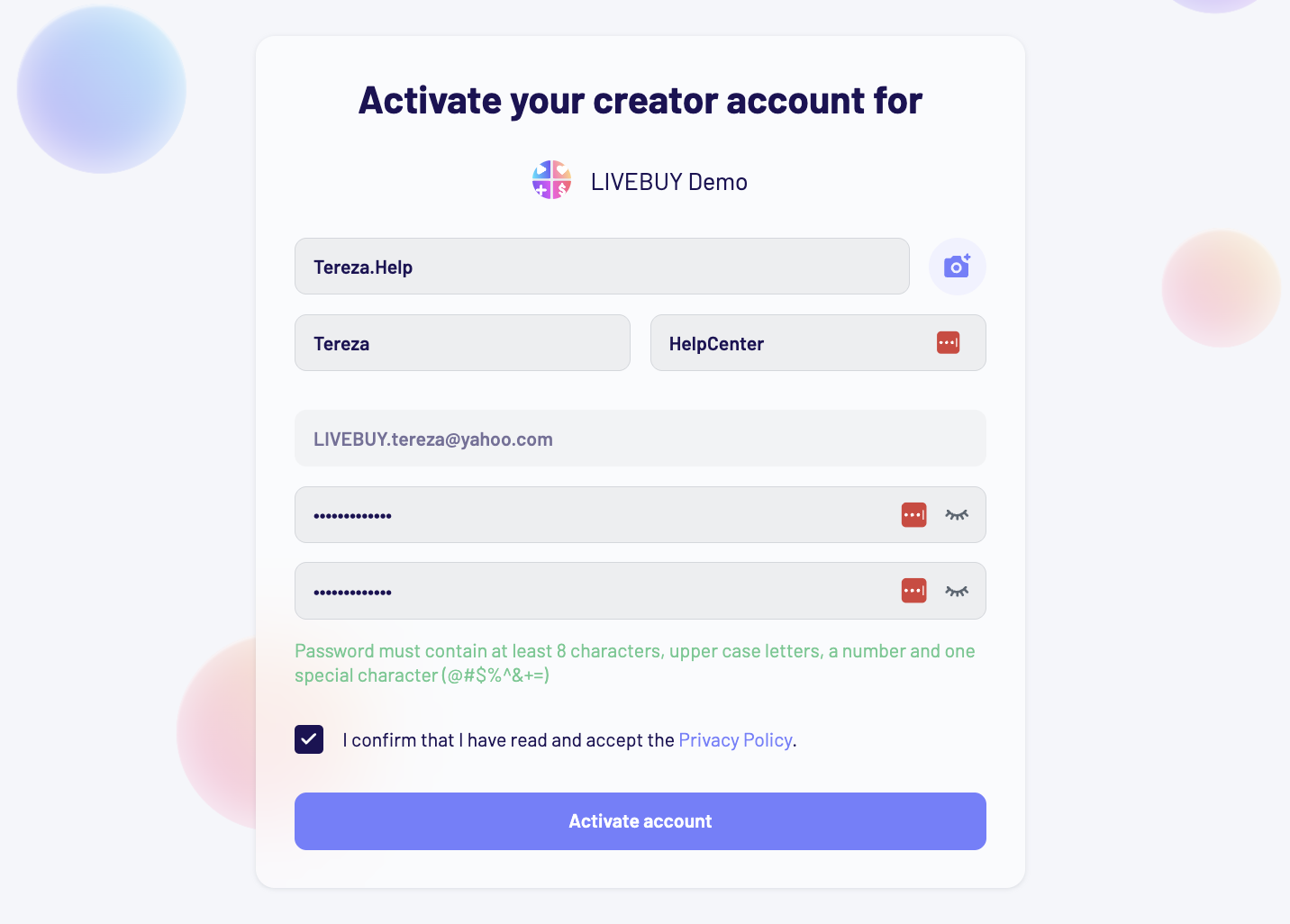
To activate the account, the creator must:
-
Enter nickname, first name, and last name
-
Set a password
-
Creators that already have a creator account for another shop or that already have a dashboard user account do not have to set a password but activate their account for your shop
-
-
Accept the Privacy Policy
-
Accept the Creator Contract in case a Creator Contract is attached to the creator
Resending Invitation Emails
-
If the creator does not receive the email (e.g. spam folder):
-
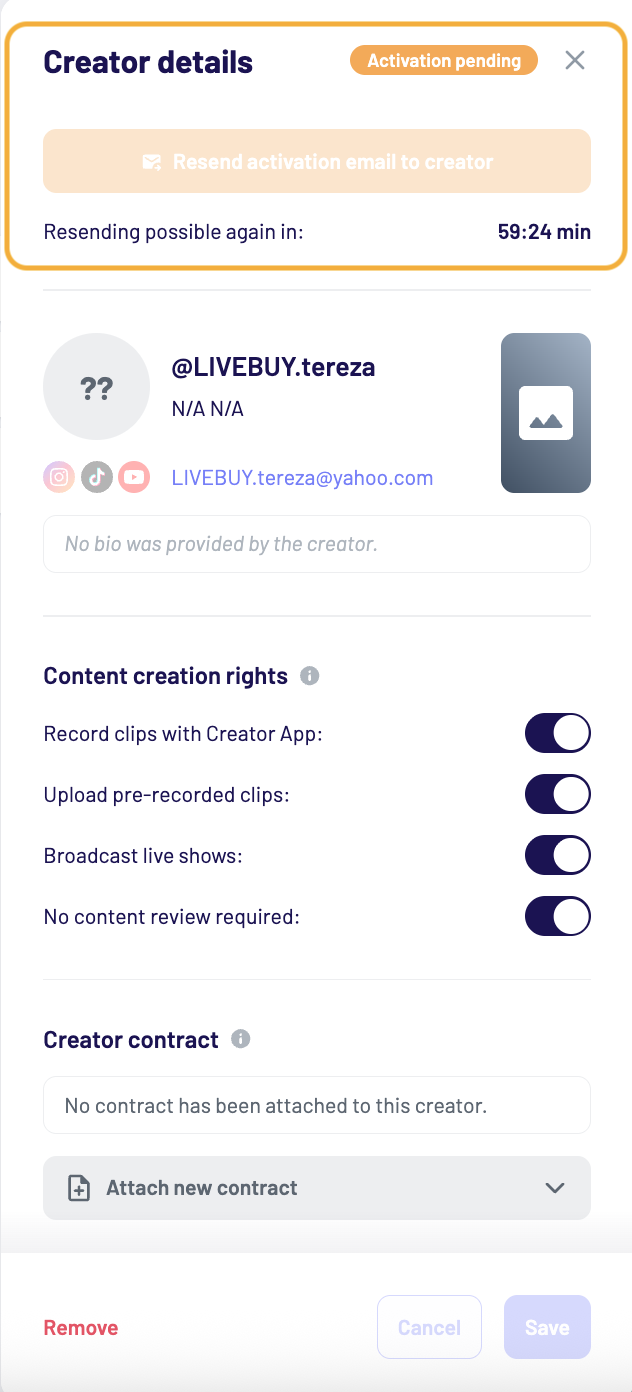
You can resend the invitation
-
Resending is limited to once per hour
-
Managing Creator Profiles
Creators can manage the following themselves in the Creator App:
-
Nickname
-
First and last name
-
Profile picture and fallback image
-
Social media profiles (Instagram, TikTok, YouTube)
-
Bio (up to 500 characters)
Creator nicknames are unique across the entire LIVEBUY platform. If a nickname is already used in another shop, it cannot be reused in your shop.
In the dashboard, you can:
-
View all creator details in the creator profile panel
-
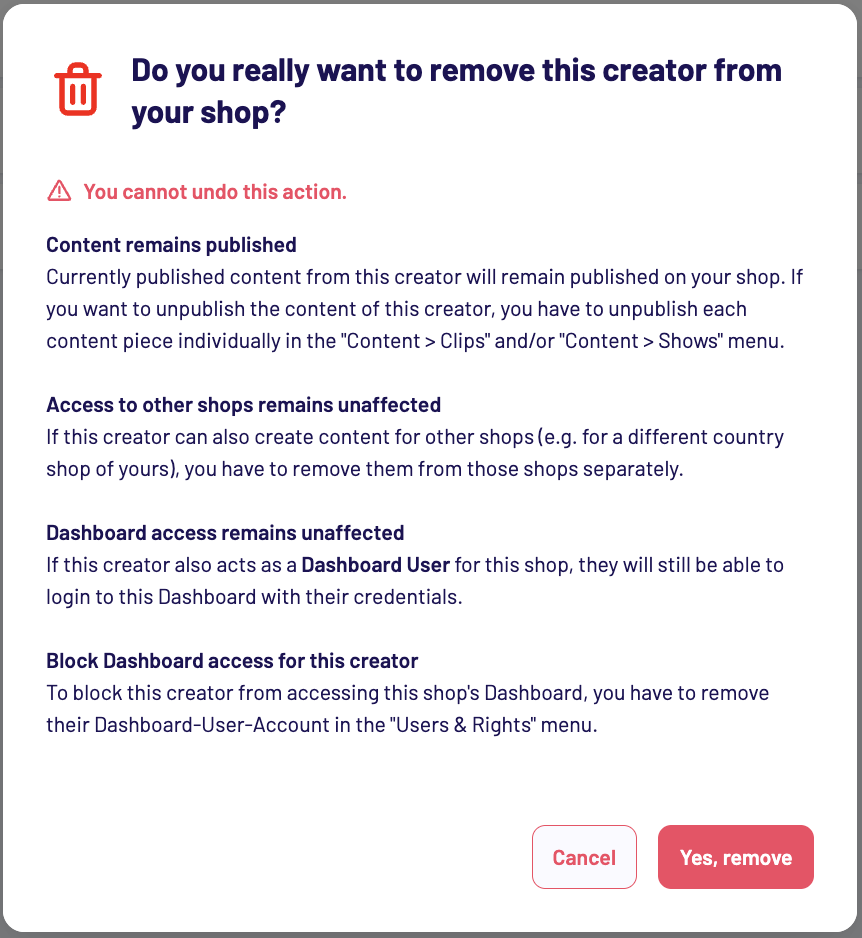
Permanently remove a creator from your shop
Removing a creator from your shop is irreversible. Their existing content will remain published unless you manually unpublish it. The removal only applies to this shop—access to other shops and Dashboard access is not affected. To block Dashboard access, you must remove the creator’s Dashboard user account separately in Users & Rights.
Additional Creator Data (Optional)
Additional data fields can be enabled by the LIVEBUY support team if needed.
Shop-Specific Data
-
Creator page URL
Add a link to a creator-specific landing page in your shop.
This allows viewers to access the creator’s page directly from the video player.
Creator Compensation
Compensation API
-
When enabled, performance KPIs of the creator’s content are included in the Compensation API
-
These KPIs can be used to calculate creator compensation on your side
Affiliate Program
-
Allows tracking of traffic generated by creators using an affiliate ID
-
Currently supported affiliate network:
-
Easy-M (http://easy-m.de )
-
-
The creator must have an active Easy-M account
-
If activation fails:
-
Try again later
-
Contact support@livebuy.io if the issue persists
-
-
To request support for additional affiliate networks, contact support@livebuy.io
If you have questions about creator management or need help enabling additional features, please contact support@livebuy.io.