
The Users & Rights section allows administrators to manage dashboard users and control their access rights. Dashboard users are typically only shop employees and not Creators (who can be managed in the Creator Management section).
Overview
Within Users & Rights, administrators can:
-
View all existing dashboard users
-
Search for users using the search bar
-
Edit user access rights
-
Invite new users to the dashboard
Only users with admin rights can manage users and permissions.
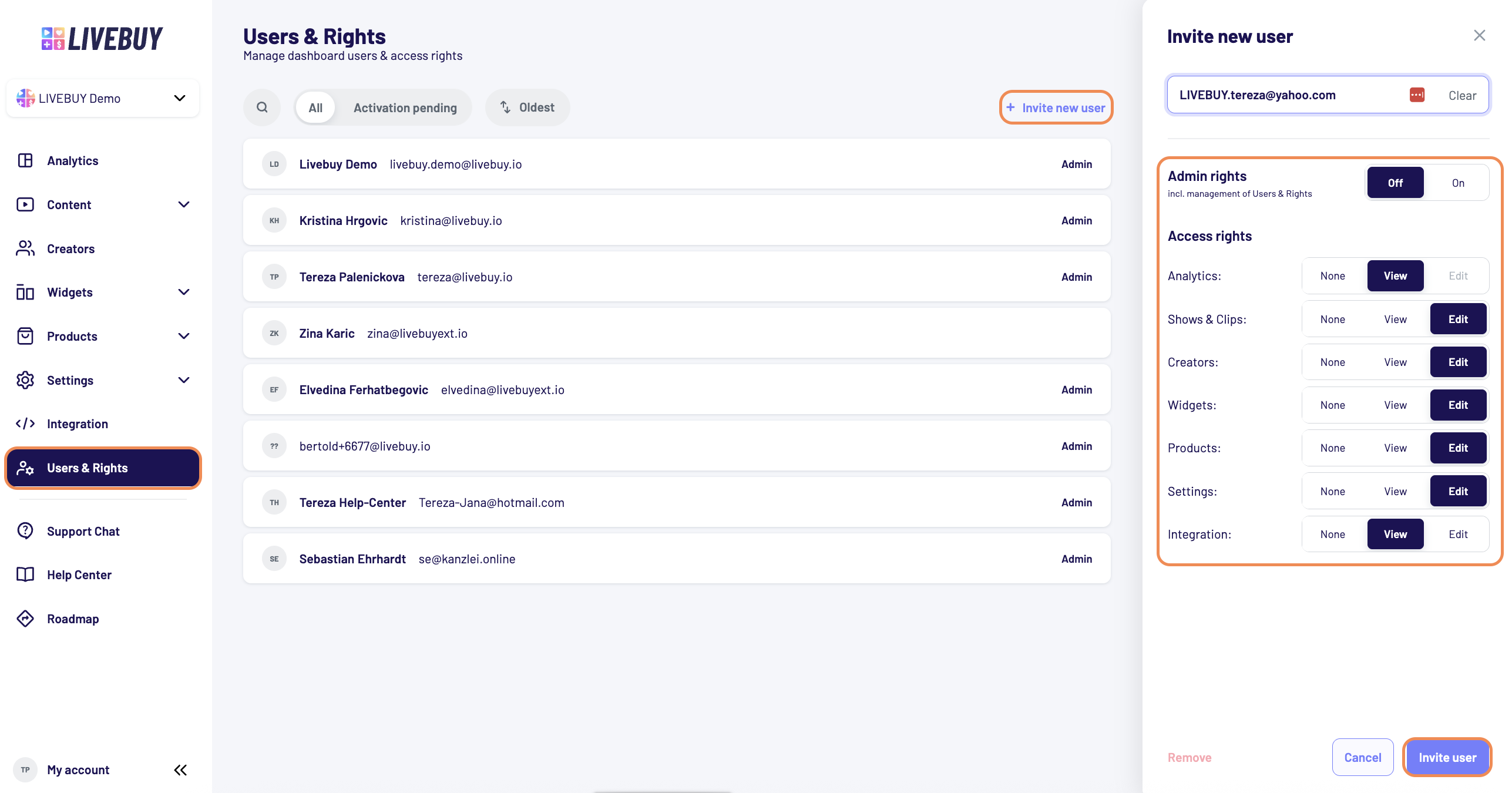
Searching and Managing Users
-
Use the search bar to quickly find a specific user.
-
As an admin, you can:
-
Edit existing users’ rights
-
Assign or remove admin rights
-
Invite new users
-
-
You can filter for users whose activation is still pending
-
You can sort creators using the following options:
-
Newest
-
Oldest
-
First Name
-
Last Name
-
Email
-
Admin Rights
When admin rights are enabled for a user, they automatically receive all available edit rights, including access to Users & Rights management.
Non-Admin Rights
For non-admin users, access rights can be configured individually per category.
Permission Categories
-
Analytics - rights options: None, View
-
Shows and Clips - rights options: None, View, Edit
-
Creators - rights options: None, View, Edit
-
Widgets - rights options: None, View, Edit
-
Products - right options: None, View, Edit
-
Settings - right options: None, View, Edit
-
Integration - right options: None, View, Edit
How to Add New Users
-
Navigate to Users & Rights in the left navigation bar.
-
Click the “+ Invite new user” button at the top of the user overview.
-
Enter the new user’s email address.
-
Select and enable the desired rights for the user.
-
Confirm by clicking “Invite user”.
-
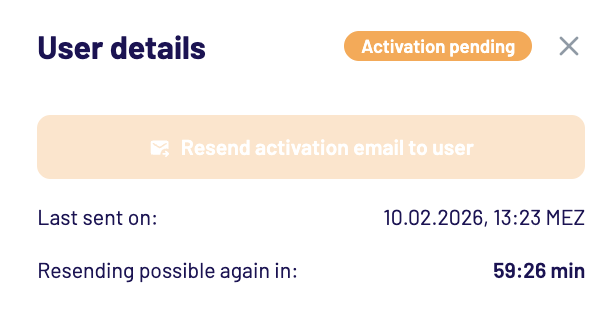
You can see new users in the overview with the status “Activation pending.” This status disappears once the user has activated their account.

-
If the activation email has expired or was not received, you can resend the activation email at any time.
Account Activation
-
The invited user will receive an email invitation to activate their account.
Note: The email may arrive in the spam folder.
-
The activation link is valid for 7 days. After that, it will expire.
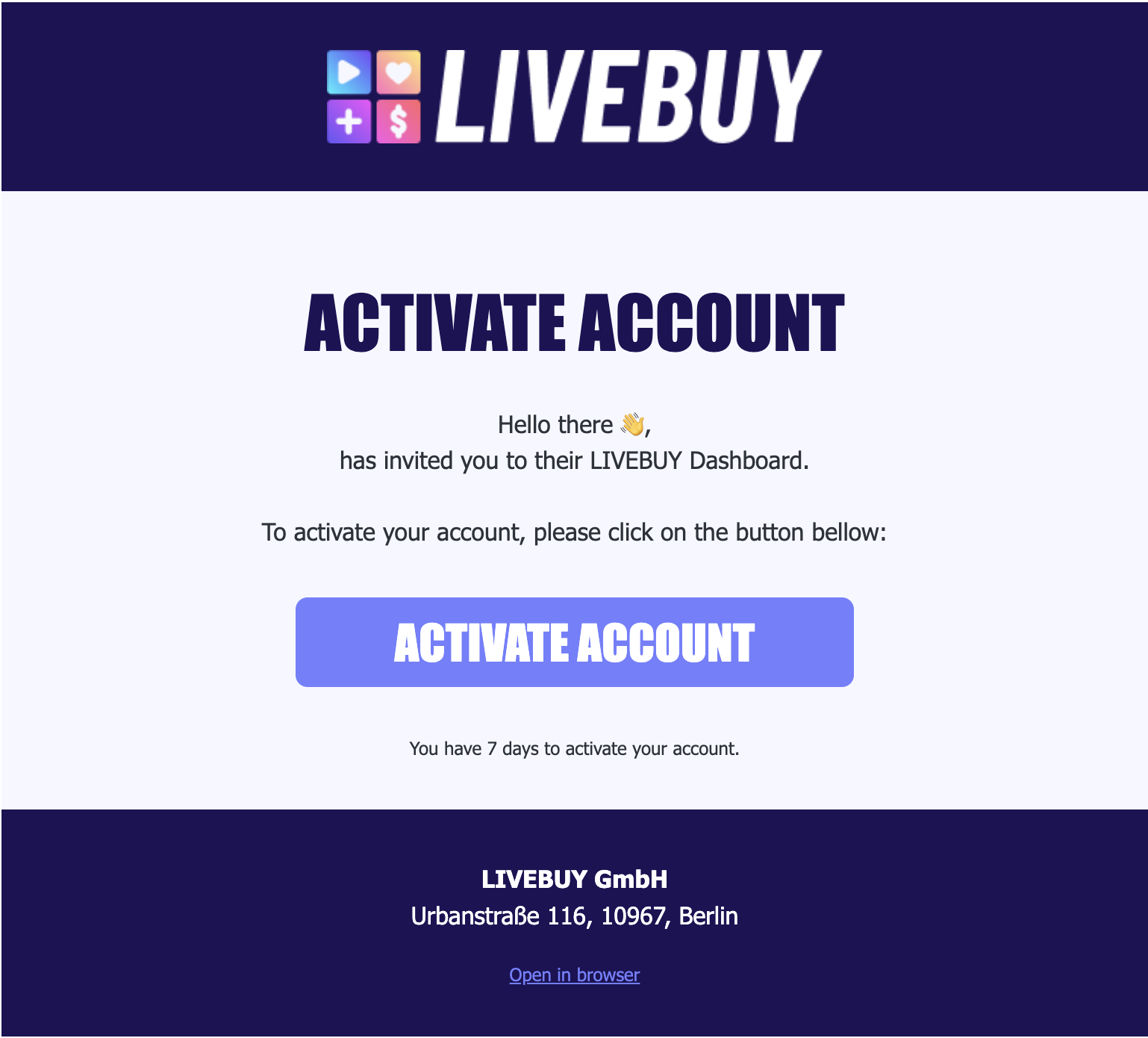
Activation Steps for the User
-
Click the activation link in the email.
-
Enter first name and last name.
-
Set a password
-
Agree to the privacy policy.
-
Click “Activate Account”.
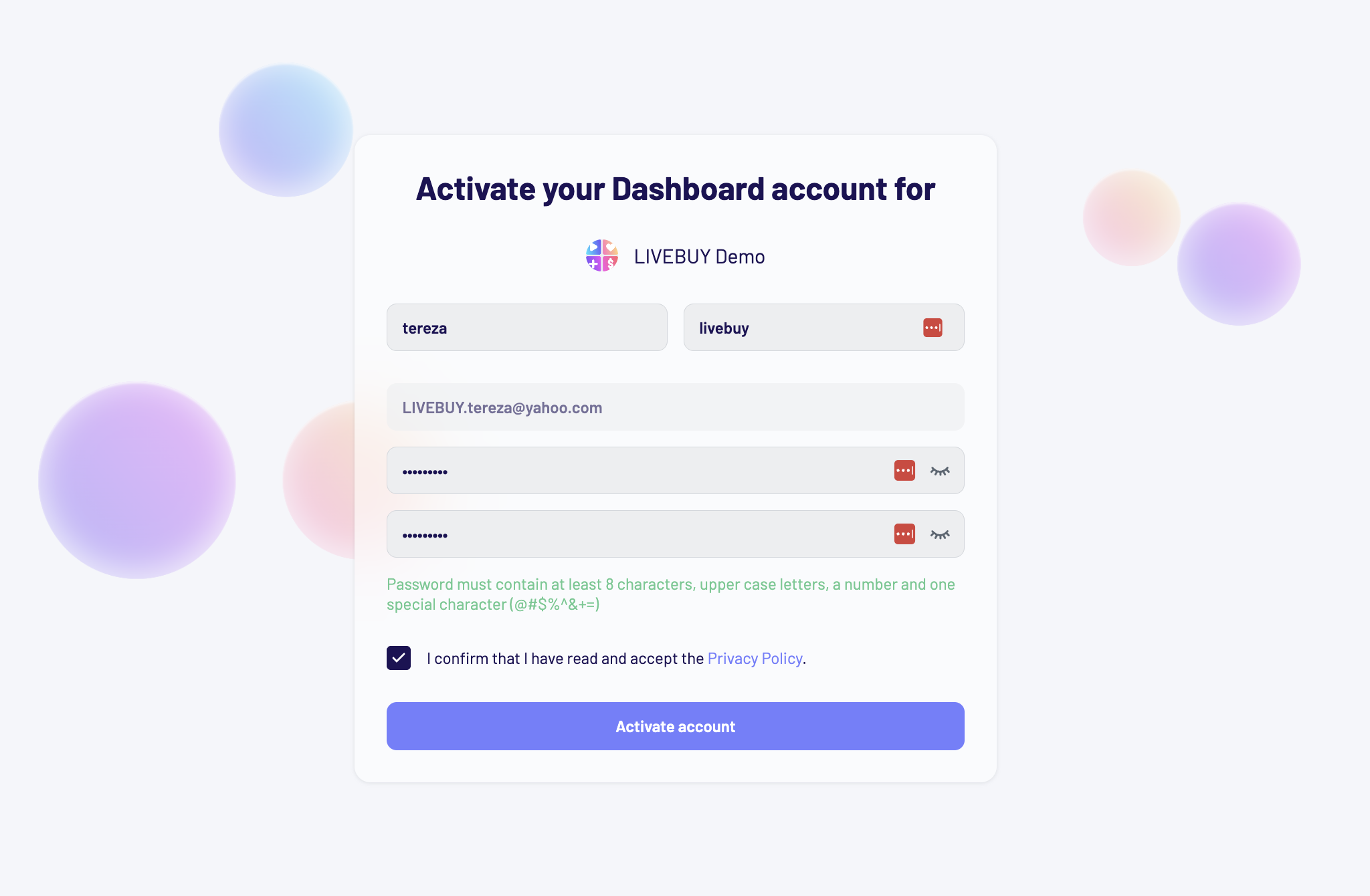
Once completed, the user can log in to the dashboard and access features based on their assigned rights.
Please note:
-
Users that already have a Creator account won’t receive the same email. Instead they will receive an activation email. The activation page does prompt them to set a new password. They only need to accept the privacy policy and click “Activate account”. If they haven’t set their first name and last name yet, they’ll also need to do that.
-
If a user is already part of another shop’s dashboard with their email address they will also receive an activation email but in this case without the prompt to set a new password.
-
For customers that have multiple shop accounts (e.g. for various country shops) users have to be added for each shop individually.
Resending Invitation Emails
-
If the user does not receive the email (e.g. spam folder) or the activation link is expired:
-
You can resend the activation email in the user panel
-
Resending is limited to once per hour
-
For additional help, reach out to your Key Account Manager or to support@livebuy.io.