
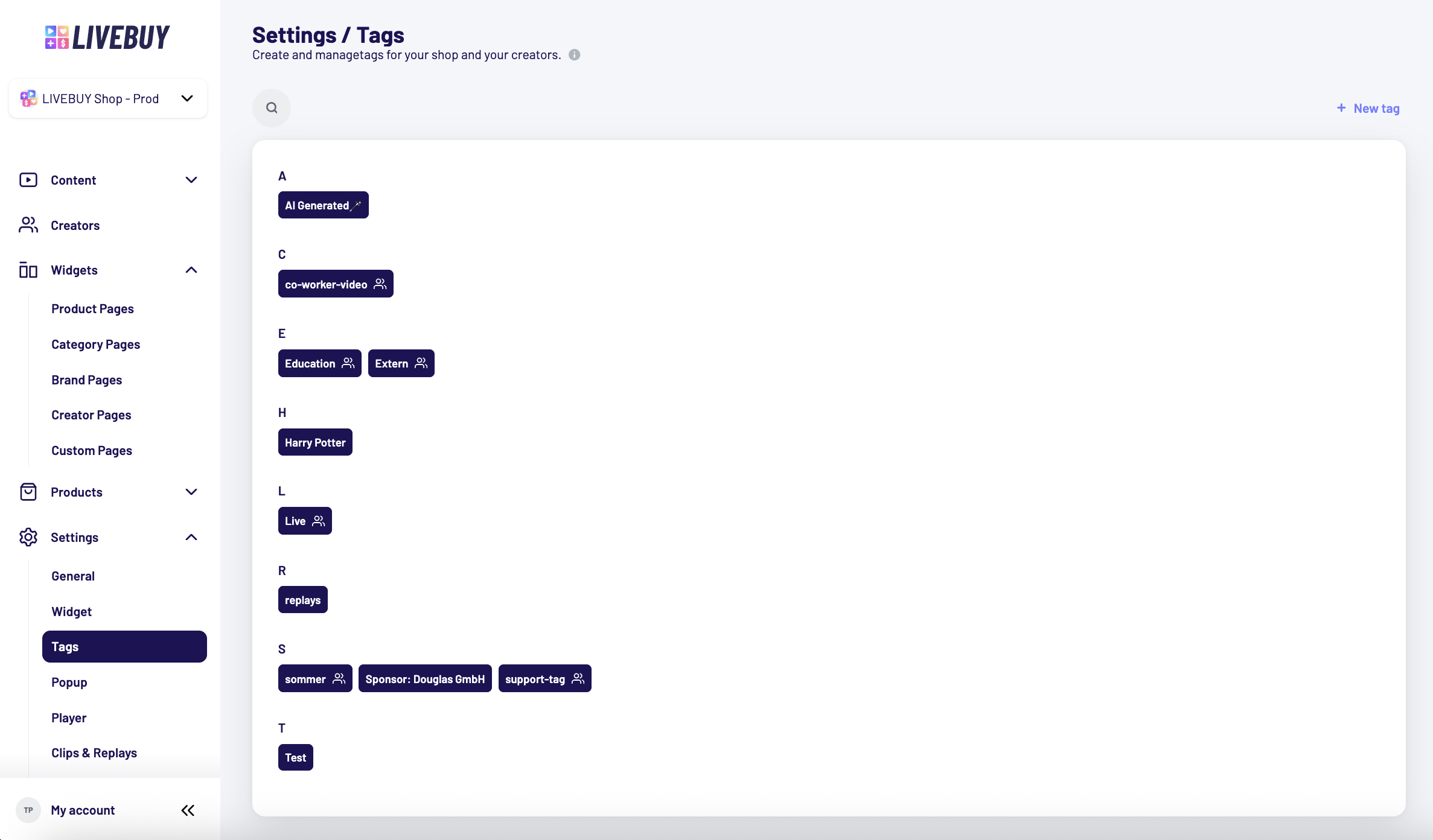
The Tags section in Settings allows you to create and manage tags for your shop and your creators. Tags help you organize content and make it easier to group and display content in widgets.
What Are Tags Used For?
-
Tags can be added to your content
-
When creating a widget, you can include all content that has a specific tag
-
Tags can be managed centrally and reused across your shop
Tag Overview
-
All tags are displayed in an alphabetically sorted list
-
Use the search bar to quickly find specific tags
-
In the overview, you can see whether a tag is enabled for creators:
-
A small creator icon next to the tag name indicates that the tag is available for creators to use
-
Create a New Tag
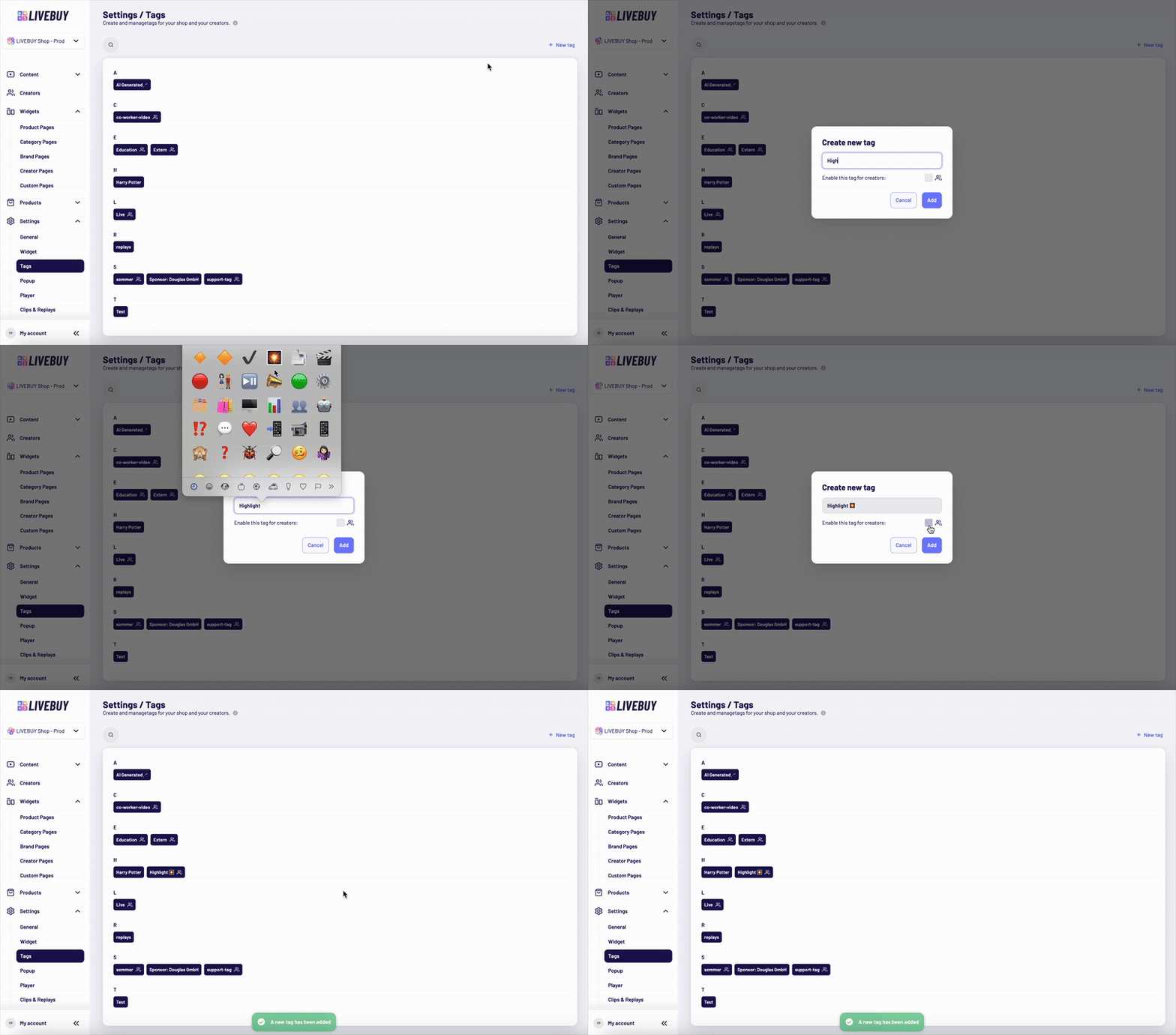
To create a new tag:
-
Click “+ New Tag”
-
Enter the tag name
-
Emojis are supported in tag names
-
-
Choose whether the tag should be visible for creators:
-
Disabled by default
-
Enable it if creators should be able to use this tag for their content
-
-
Save the tag
Edit or Rename a Tag
-
Click on an existing tag to open its settings
-
You can:
-
Rename the tag
-
Change the creator visibility
-
Delete the tag
-
Renaming a Tag
-
When a tag is renamed, the change is applied automatically:
-
All content using the tag will be updated
-
All widgets using the tag will be updated as well
-
Delete a Tag
-
If the tag has never been used, it can be deleted directly from the tag edit view
-
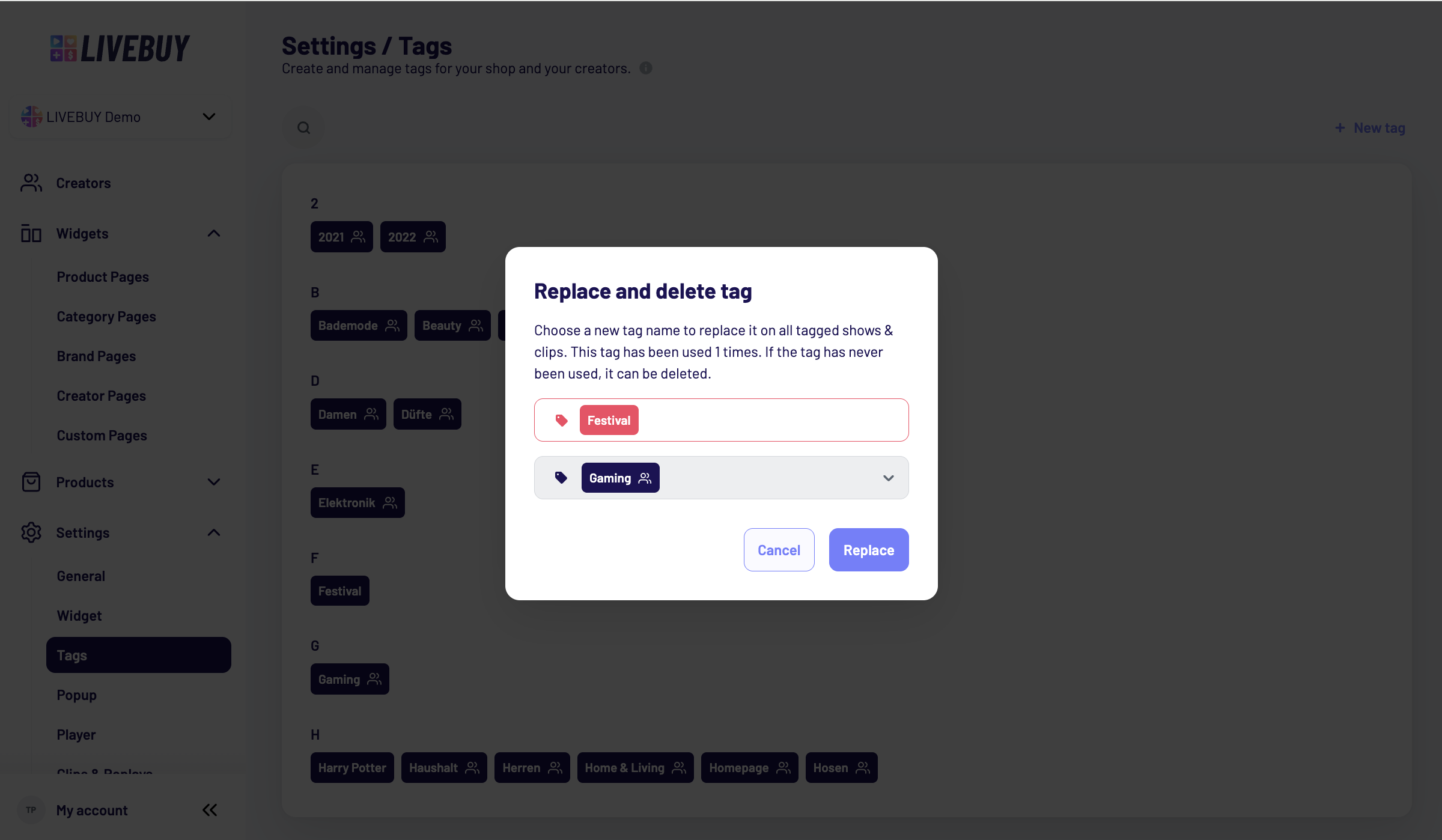
If the tag has been used in a widget, clip or show you can replace & delete the tag. Choose a new tag name to replace it on all tagged shows & clips
Tags help keep your content structured and scalable, especially when working with multiple creators or large content libraries. If you need help managing tags or using them in widgets, please contact support@livebuy.io