
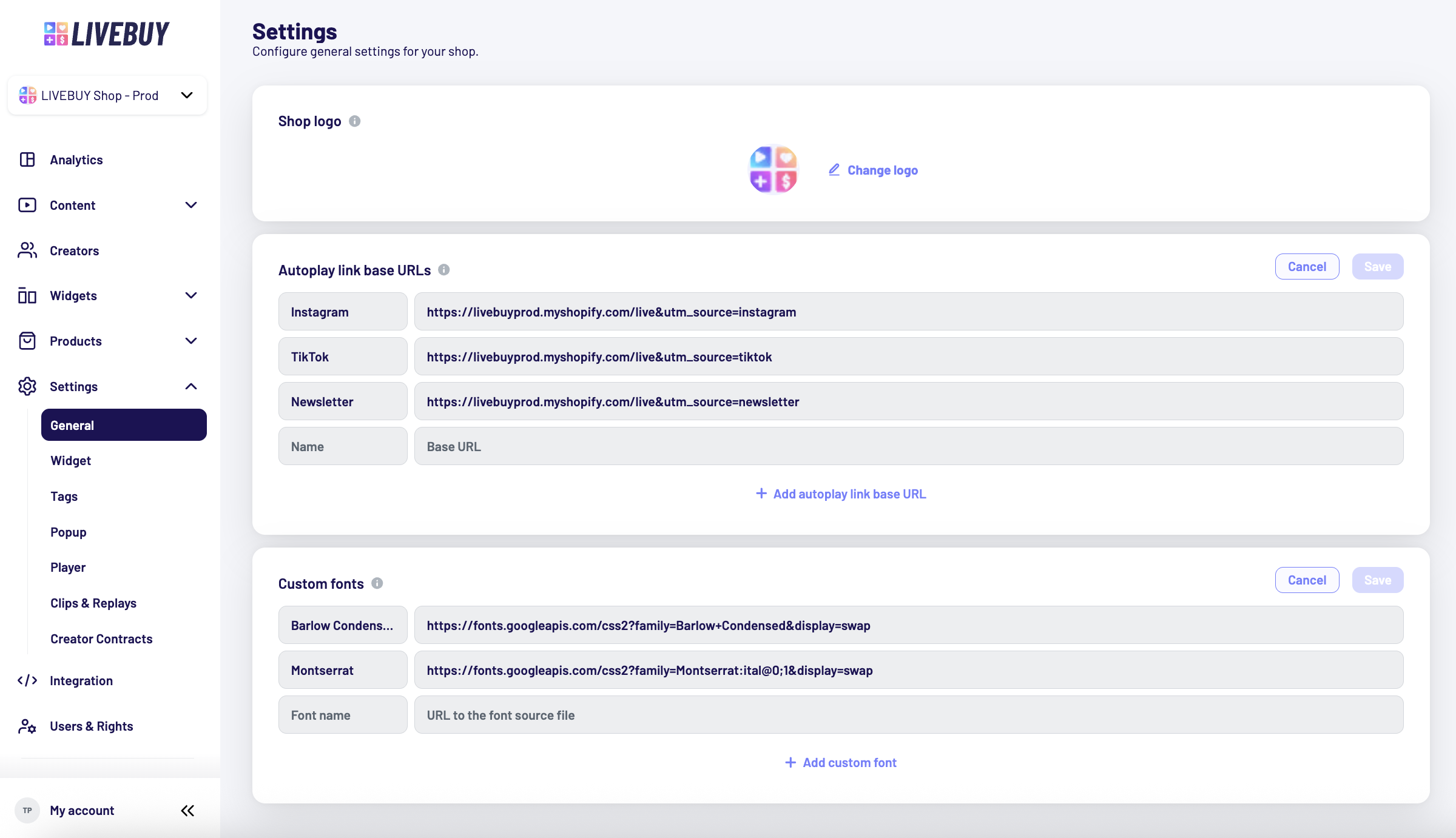
The General Settings section allows you to customize key elements of your shop’s appearance and promotion setup. Here you can manage your shop logo, configure autoplay link base URLs, and add custom fonts.
Upload or Change Your Shop Logo
In the General Settings, you can upload and update your shop logo.
-
The logo is displayed:
-
Next to moderator messages in the chat
-
In the Livebuy Creator App
-
In the Dashboard Shop Selector
-
-
Supported file formats: JPG, PNG, GIF
-
Maximum file size: 500 KB
To update your logo, simply upload a new file and save your changes.

Manage Autoplay Link Base URLs
Autoplay link base URLs are used to generate autoplay links for your content. These links can be found for each content piece in the Promotion tab.
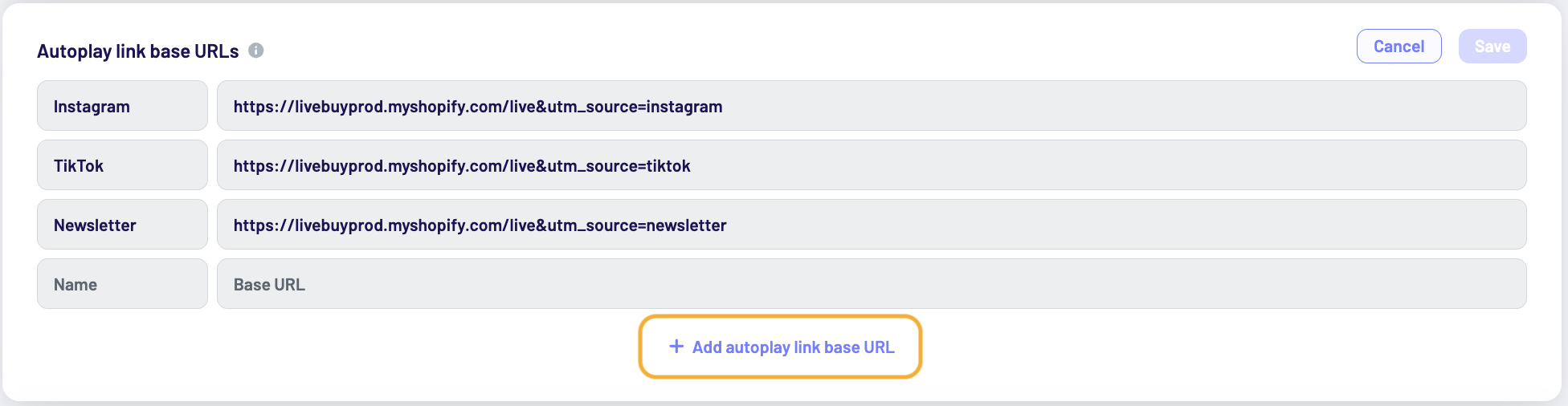
Adding an Autoplay Link Base URL
-
Click “+ Add autoplaylink base URL”
-
Enter:
-
A name (to help you identify the use case)
-
The autoplay link base URL, including any UTM parameters
-
-
Click “Save” to confirm
Editing or Removing an Autoplay Link Base URL
-
You can edit an existing autoplay link base URL by clicking on:
-
the name, or
-
the autoplay link URL
-
-
To remove an autoplay link base URL:
-
Hover over the added URL
-
Click the red “Remove” button that appears
-
How Autoplay Links Work
-
The autoplay link determines which page opens in the background when the link is visited.
-
The shoppable video player opens automatically on top of that page.
Important: For autoplay to work, the LIVEBUY SDK must be implemented on the target page.
Multiple Use Cases
You can create multiple autoplay link base URLs for different channels, for example:
-
One base URL with UTM parameters for Instagram
-
Another base URL with different UTM parameters for an email newsletter
The name of each entry helps you easily differentiate between these autoplay links.
Autoplay Parameter Placement
-
Each content piece has an autoplay parameter that is automatically appended to the end of the base URL.
-
If you want to control where this parameter appears in the URL, you can use the placeholder:{{autoplayParameter}}
Example:
https://shop.com/{{autoplayParameter}}&utm_source=email
This allows you to position the autoplay parameter exactly where you need it within the link.
Autoplay Link Base URL: For Creator App
The For Creator App autoplay link base url is the default base url, which is used to generate autoplay links inside the Creator App. It is automatically added to your Autoplay Links overview. This entry is permanent and cannot be removed, though the Base URL Link field can be left empty if you prefer, in which case your Creator App will not feature an autoplay link for your creators to share their content.

Key details about this link:
-
Name: Fixed as “For Creator App” and cannot be changed.
-
Base URL: You can add your own base URL and include UTM parameters if needed.
-
Automatic use: When a creator from your shop shares a content piece through the Creator App, the link generated with this base url is used.
-
Dashboard visibility: Unlike other autoplay link base urls, the “For Creator App” entry does not generate an autoplay link in the in the Promotion Tab of individual content pieces in the dashboard.
This ensures creators always have a consistent, ready-to-use link when sharing content, without manual setup.
Add Custom Fonts
You can also add your own custom fonts to personalize your shop’s appearance.
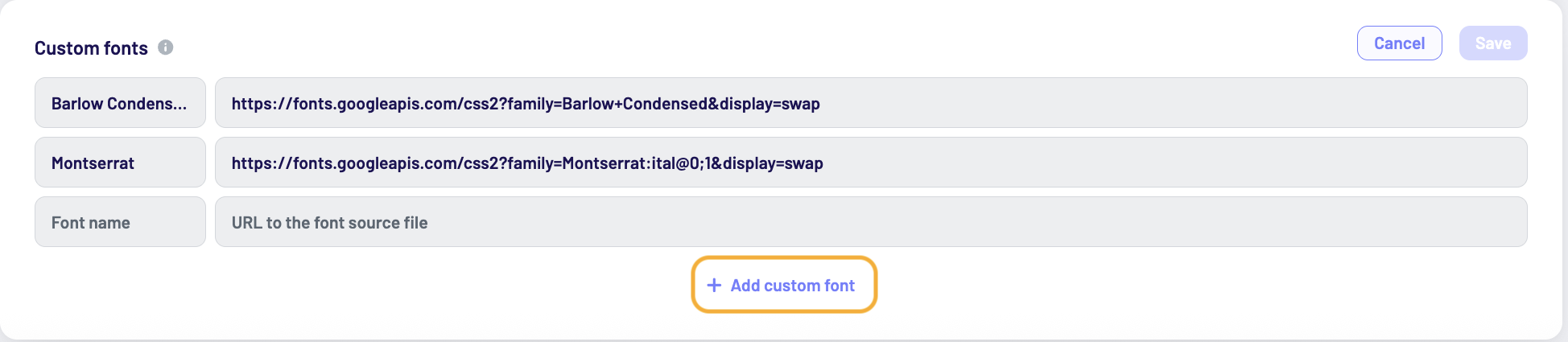
Adding a Custom Font
-
Click “+ Add custom font”
-
Enter:
-
The font name
-
The URL to the font source file
-
-
Click “Save”
Editing or Removing Custom Fonts
-
You can edit a custom font by clicking on:
-
The font name, or
-
The font URL
-
-
To remove a custom font:
-
Hover over the added font
-
Click the red “Remove” button that appears
-
Important Notes on Fonts
-
The font files must be accessible to external services
-
Make sure the font URLs are not blocked by CORS
-
Only fonts that can be loaded externally will work correctly
If anything is unclear, don’t hesitate to reach out to support@livebuy.io