In the Integration tab, you’ll find two embed code options for custom widgets and dynamic widgets and additional the inject option for Dynamic Widgets only.
Embed Code Options
Embed code with reserved space
-
The widget reserves space before loading based on the
heightvalue in the<div>style -
Recommended for static widgets that always contain content
-
To avoid layout shifts, ensure the height matches your widget’s style configuration
Embed code without reserved space
-
Removes the inline
heightstyle -
The widget does not reserve space before loading
You may also adjust additional styles (e.g. margin or padding) directly in the <div> style attribute.
Inject Widget (Dynamic only)
The Integration tab differs from Custom Pages Widgets and offers the additional Inject option.
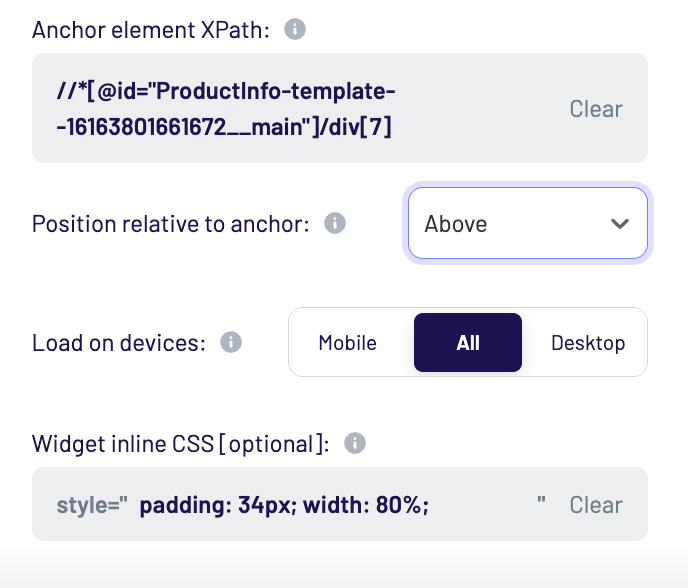
Automatically injects the widget into your product page using the LIVEBUY SDK and an already existing HTML element as an anchor—no manual code changes required.
Anchor Element XPath
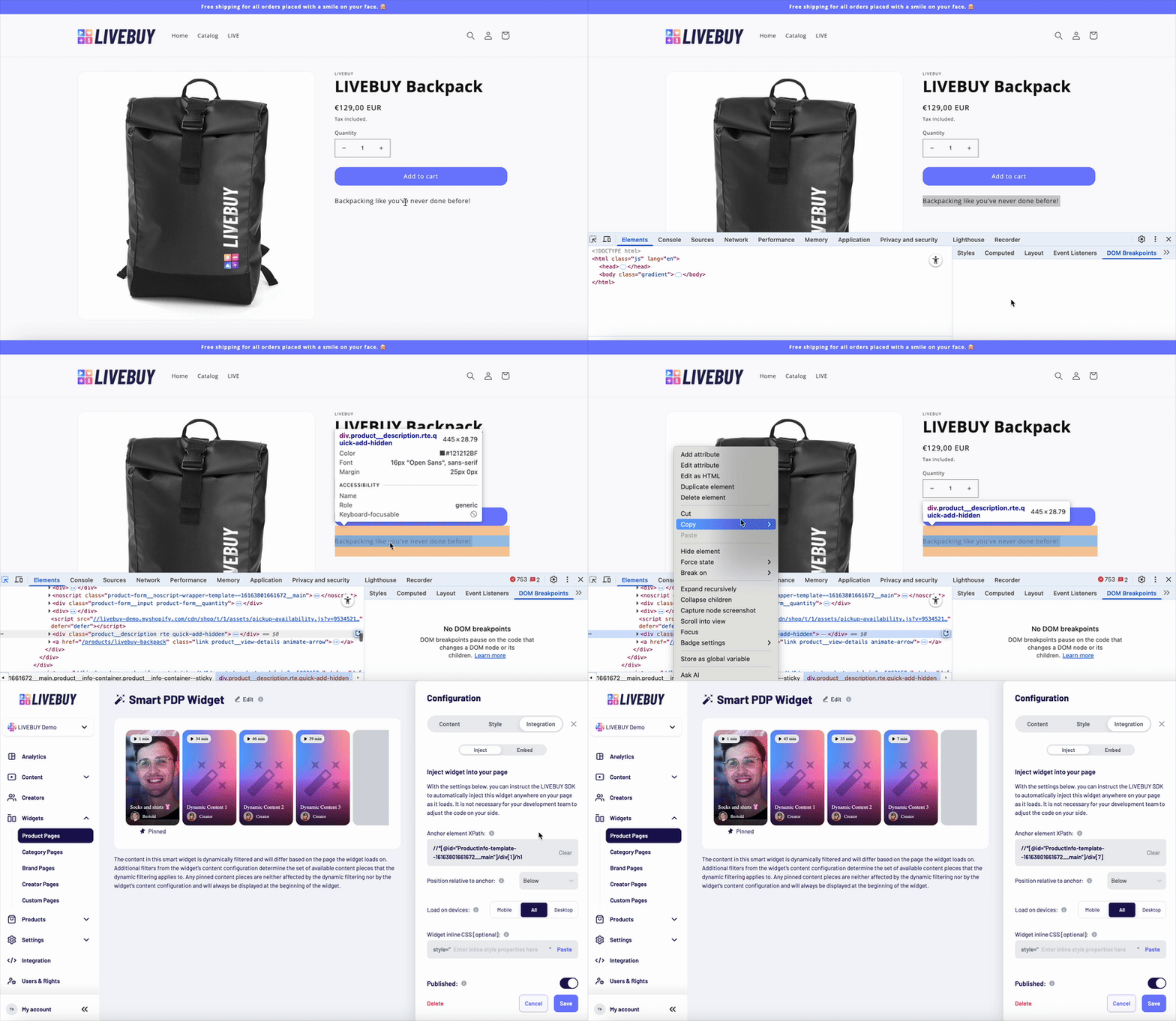
An existing HTML element in your page is identified using its XPath to be used as an anchor that tells the LIVEBUY SDK where to inject the widget. To find an existing HTML element’s XPath you can use your browser’s development tools as follows:
-
Right-click an element on your page and select Inspect
-
Highlight the correct element in DevTools
-
Right-click → Copy → Copy XPath
-
Paste the XPath into the Dashboard
If you need help identifying the XPath, contact your Key Account Manager.
Position Relative to Anchor
Choose where the widget should appear in relation to the anchor element:
-
Above
-
Below
-
Left
-
Right
-
Inside
Load on Devices
Control device visibility:
-
Mobile only
-
Desktop only
-
All devices
Example use case:
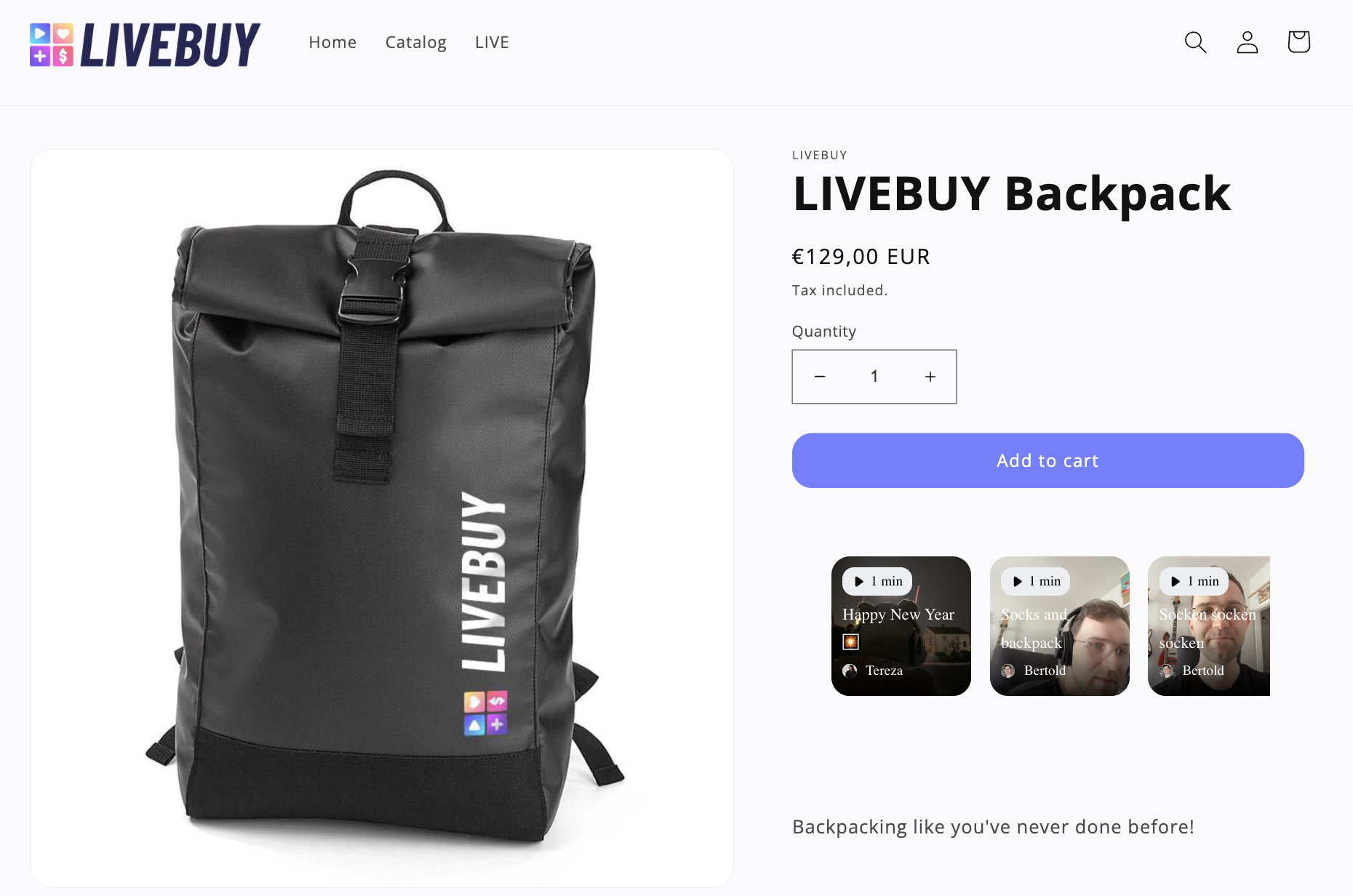
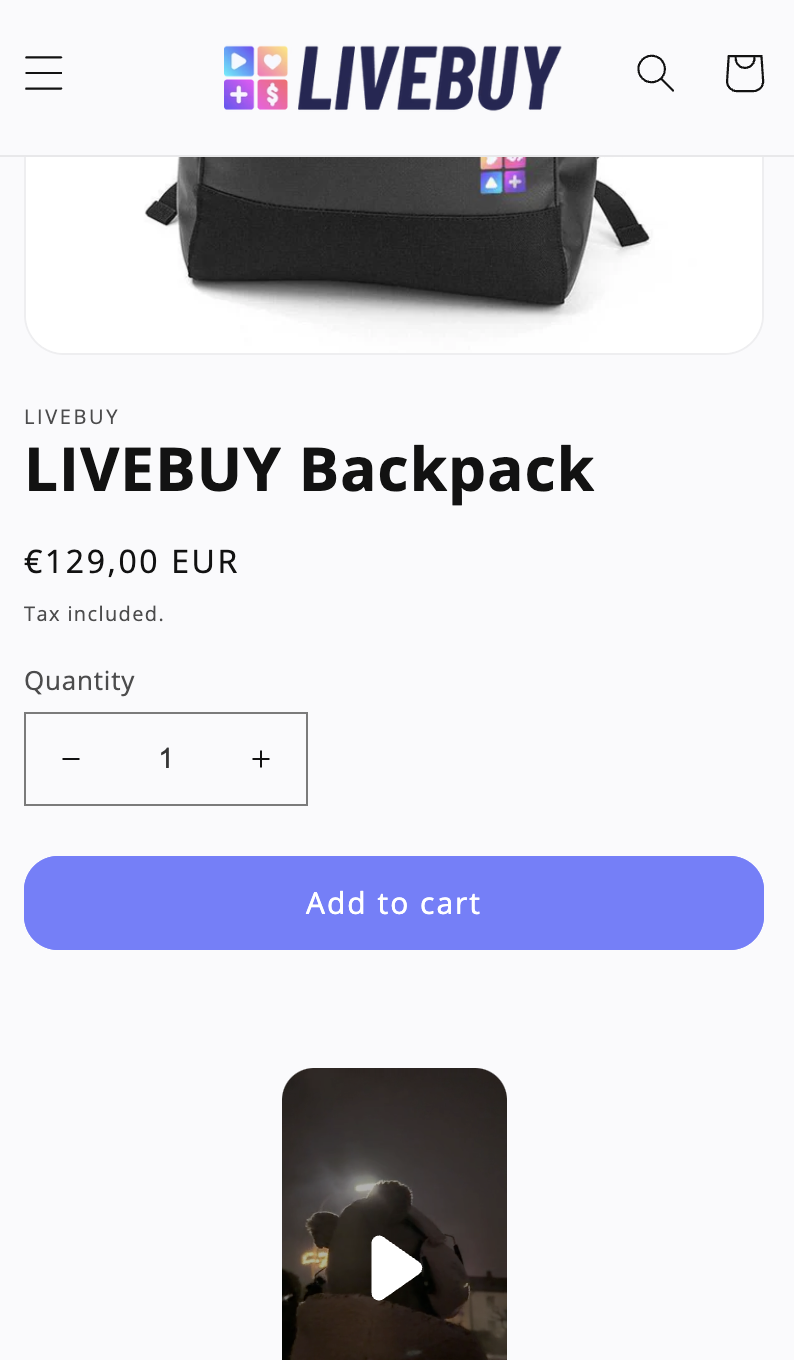
Carousel widget on desktop, inline widget on mobile—both injected at the same anchor.
Desktop
Carousel Widget
Mobile
Inline Player Widget
Widget Inline CSS (Optional)
Apply custom inline styles directly to the widget container.
Example:
padding: 34px;
margin-top: 16px;
width: 80%;
Do not include style="..."—only the CSS properties.