
Pinned content appears always before all filtered content and is not affected by filters or sorting.
Content can also be pinned in Dynamic (Smart) Widgets. The key difference is that Dynamic Widgets adapt their content based on the page on which they are used. This ensures that only content containing relevant products or products with matching selected attributes is displayed.
When content is pinned in a Dynamic Widget, the pinned content piece(s) will always appear first on every page where the widget is embedded, regardless of the page context.
This enables several powerful use cases. One example is paid content, where a brand pays for specific content to be pinned in a Dynamic Widget. This guarantees high visibility and automatically generates more views compared to a widget that is manually implemented on a single page or a limited number of pages. Another use case is the promotion of a specific product or campaign, such as a dedicated advent calendar, that should receive increased attention across multiple pages.
Important: This may result in a piece of content appearing on a page unrelated to it. For example, a video featuring a product from Brand A could end up displayed on Brand B’s product page. On one hand, this can create a strong “omnipresence” for the pinned videos. On the other, it may confuse or frustrate viewers if content is pushed onto them that doesn’t match the page they’re visiting. Be mindful of these potential pitfalls and use this feature deliberately.
-
You can pin up to 20 content pieces per widget
-
Pinned content is configured at the top of the Content tab
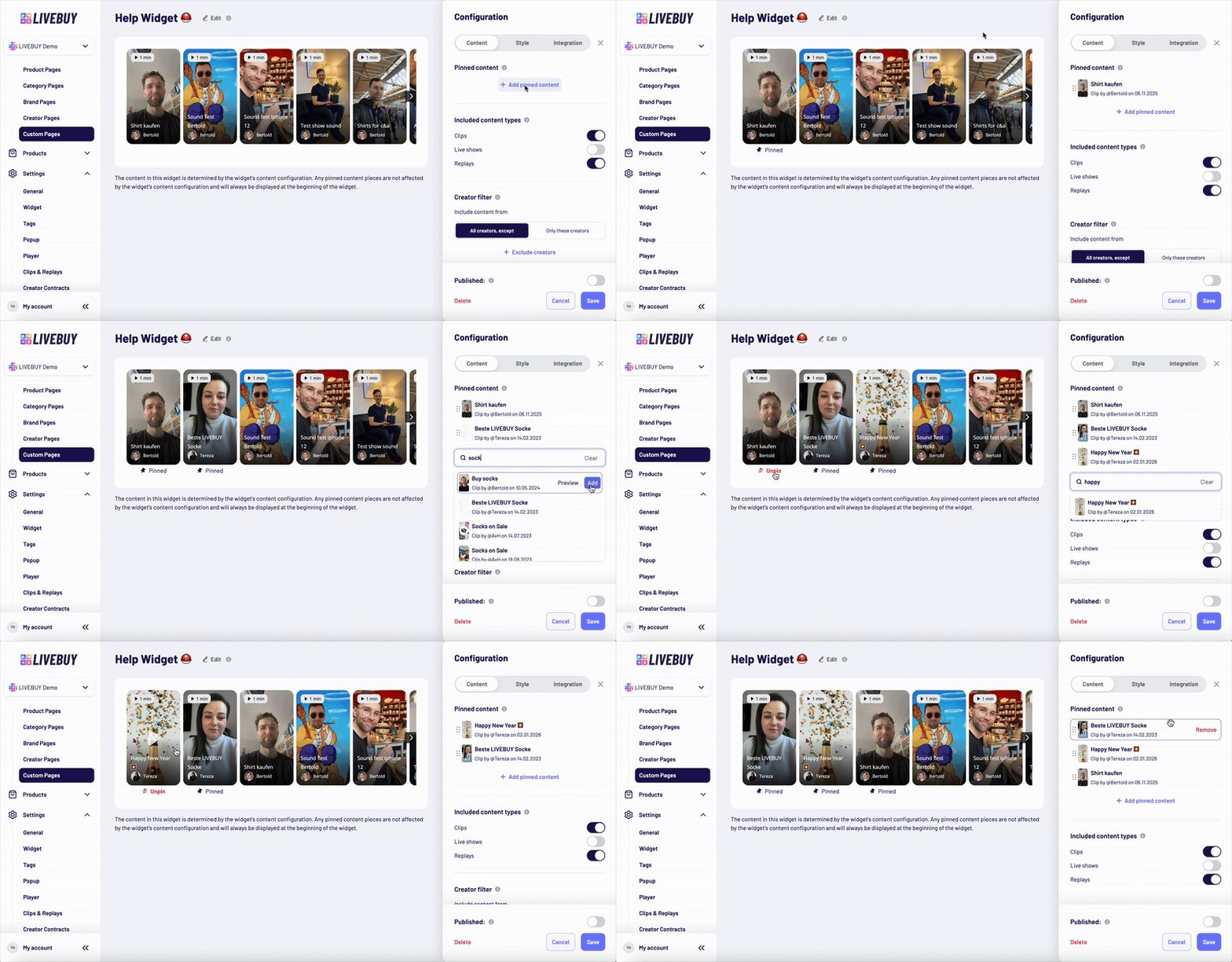
To add pinned content:
-
Click Add pinned content
-
Select content from the dropdown (search or scroll)
-
In custom widgets, you can only select content that has already been added to the widget.
-
In dynamic widgets, you can select from all of your published content using the search bar.
-
-
Hover over content to preview or pin it
Pinned content management:
-
Drag & drop to reorder pinned items
-
Hover to remove (unpin) content
-
The pinned content list is always visible
Bonus: Pinning via Preview
You can also manage pinned content directly in the widget preview:
-
Pin or unpin content using the pin icon
-
Drag & drop to reorder
-
Click the play button to preview content in the player
All changes sync automatically with the pinned content list.
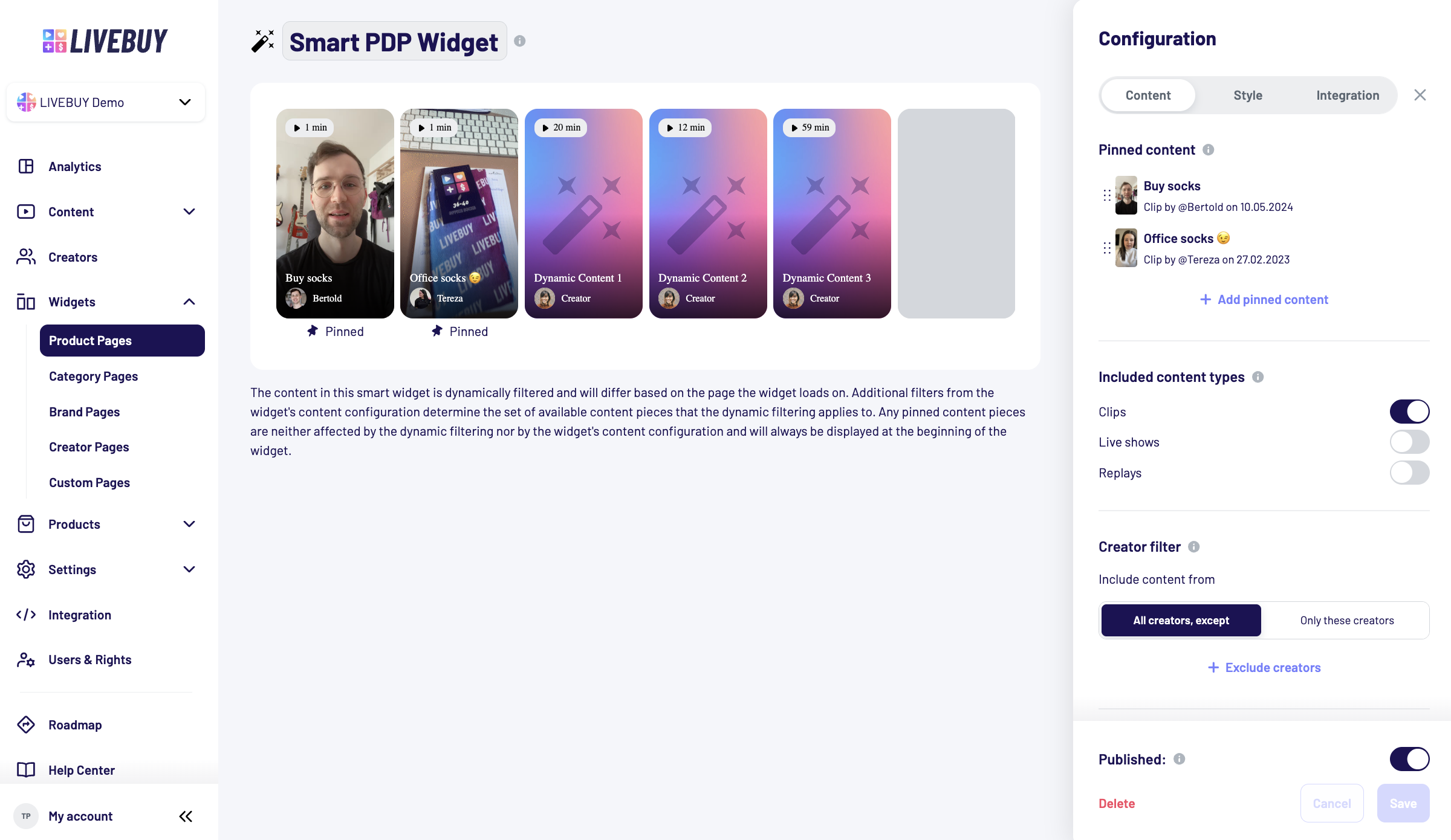
Please note that in the Dynamic Widgets preview, only pinned content is displayed with its cover image, while all other content appears as placeholders.
If you have any further questions, please contact our Support team.