
The Dynamic Widgets for:
-
Product Pages
-
Category Pages
-
Brand Pages
-
Creator Pages
are dynamically filtered. This means that instead of you having to manually curate content for each individual page, these “Smart Widgets” adapt automatically and dynamically display fitting LIVEBUY content based on the context of the page being viewed.
This ensures that shoppers always see the most relevant clips, live shows, or replays without additional manual content management effort for you.
How Smart Widgets Work
Smart Widgets dynamically match content to the currently visited page. To do this, LIVEBUY must be able to identify pages and extract the product ID, category name, brand name or creator name.
There are two supported ways to do this:
1. Automatic URL Parsing (Default)
LIVEBUY automatically extracts the product ID, category name, brand name or creator name from the page URL, if present and correctly configured.
2. Explicit Product ID, Category, Brand or Creator Name Handover
Alternatively, the product ID, category name, brand name or creator name can be passed directly within the <div> element of an embedded widget.
This option only applies to embedded widgets, not to injected widgets.
For technical details on passing product IDs, category names, brand names or creator names manually, please refer to the LIVEBUY Tech Documentation.
Create a New Smart Widget
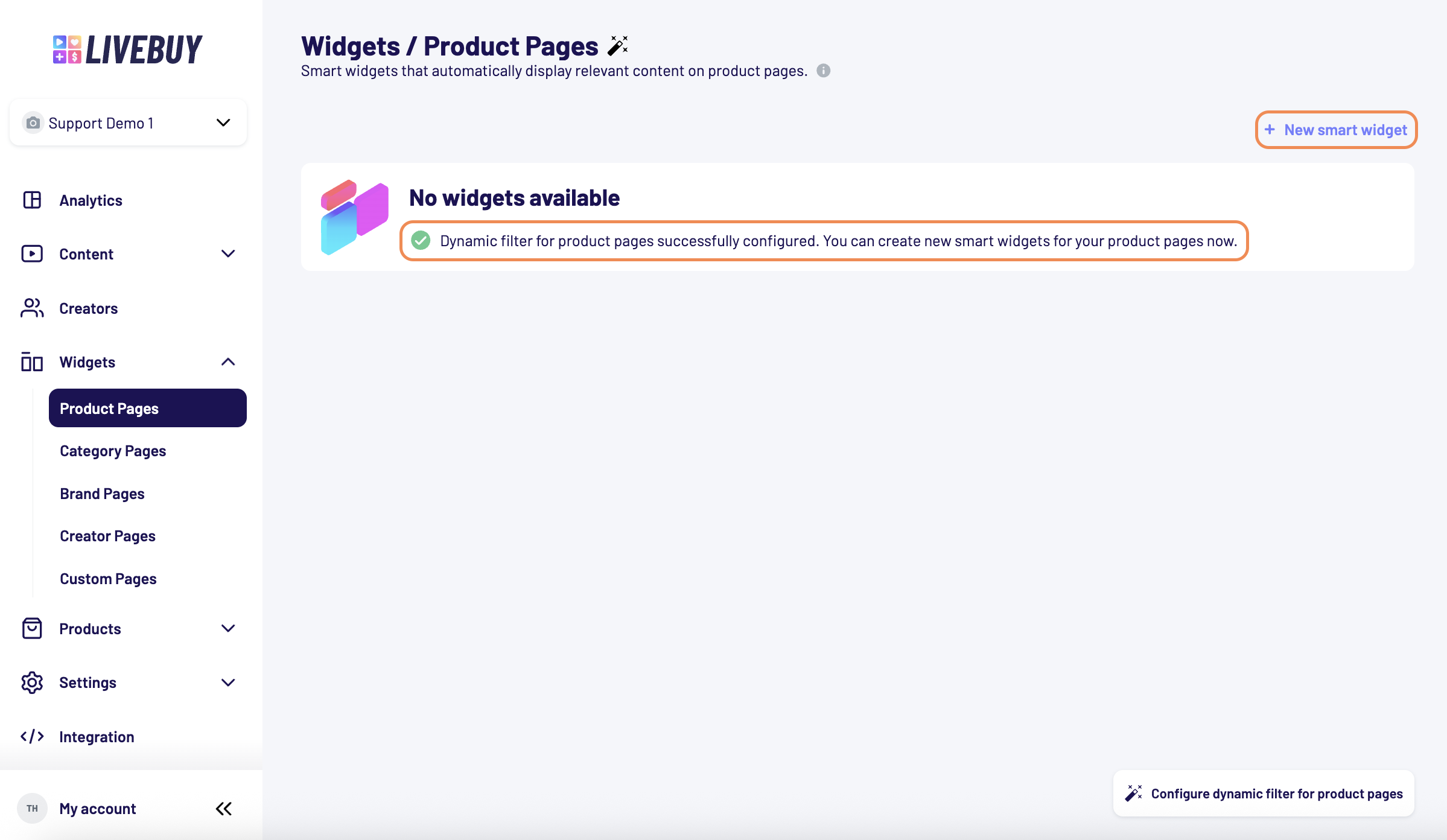
To create a new Dynamic Widget for Product, Category, Brand, or Creator pages, there is a sub-navigation item for each page type. If the dynamic filter has not been configured for the respective page type yet, you’ll need to set it up first. Once configured, the same dynamic filter will automatically be reused for all future widgets of that page type—no additional setup is required. Learn more in the Dynamic Filter article.
After the dynamic filter is configured:
-
Click + New Smart Widget
-
A new widget opens with a configuration panel
Widget Configuration
-
Name and publishing work similarly to Custom Pages Widgets
→ See the Custom Pages article for details -
Adding Content to your widgets works for all widgets the same.
-
→ See the Widget Content Tab article
-
Style configuration follows the standard widget settings
→ See the Widget Style Tab article
Preview Behavior
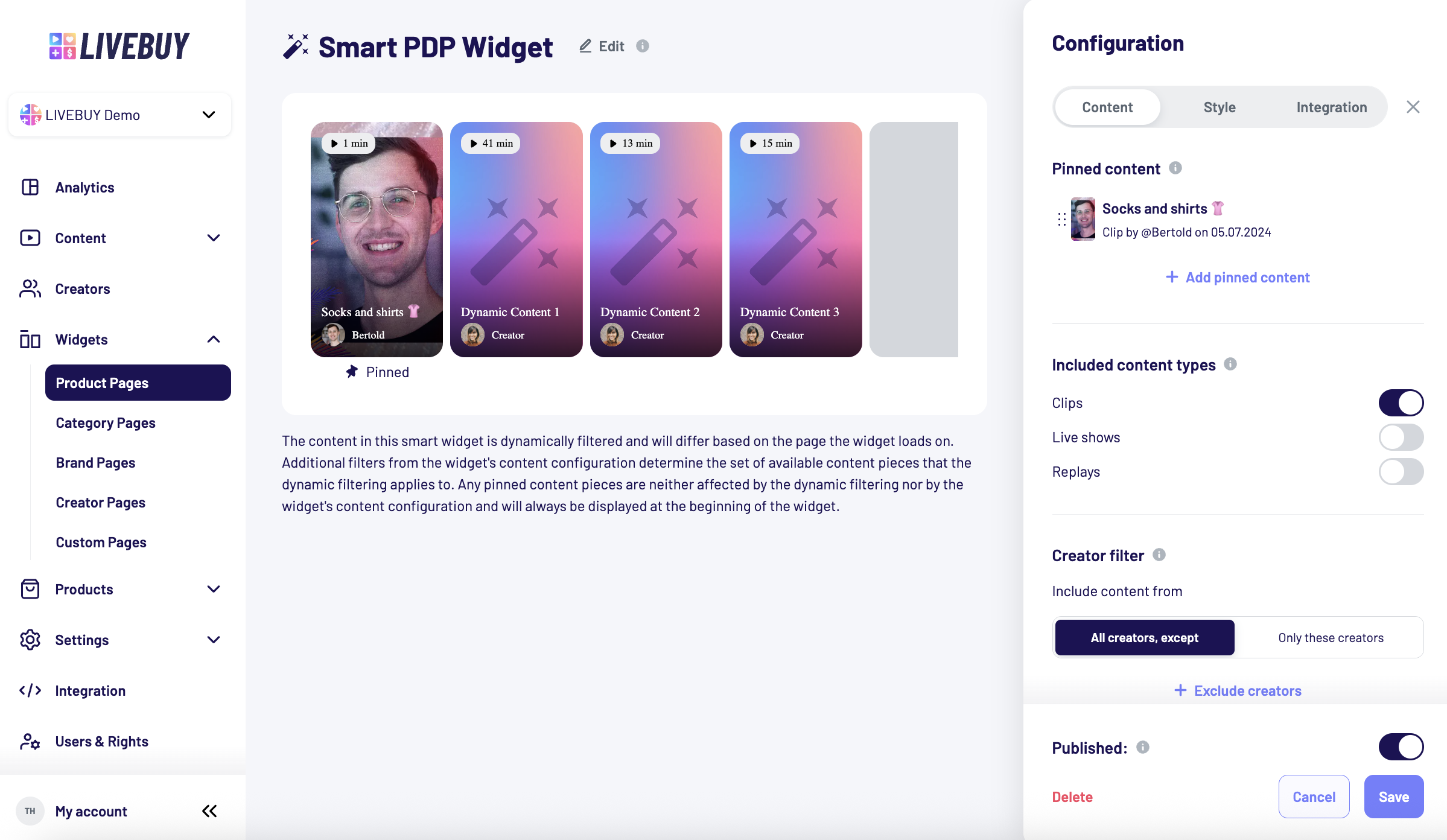
Because Smart Widgets are dynamically filtered:
-
The preview shows after saving the widget placeholders only
-
Real content depends on the page where the widget is displayed
-
The dynamic filter is fixed and cannot be removed
Pinned Content
Even though content is dynamic, you can still pin content. Learn more about how to pin your content to the widget in the Pinned Content article.
-
Pinned content is always shown first
-
It appears on every product page where the widget is loaded
This is useful for:
-
Promotions
-
Sponsored or paid brand content
-
Highlighting key campaigns
Integration Options
The Integration tab differs from Custom Pages Widgets and offers two options:
-
Embed Widget
-
Inject Widget
To learn more about the integration options please read the Widget Integration Tab article.
Publish & Preview Your Widget
You can publish or unpublish the widget using the toggle visible in every tab.
If the widget is integrated via injection and unpublished, you can still preview it by adding:
?lbp=1
Example:
https://your-shop.com/products/backpack?variant=433639&lbp=1
This allows internal review before going live.
Need Help?
If you need assistance with:
-
Dynamic widgets in general
-
Overall widget strategy
Please contact your Key Account Manager or the LIVEBUY Support Team. We’re happy to help.