
Dynamic filters are used in dynamic widgets to automatically display relevant content based on the page context using regex-based rules. Although the setup is more advanced, dynamic filters provide powerful automation by keeping your widgets up to date without the need for manual adjustments.
Configure the Dynamic Filter
Before creating a Dynamic Widget for Product, Category, Brand or Creator Pages, the dynamic filter for the respective page type must be configured.
-
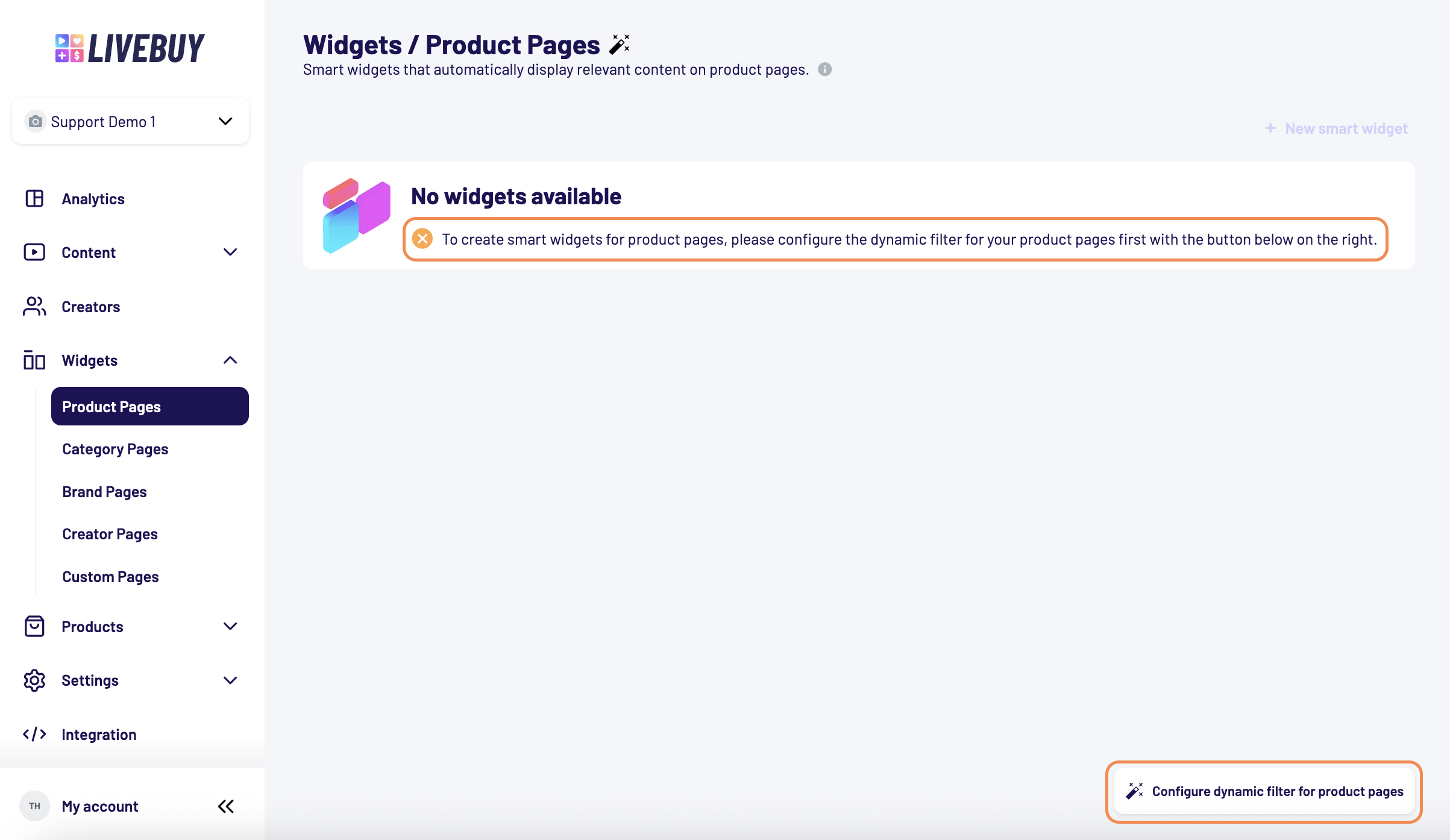
In the navigation panel, open “Widgets” and select the page type you want to create a widget for.
-
If the dynamic filter is not yet configured, you’ll see a notification marked with an orange x.
-
Click the button in the bottom-right corner to start the configuration.
⚠️ Warning: Danger Zone
Before proceeding, you’ll see a warning:
The settings below determine on which pages dynamically filtered content will be displayed. Incorrect settings could result in content appearing on unintended pages. Proceed carefully and only make changes if you are confident about their impact.
Confirm that you understand the warning before continuing.
If you’re unsure, please contact your Key Account Manager for assistance.
Step 1 for Product Pages: Select the Product ID Type
Choose the Product ID type based on your shop’s data structure:
Supported ID Types
-
Parent ID
Also known as Product ID, Group ID, or Master ID.
One ID groups all variants of a product. -
Variant ID
Also known as SKU or SKU ID.
Each variant has its own unique ID.
Example:
A product with 4 colors and 3 sizes has:
-
1 Parent ID
-
12 Variant IDs
For single-variant products, Parent ID and Variant ID may be identical.
Step 2 for Product Pages: Define the Regex Pattern
This is the most technical part of the setup.
You must provide a regular expression (regex) that:
-
Matches only product page URLs
-
Extracts only the product ID
-
Ignores URL parameters (e.g. UTM tracking)
LIVEBUY provides a test field so you can verify that your regex works correctly.
Example (yourshop – Assumed Shop Logic)
Product URL:
https://yourshop.de/p/kapten-son/backpack-bergen-pro-15818815
Assumptions:
-
/p/indicates a product page -
The number after the last
-is the Product / Variant ID
Expected extracted ID:
15818815
Regex Pattern:
^https?:\/\/[^\/]+\.de\/p\/.+-(\d+)(?:\D.*)?$
This regex:
-
Ensures the URL starts with
http://orhttps:// -
Extracts digits after the last hyphen
-
Ensures the URL includes
.de/p/ -
Ignores everything after the number (e.g. query parameters)
You can use AI tools (e.g. ChatGPT, Gemini) to help generate regex patterns, but it’s essential to understand your shop’s URL logic.
Example for the prompt in this example:
Create a regex pattern that extracts the string that comes after the last - and ignore everything after this given number sequence, the URL includes a .de/p/ .
Example:
https://yourshop.de/p/kapten-son/backpack-bergen-pro-15818815&utm_source=instagramThe expected value to extract would be "15818815". Important: It has to be a url and start with http:// or https:// can you include that in the regex?
Step 3 for Product Pages: Test URLs
Use the Test URL field to verify your regex pattern.
-
Enter different product page URLs (with and without parameters)
-
Successful matches will be shown immediately
-
Test URLs are not stored and will be cleared when closing the panel
Once everything works as expected, save and close the configuration.
You can return and adjust the dynamic filter at any time if:
-
The regex isn’t working correctly
-
Your shop’s URL structure changes
Step 1 for Category, Brand or Creator Pages: Define the Regex Pattern
This is the most technical part of the setup. This example is based on category pages but can be applied on the same principal for brand and creator pages.
Example for Category Pages
You must provide a regular expression (regex) that:
-
Matches only category page URLs
-
Extracts only the category name
-
Ignores URL parameters (e.g. UTM tracking)
LIVEBUY provides a test field so you can verify that your regex works correctly.
Example (yourshop – Assumed Shop Logic)
Category URL:
https://yourshop.de/c/women/shoes/low-shoes-101380
Assumptions:
-
/c/indicates a category page -
The text between the last
-and the previous/is the category name
Expected extracted ID:
low-shoes
Regex Pattern:
^https?:\/\/[^\/]+\.de\/c\/.*\/([^\/]+)-\d+(?:&.*)?$
This regex:
-
Ensures the URL starts with
http://orhttps:// -
Requires a
.de/c/path -
The value you want (can include
-) -
Ensures it’s followed by a dash and numbers
-
Ignores everything after
&(e.g. tracking parameters)
You can use AI tools (e.g. ChatGPT, Gemini) to help generate regex patterns, but it’s essential to understand your shop’s URL logic.
Example for the prompt in this example:
Create a regex pattern that extracts the string comes between the last - and the previous /
ignore everything what comes after a &
the extracted value can include -'s
after .de /c/ has to be included
it has to be a url and start with http:// or https://
Example:
https://yourshop/c/women/shoes/low-shoes-101380&utm_source=google-adThe expected value to extract would be "low-shoes".
Step 2 for Category, Brand or Creator Pages: Test URLs
Use the Test URL field to verify your regex pattern.
-
Enter different URLs (with and without parameters)
-
Successful matches will be shown immediately
-
Test URLs are not stored and will be cleared when closing the panel
Once everything works as expected, save and close the configuration.
You can return and adjust the dynamic filter at any time if:
-
The regex isn’t working correctly
-
Your shop’s URL structure changes
Need Help?
If you need assistance with Regex setup or would rather work with category, brand or creator IDs instead of names please contact your Key Account Manager or the LIVEBUY Support Team.
We’re happy to help.