
The Content Clips section of the LIVEBUY Dashboard allows you to manage all clips in one place—whether they are published, unpublished, or still pending review. From here, you can edit clip details, manage products, review performance, and control publication.
Clips Overview
The clips overview displays all clips, regardless of their status. You can switch between a list view and a grid view at any time.
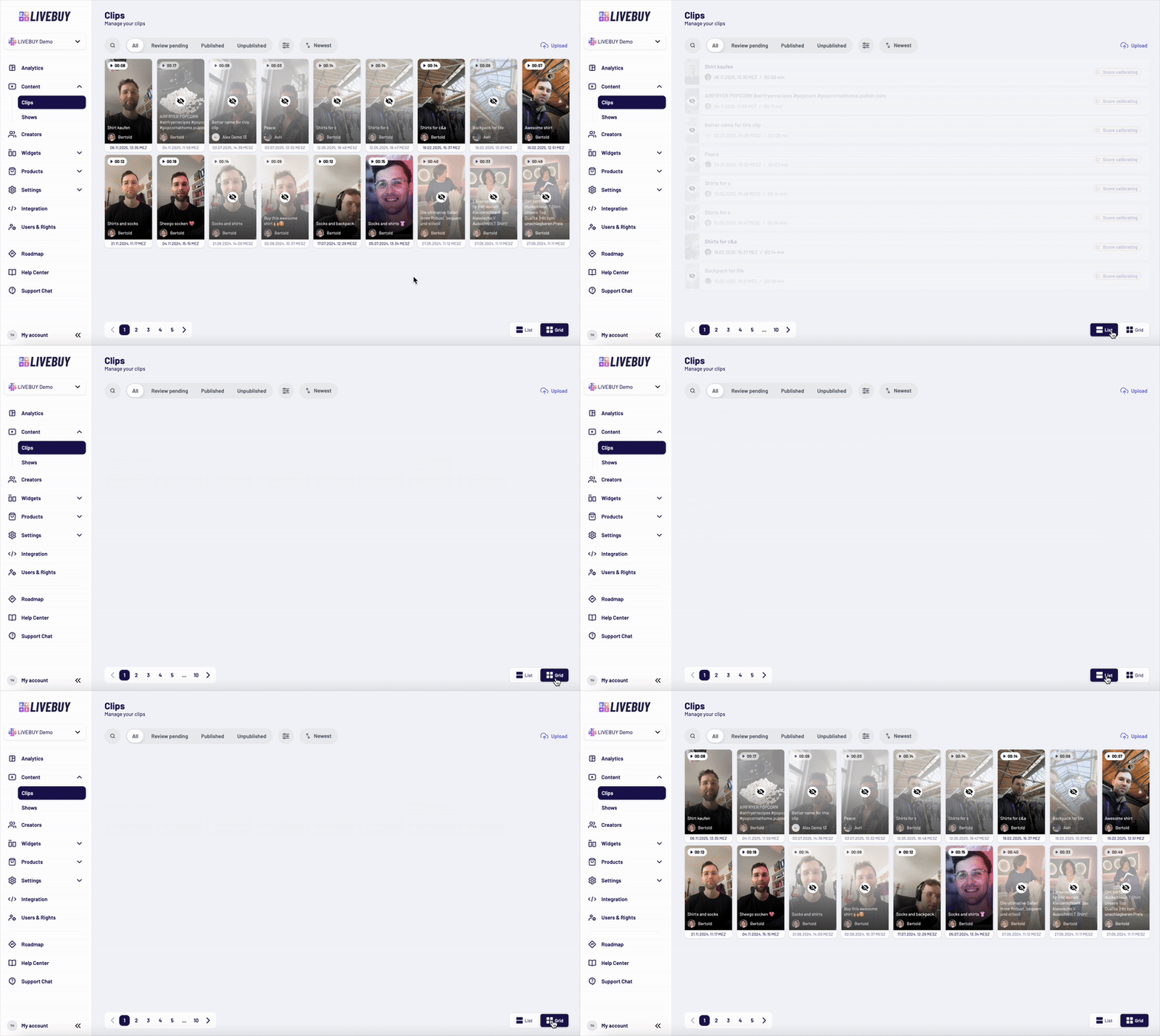
In the overview, you can:
-
Search for clips using the search bar
-
Navigate using the tabs:
-
All – Shows all clips
-
Review pending – Clips uploaded by creators that require review
-
Published – All published and approved clips
-
Unpublished – All unpublished or rejected clips
-
-
Filter clips by creator or tags
-
Sort clips by:
-
Newest / Oldest
-
Best / Worst performance (Content Score)
-
Longest / Shortest duration
-
Name (alphabetical)
Each clip entry shows:
-
Status (published, unpublished, or ready for review)
-
Clip title
-
Creator icon and creator name
-
Date and time
-
Content Score
The content score helps you understand each content piece’s performance through a single, quantified KPI based on factors such as:
-
views & view completion
-
add-to-carts, go-to-checkouts, likes
-
& other positive engagement signals
When sorting a widget by Performance, this score determines the order of the content pieces.
Content with fewer than 100 views will show a “Score calibrating” label until sufficient data is available.
Managing Individual Clips
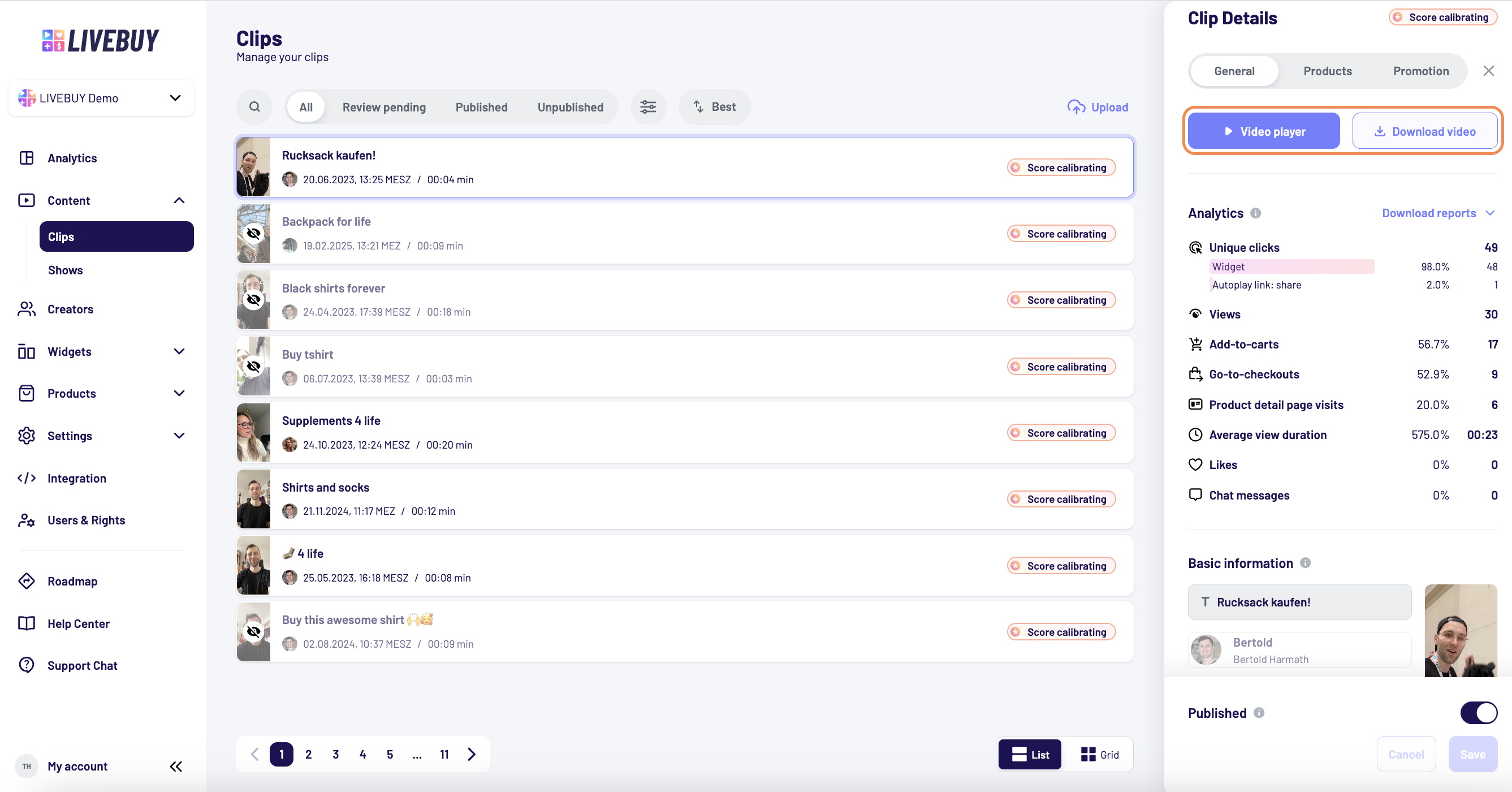
Clicking on any clip—regardless of its status—opens the clip panel on the right side.
From here, you can:
-
Edit clip data in the General and Products tabs
-
Open the Video Player to watch the clip
-
Download the clip to your device
For step-by-step details on configuration, please refer to the Upload a Clip article.
Editable & Fixed Data
Editable Fields (General Tab)
You can change the following information:
-
Title
-
Sponsors
-
Tags
-
Publication status (publish / unpublish)
Product Management (Products Tab)
You can add, remove, or adjust products, including:
-
Selecting different variants
-
Updating product thumbnails
Fixed Fields
The following fields are fixed and cannot be edited:
-
Creator
-
Date and time
If changes to fixed data are required, please contact LIVEBUY Support. Include the clip ID (found in the URL when the clip is opened) and a description of the requested changes.
Analytics & Performance Insights
Each clip includes a dedicated Analytics section in the clip panel. Please learn more in the Content Level Analytics article.
The Clips section gives you full control over your short-form video content—from review and publication to performance tracking and optimization.