
Products added to LIVEBUY content are displayed directly within the video player, allowing viewers to explore, select, and purchase items without interrupting their viewing experience. This article explains where products appear and how viewers can interact with them in Clips, Live Shows and their Replays.
Products in the Player
Product Placement in Clips
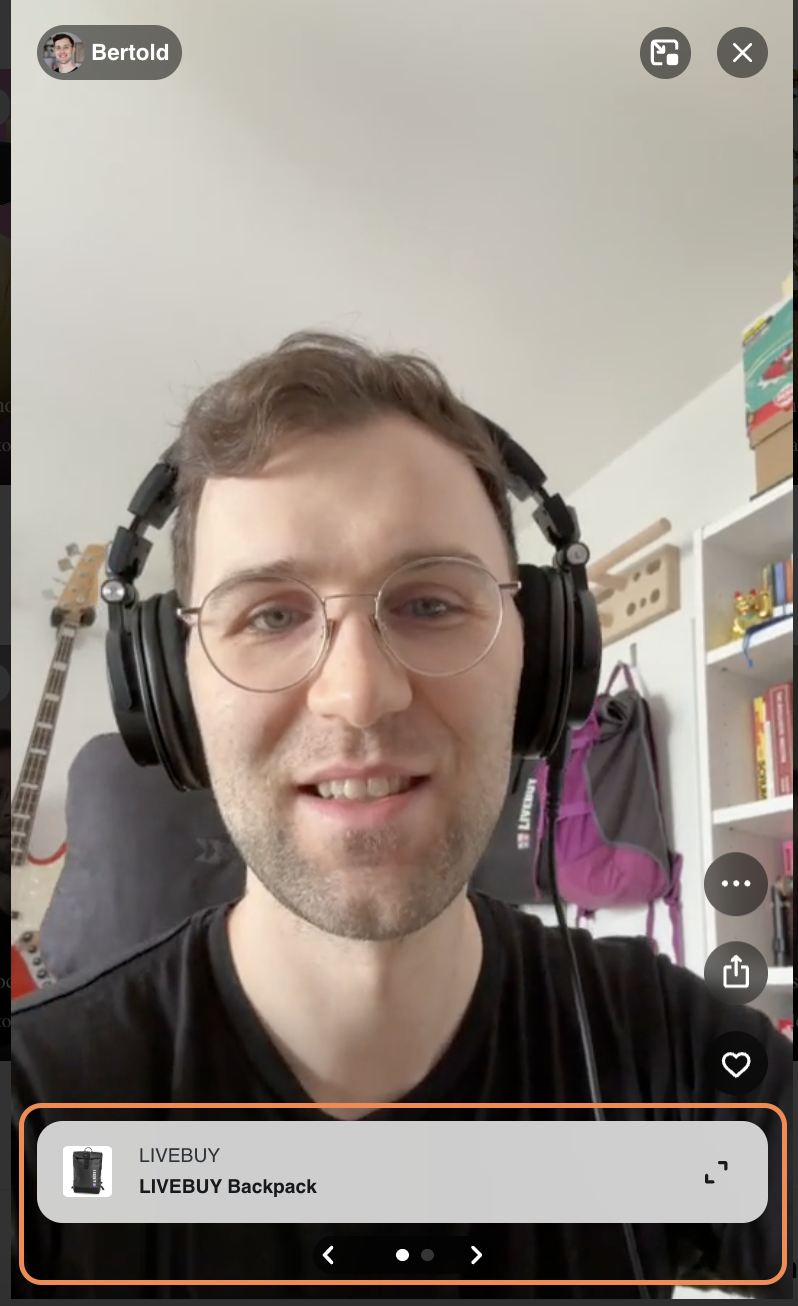
In Clips, products are displayed at the bottom of the player.
Minimized Product View
If one or more products are added, viewers will see the minimized product view, which includes:
-
Product image
-
Brand name
-
Product title
-
Expand icon button
When multiple products are available, viewers can swipe through all products (on desktop the arrows can be used) in the minimized view.
Clicking the expand icon or the minimized product in general the expanded product view opens.
Product Placement in Live Shows and Replays (with Chat)
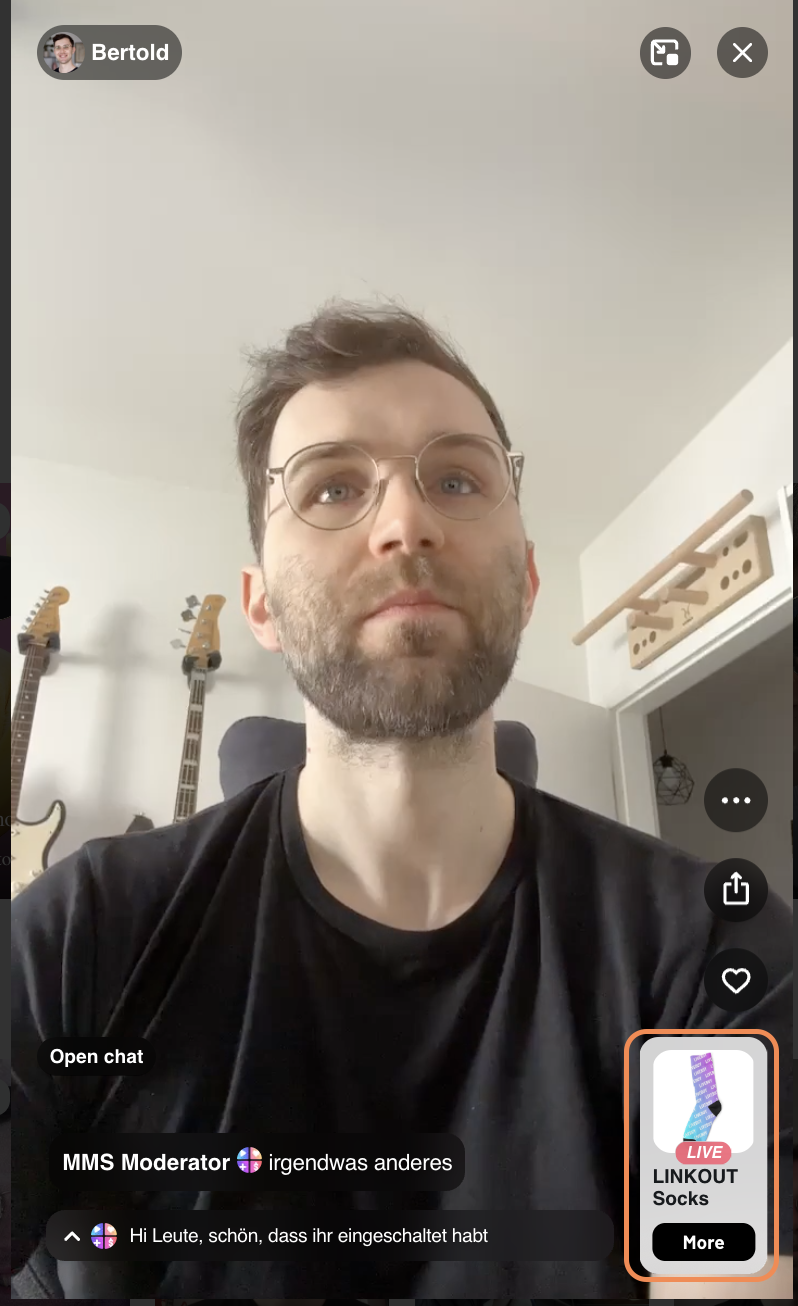
For Live Shows and Replays that include chat, products appear as a product stack in the bottom-right corner of the player.
Product Stack Overview
-
The stack shows:
-
The first added product to the show, or
-
The currently highlighted product (marked with the live-badge)
-
-
The top product displays:
-
Product image
-
Product title
-
More button
-
The stack can also be swiped but on desktop by the shortcuts “a” and “d” only. Clicking the stack opens the expanded product view.
Expanded Product View
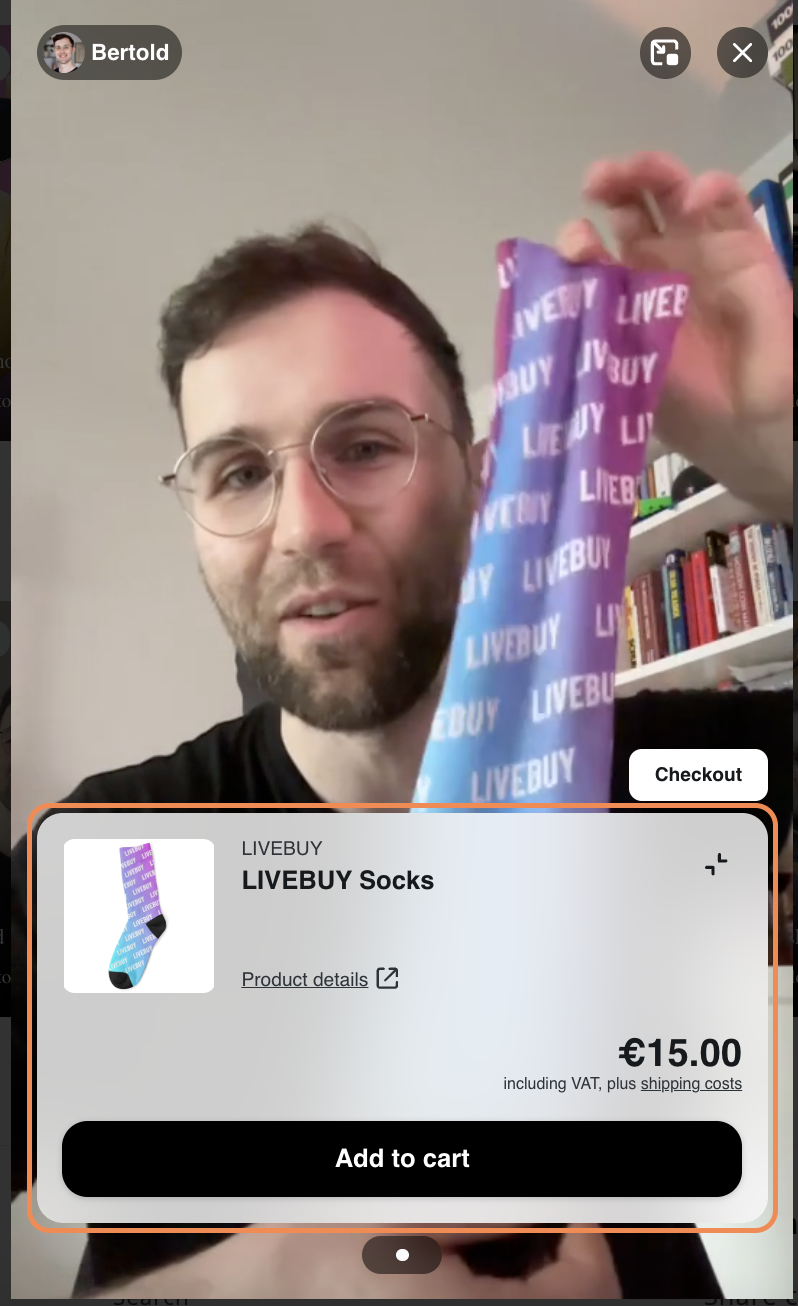
The expanded product view provides detailed product information and purchasing options.
Product, Pricing and Shop Information
The expanded view displays:
-
Brand & category name (if available)
-
Product title
-
Minimize icon button
-
Larger product image
-
Option to click the image for an even larger view
-
-
Price
-
Shipping & VAT information link
-
Unit price (if available)
-
Strike price (if available)
Product Details Link
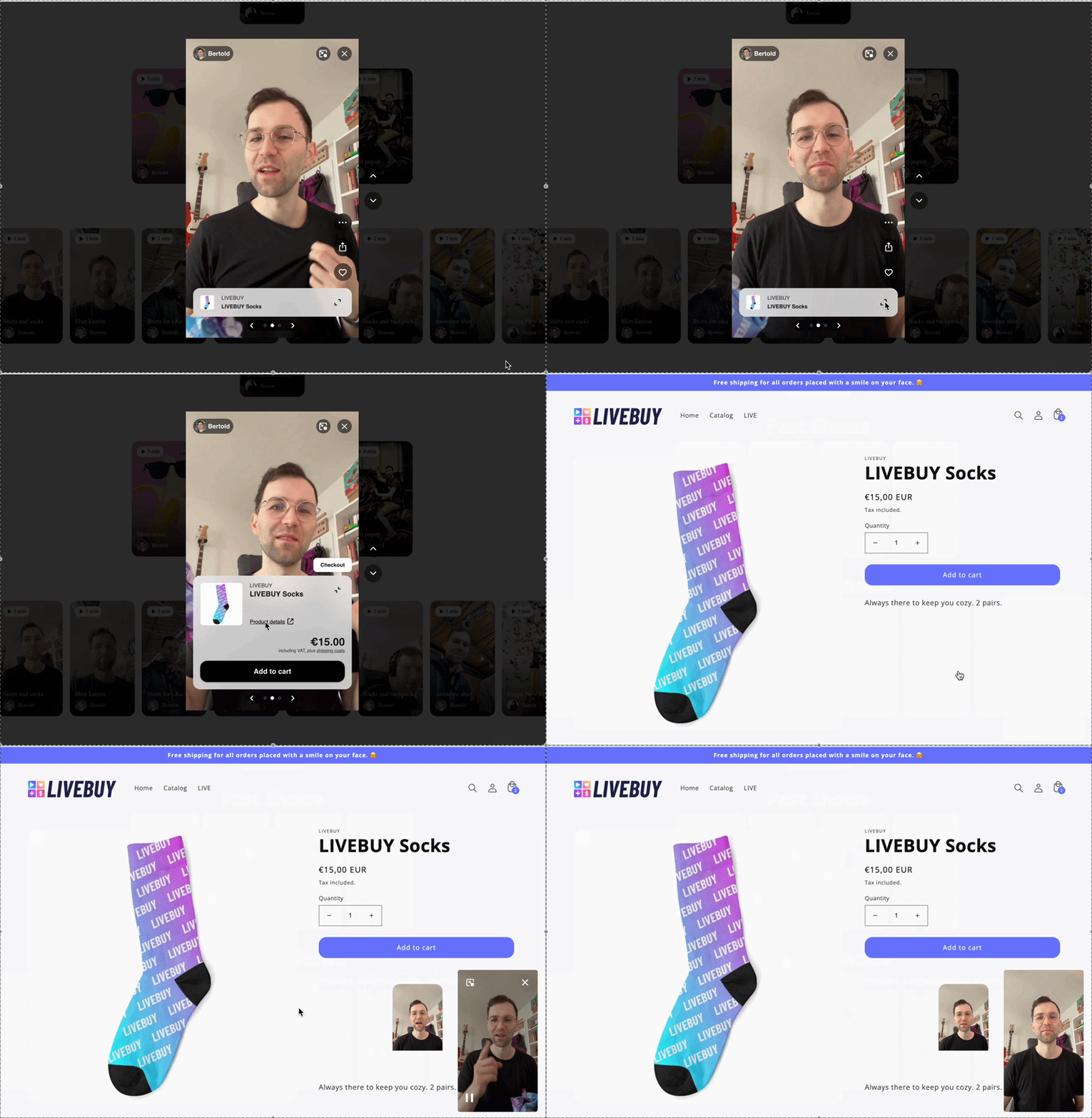
The product details link:
-
Directs the viewer to the product detail page (PDP)
-
Opens the LIVEBUY Miniplayer
-
Allows the viewer to continue watching while browsing the product page
Variant Selection and Add to Cart
If the product has variants, viewers can:
-
Select available variants directly in the expanded view
-
Click Add to cart to add the product to their cart
Checkout Button
Above the expanded view, on the right side, viewers will find the Checkout button, which:
-
Directly opens the shop’s checkout or cart page
Note: If a shop is configured as a Linkout-Checkout shop, which has no cart integration the checkout button is not available.
Linkout Products
Linkout products have a slightly different expanded view.
Linkout Product View Includes
-
Product name
-
Product image
-
Go to product page button
Differences from Standard Products
The following features are not available for linkout products:
-
Price
-
Variants
-
Add to cart button
-
Shipping & VAT information
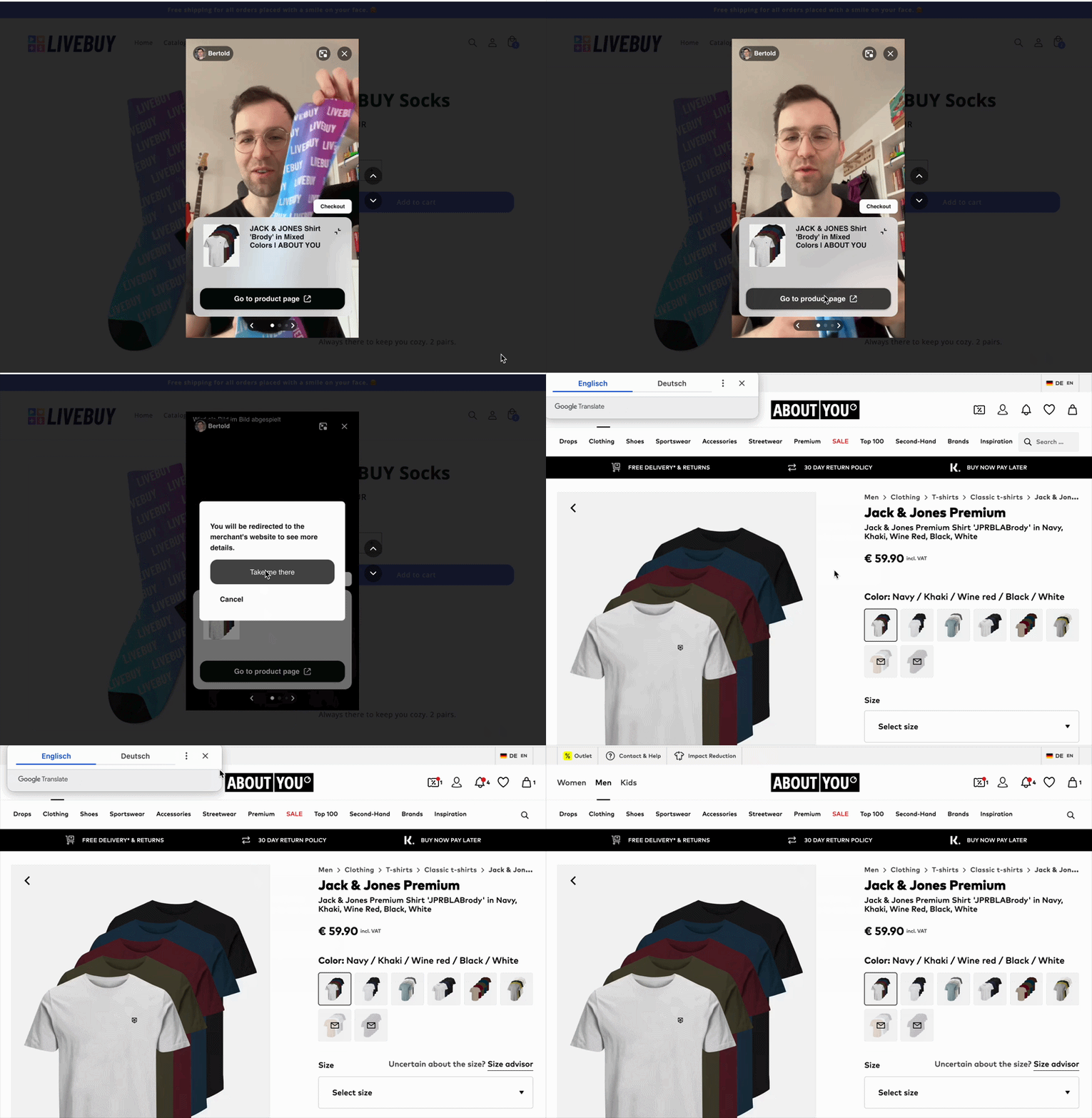
Clicking Go to product page:
-
Redirects the viewer to the configured product URL
-
Opens the LIVEBUY Miniplayer
If the LIVEBUY SDK is not implemented on that page, the Miniplayer will not function. Depending on the browser, Picture-in-Picture (PiP) mode may open instead.
The Miniplayer behavior depends on your shop configuration.
For more information, please refer to the Miniplayer Help Center article.
Troubleshooting: Products Are Not in the Shopping Cart
Problem
If you or a viewer added products to the cart during a stream, but they do not appear in the shop’s cart, there is most likely an issue with the shop’s cart integration.
Solution
If your cart integration worked before:
Contact your responsible developer and check whether anything has changed in your shop’s cart setup or integration.
If you do not have a cart integration yet:
-
Please read the Cart Integration article, or
-
Contact us directly so we can identify the fastest solution together.
If the issue persists, please reach out to LIVEBUY Support and include:
-
The shop URL
-
The show or clip URL
-
The affected product(s)
-
A short description of the issue
This helps us resolve the problem as quickly as possible.