
The LIVEBUY player includes several controls that help you watch videos, explore products, and manage your shopping experience with ease. Below is an overview of the main elements and how to use them.
Top Area: Player Header
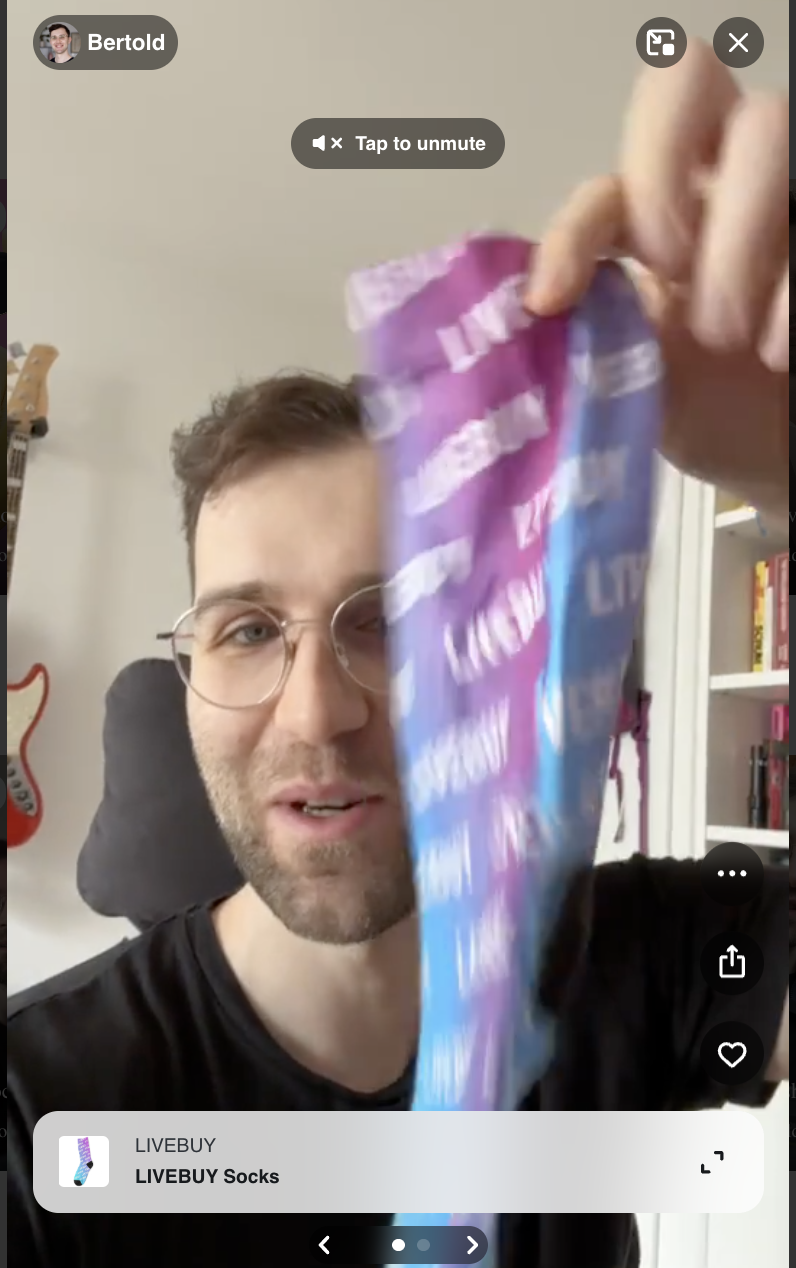
Once the LIVEBUY player is opened, the following elements are visible at the top of the player:
-
Creator icon and name
Displays the content creator of the video or live show. -
Miniplayer button
Allows you to minimize the player while continuing to browse the shop. -
Close button (X)
Closes the player completely.
Unmute Button
If the video starts muted, an unmute button is displayed in the upper half of the player.
-
Click this button to turn the sound on.
Right Side: Actions and Products
In the lower half of the player on the right side, you’ll find the main interaction buttons and the product stack.
Action Buttons
-
More options (…)
Opens additional player options. -
Share button
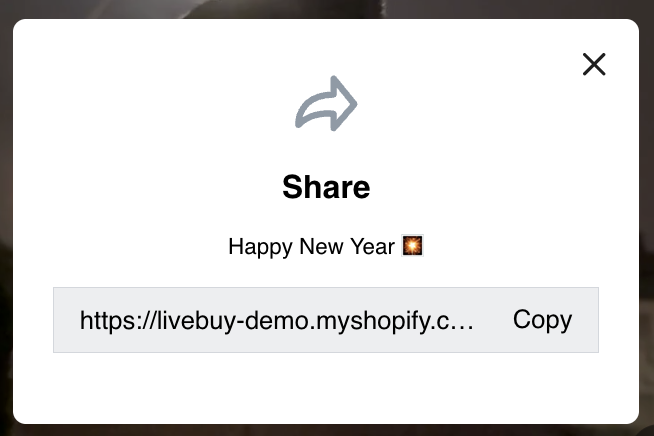
Opens a small popup inside the player containing a shareable link, which can be copied.
Note: This popup only appears on Desktop or as a fallback. On mobile, the device’s native sharing dialogue is opened.
-
Like button
Lets you like the video.
Product Stack
Below the action buttons, you’ll see the product stack. From here, you can:
-
Swipe through products if more than one product is linked to the video
-
Expand a product to:
-
View more product information
-
Select product variants
-
Add products to your cart
-
Go directly to checkout
-
Video Controls
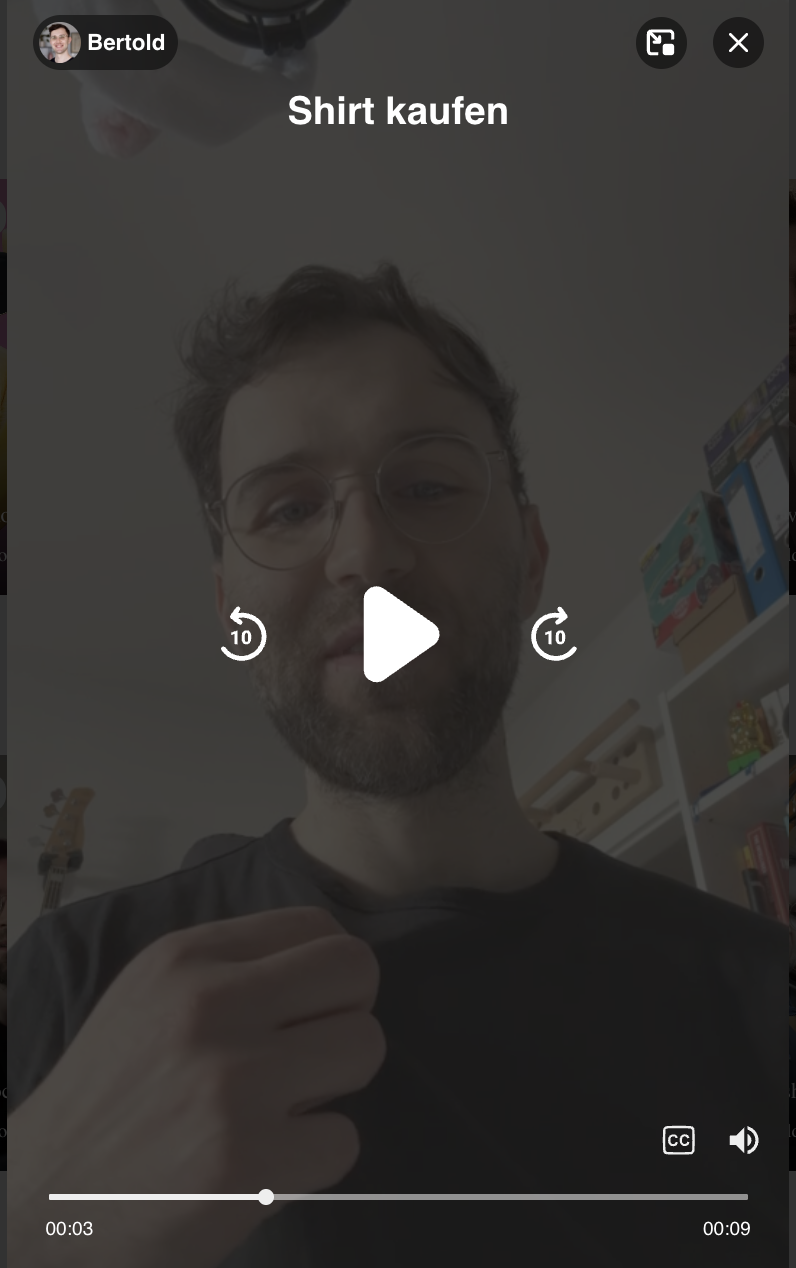
By clicking anywhere inside the player or also hovering over the center of the video on desktop, additional video controls appear.
These controls allow you to:
-
Play / Pause the video
-
Rewind 10 seconds
-
Forward 10 seconds
-
Use the video progress bar at the bottom to jump to a specific point in the video
-
Mute or unmute the video using the speaker icon
-
Turn captions on or off using the CC button
Saved Settings
-
Sound and caption settings are saved while you stay within the player.
-
Once you close the player, these settings are reset and need to be enabled again if required.
Closing the Player With Items in Your Cart
If you have added products to your cart within the LIVEBUY player and attempt to close it, a confirmation message appears.
You will be asked to choose between:
-
Back to store
The player closes and you return to the shop. -
Checkout
The player closes and you are redirected to the shop’s checkout page.
A selection is required to proceed.
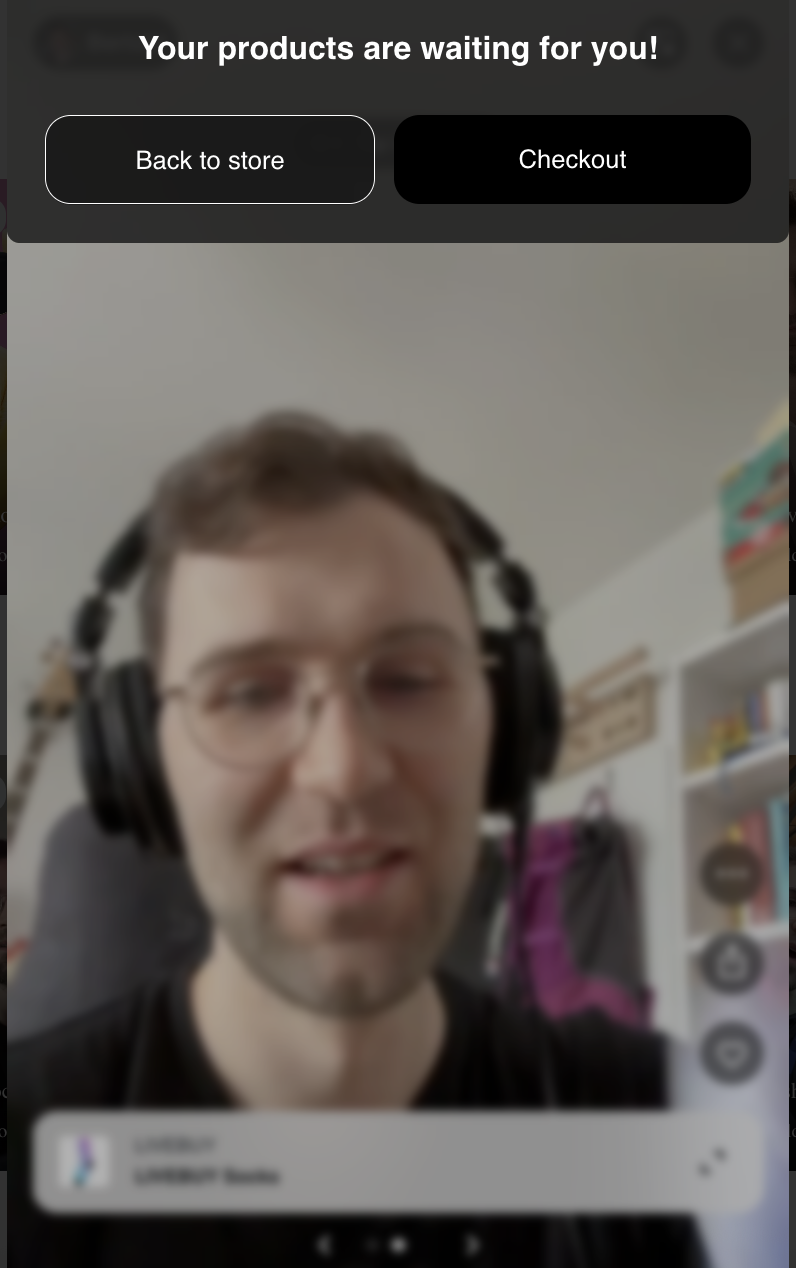
Note: The confirmation message is configurable and can be turned off on shop-level by the LIVEBUY Team. If you do not want the exit intent drawer please reach out to your Key Account Manager.