
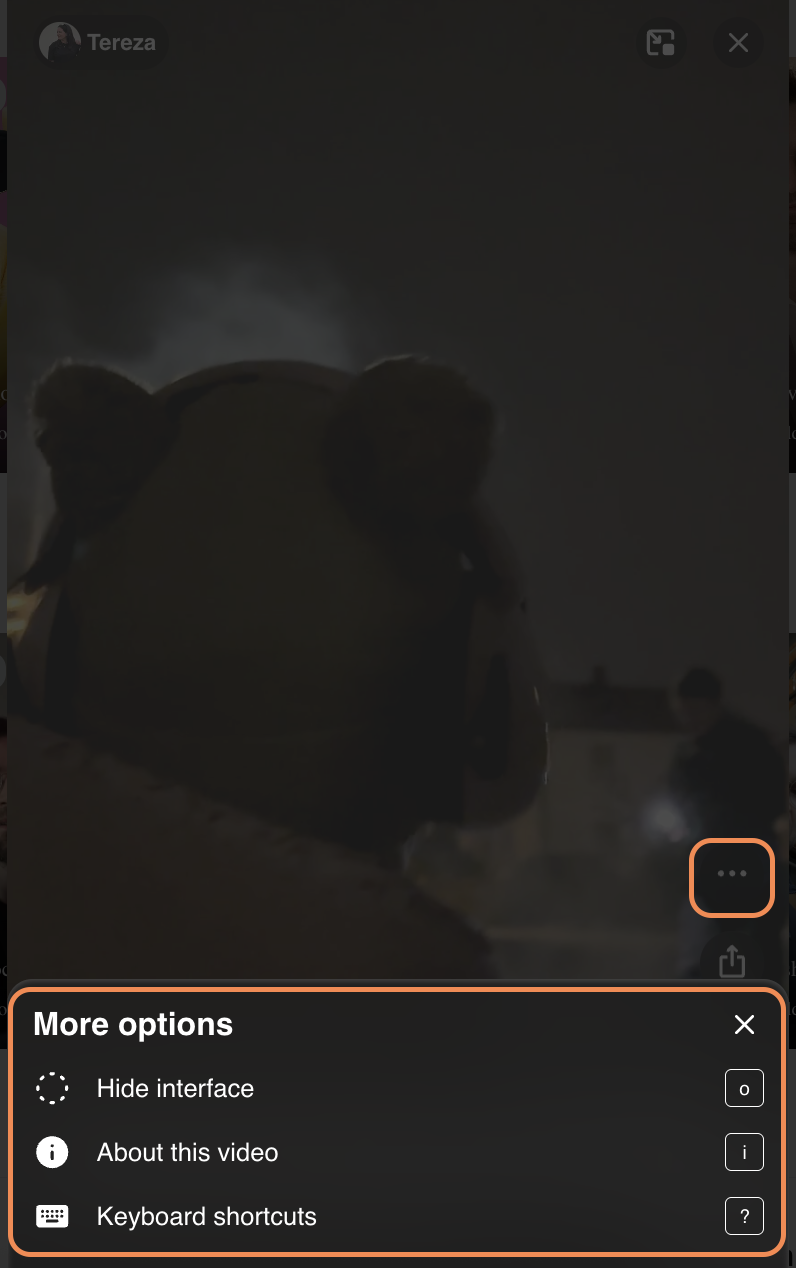
The LIVEBUY player offers several helpful options to customize your viewing and shopping experience. These options can be accessed through the more options (…) menu and via keyboard shortcuts on desktop.
Opening the More Options Menu
To open more options in the LIVEBUY player:
-
Click the … (More options) menu in the player.
-
On desktop, you can also open the menu using the
.(period) key.
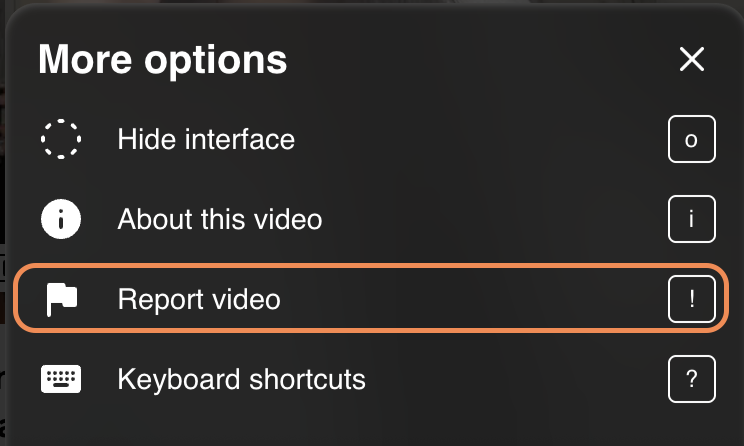
If the “Reporting violation” feature is enabled for your shop, an additional menu item will appear:
-
Report video (!)
Clicking this option opens the shop’s contact form, allowing users to report a violation related to the video.
Hide and Show the Interface
You can hide the player interface for an uninterrupted viewing experience.
-
Open the more options menu and click hide interface.
-
To show the interface again, simply click anywhere on the video player.
-
On desktop, you can hide the interface using the
okey.
About This Video
The about this video section provides detailed information about the content.
How to open:
-
Click about this video in the more options menu.
-
On desktop, press
ito open it directly.
Information included:
-
Content title
-
Content creator
-
Upload date of the clip or live show
-
Sponsorship information (if applicable), including the sponsor’s name
Additionally, every video displays the following information:
“This video is intended to enhance your shopping experience by providing helpful information such as product demonstrations, tutorials, and reviews.
It is displayed to you because it matches the context of the page you are currently visiting, ranks well for recency and popularity, or was highlighted by the shop. Your personal data was not used to select this video.
In line with the shop’s privacy policy, this video-shopping experience is powered by LIVEBUY.”
Also the LIVEBUY logo is shown in this section.
Keyboard Shortcuts (Desktop Only)
On desktop, you can access a full list of keyboard shortcuts:
-
Open the more options menu and select keyboard shortcuts
-
Or press
?on your keyboard
Below is an overview of all available keyboard shortcuts.
Keyboard Shortcuts Overview
General
-
Show keyboard shortcuts:
? -
Focus next element:
Tab -
Focus previous element:
Shift + Tab -
Activate focused element (“click”):
Enter -
Go back / close video:
esc -
Close video:
x -
Go back / minimize video:
yorz -
Report video (if enabled):
!
Video Controls
-
Play / Pause:
Space -
Rewind 10 seconds:
→ -
Forward 10 seconds:
← -
Previous video:
↑ -
Next video:
↓ -
Audio on / off:
m -
Original descriptive audio:
b -
Captions on / off:
c
Products
-
Expand product:
w -
Collapse product:
s -
Previous product:
a -
Next product:
d -
Open / close variant selector:
f -
Add product to cart:
e -
Go to checkout:
g
Interface
-
Open more options menu:
. -
Hide interface:
o -
Display about this video:
i -
Share video:
j -
Open chat (during live shows):
k -
Like video:
l