
LIVEBUY offers two options that allow viewers to continue watching videos while browsing your shop: the LIVEBUY Miniplayer and the device’s native Picture-in-Picture (PiP) mode.
LIVEBUY Miniplayer
The LIVEBUY Miniplayer is optimized for your shop and keeps the video playing while viewers open product pages or navigate your website, ensuring a seamless shopping experience.
Picture-in-Picture (PiP) Mode
PiP is a device or browser-based floating video player. The video appears in a small window rendered directly by the device or browser.
The LIVEBUY Team configures which option your shop uses. To request a change, please contact your Key Account Manager.
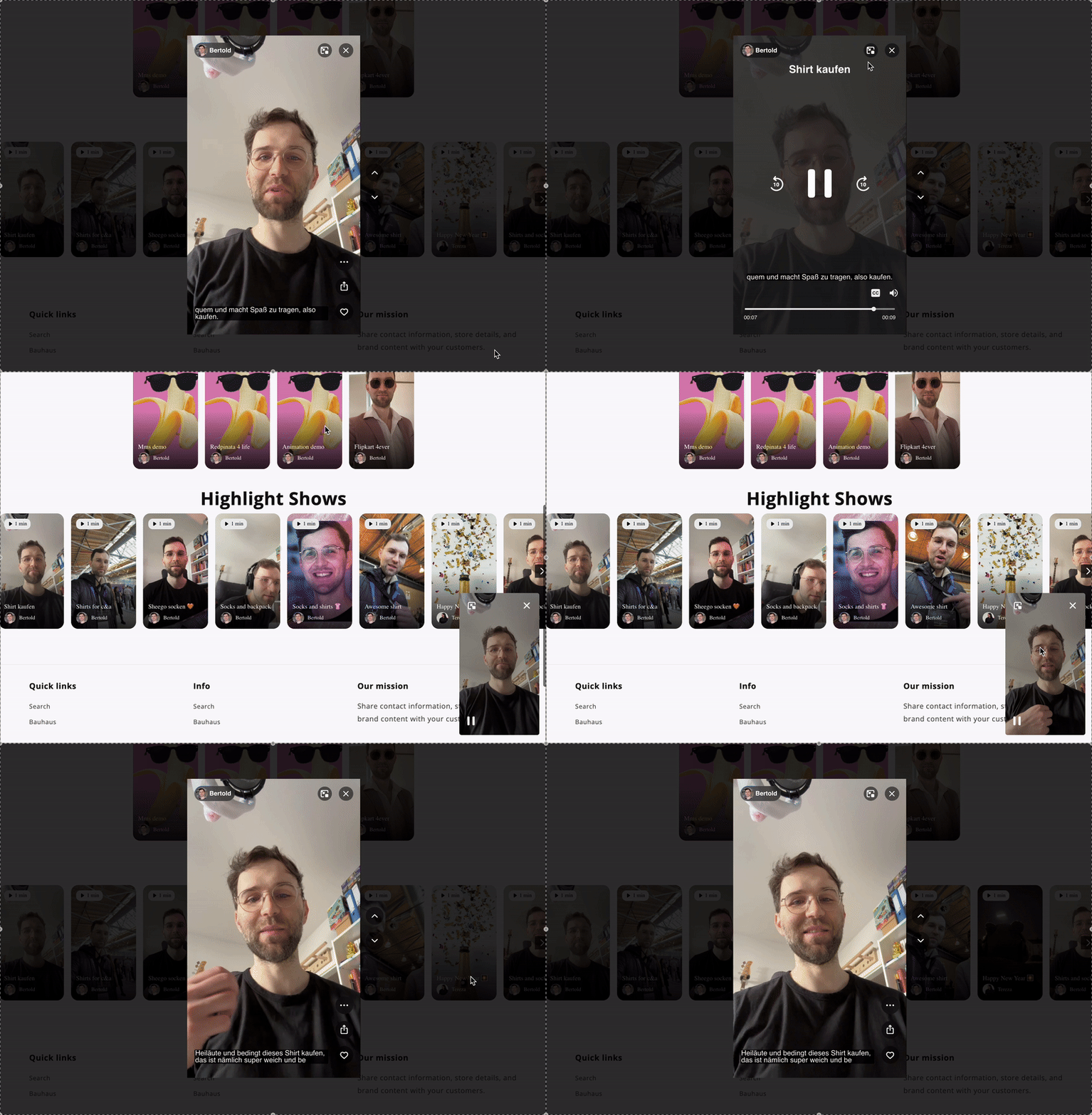
How the Miniplayer Is Triggered
The miniplayer opens automatically in the following situations:
-
Clicking the miniplayer button in the player (next to the X)
-
Clicking on linkout products
-
Clicking on the product details button for catalogue products
-
Clicking on links in the chat during live shows or their replays
-
Clicking on a creator name or icon in shops using creator profiles
Miniplayer Position and Behavior
-
By default, the miniplayer opens in the bottom-right corner of the screen.
-
The default position can be changed on a shop level by the LIVEBUY Team. Please contact your Key Account Manager if you would like to adjust it.
-
Viewers can freely reposition the miniplayer using drag and drop.
SDK Requirements
To ensure the miniplayer works smoothly, the LIVEBUY SDK must be integrated across the entire shop, especially on product detail pages.
-
This allows the miniplayer to open when viewers click on product details or linkout products within the shop.
-
If a viewer is redirected outside of the shop to a page where the LIVEBUY SDK is not integrated, the miniplayer cannot be opened.
Miniplayer Controls
From the miniplayer view, viewers can:
-
Reopen the full-sized player by clicking on the miniplayer or the miniplayer icon
-
Close the Player using the X icon
-
Play or pause the content using the Play/Pause button
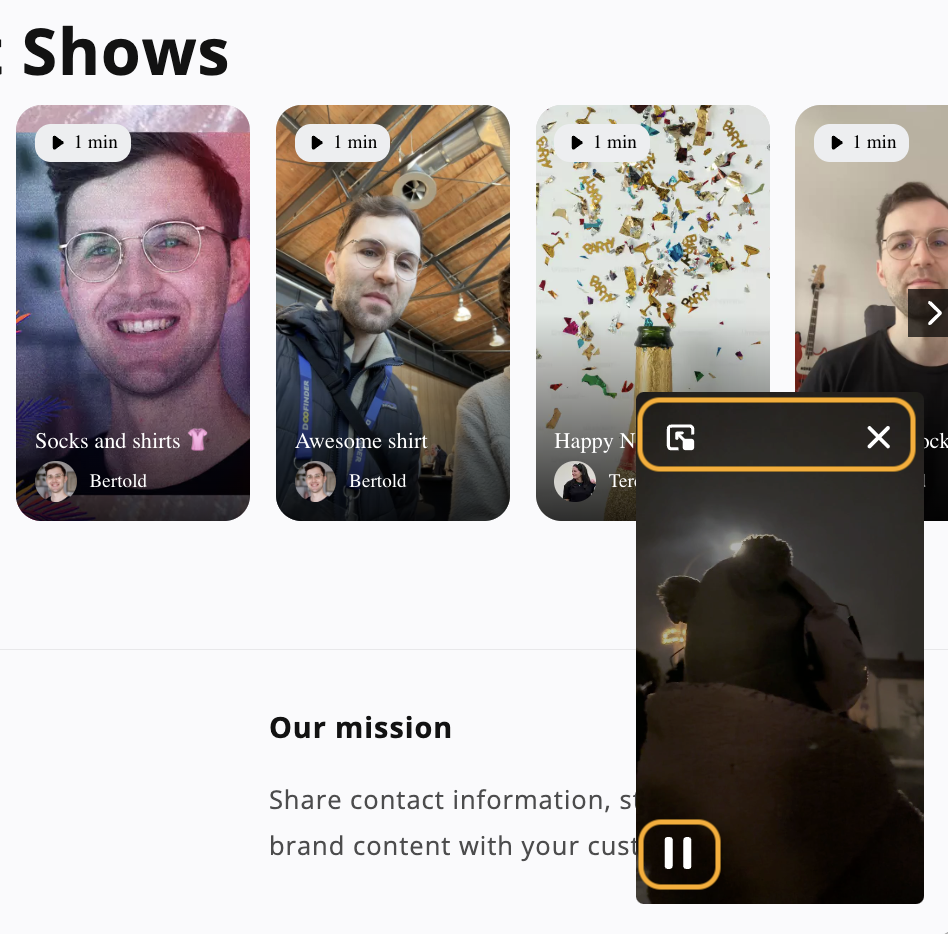
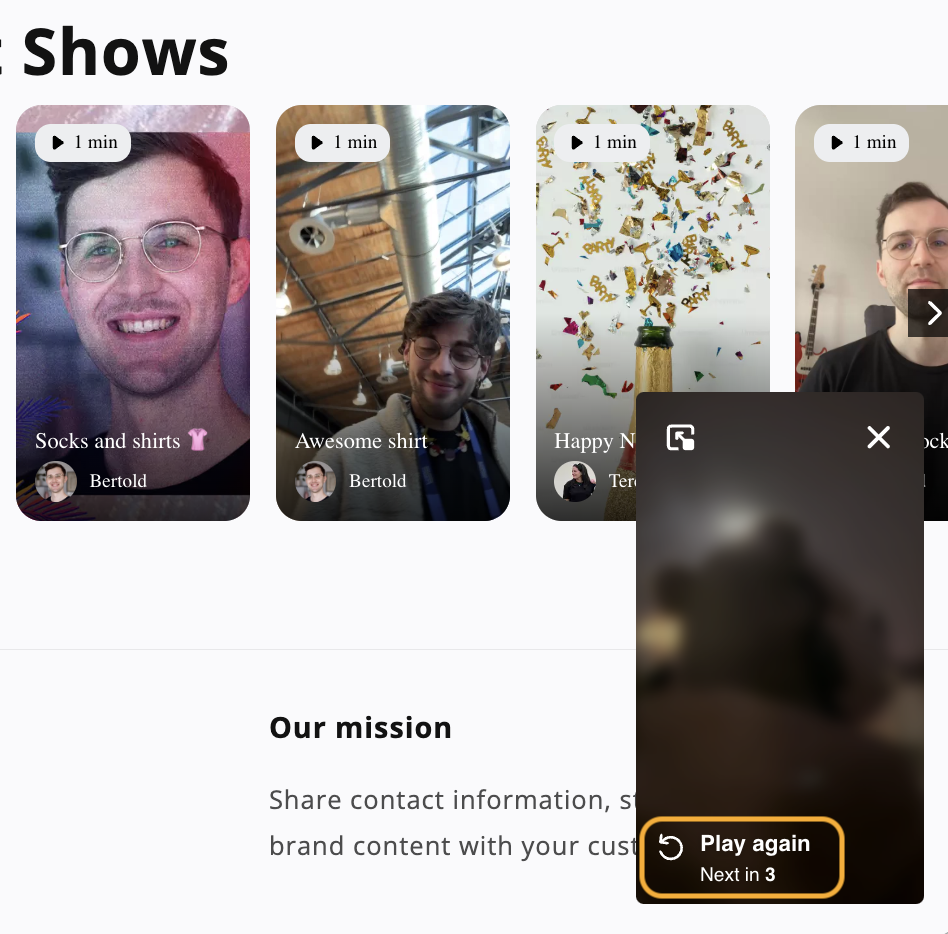
All end-of-content behaviors, such as auto-loops, play again option and auto play next content work in the miniplayer in the same way as in the full-sized player.
Picture-in-Picture Mode
The LIVEBUY Team can configure whether your shop uses the LIVEBUY Miniplayer or the device’s native Picture-in-Picture (PiP) mode. In case you want to change your configuration please reach out to your Key-Account-Manager.
If PiP mode is activated for your shop, the LIVEBUY Mini-Player is deactivated — including in the desktop view.
What is Picture-in-Picture (PiP) Mode?
Picture-in-Picture (PiP) mode is a device-based mini player commonly known from streaming apps such as Netflix.
The video plays in a small floating window rendered directly by the device or browser.
Available Controls in PiP Mode
The PiP mini player provides provides controls depending on the device and its operating system.
Once the content piece ends:
-
Auto-loop does not apply
-
Autoplay of the next content piece does not apply
Benefits of PiP Mode
-
On mobile devices, users can open and use other apps while the video continues playing in a floating window.
-
For example, users can open WhatsApp and write a message while the video keeps running.
-
The mini player is rendered directly by the device, ensuring native system behavior.
Disadvantages & Limitations
Device & Browser Support
PiP mode is not supported on all devices and browsers.
Background Page Requirement
PiP mode only works as long as the original page where the video was started remains open in the background.
-
If the user navigates to a new page within the shop, the video source is removed and PiP playback stops.
-
On mobile, users cannot navigate to a Product Detail Page (PDP) within the shop app while PiP is running.
-
Users can only switch to other apps (e.g., WhatsApp), while the shop app must remain open in the background.
Supported Devices & Browsers
Please refer to Picture-in-Picture | Can I use... for an overview of supported devices and browsers.