
Catalogue products are the most common way to import products into the LIVEBUY system. These products are imported via an accessible online CSV product feed or via your product API and can be added directly to your LIVEBUY content. Viewers can interact with these products and add them to their cart while watching clips, live shows and their replays clips or shows.
If opting for the CSV product feed import, we recommend importing your entire product catalogue. This gives creators and shop managers maximum flexibility when preparing clips and shows, without being limited to a restricted selection of products.
For the import via your product API, we only import the products ad-hoc that are used by your creators within LIVEBUY content.
Importing Catalogue Products
First-Time Import or New Feed Setup
If you are importing products for the first time or setting up a new product feed, some initial configuration steps are required.
-
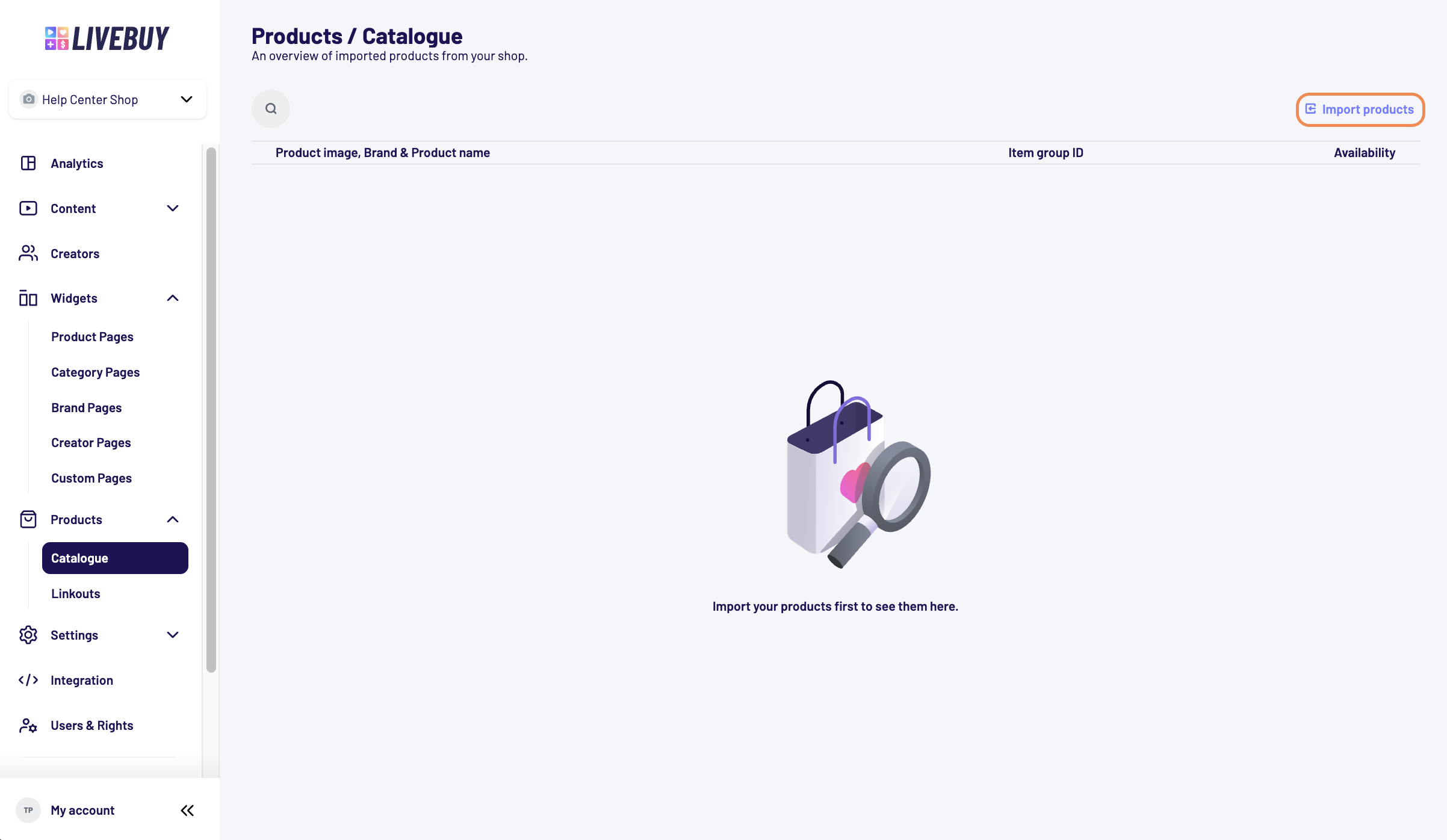
Navigate to Products → Catalogue in the LIVEBUY Dashboard.
-
Click Import products.
-
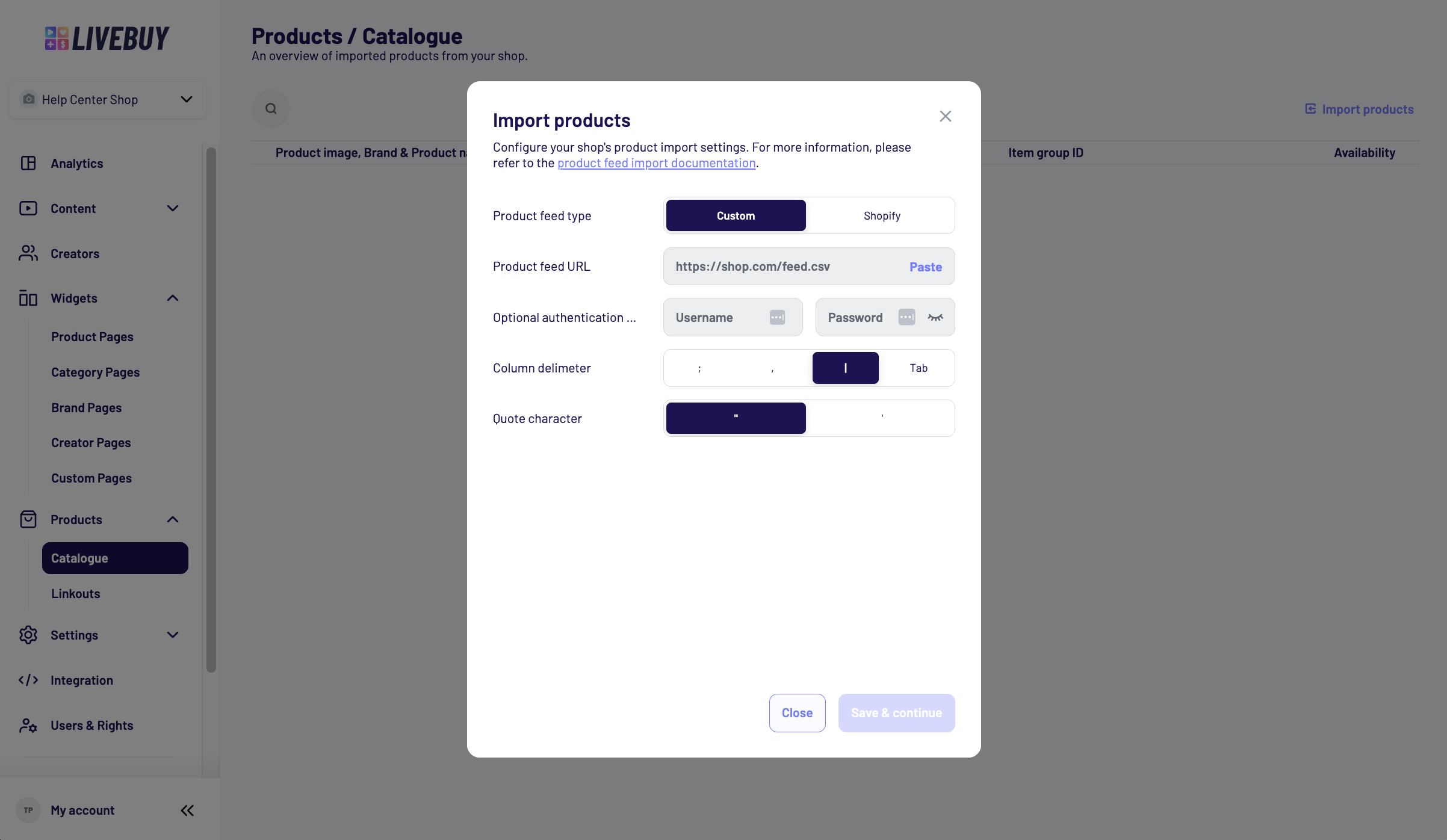
Select your product feed type:
-
Custom product feed
-
Shopify product feed
-
-
Paste your product feed URL (HTTP, HTTPS, or FTP).
-
(Optional) Add authentication credentials if required.
-
For feed format and required fields, refer to our technical documentation
-
Select the column delimiter (
;,,,|, orTab) and the quote character ("or').
-
Click save & continue.
Column Mapping
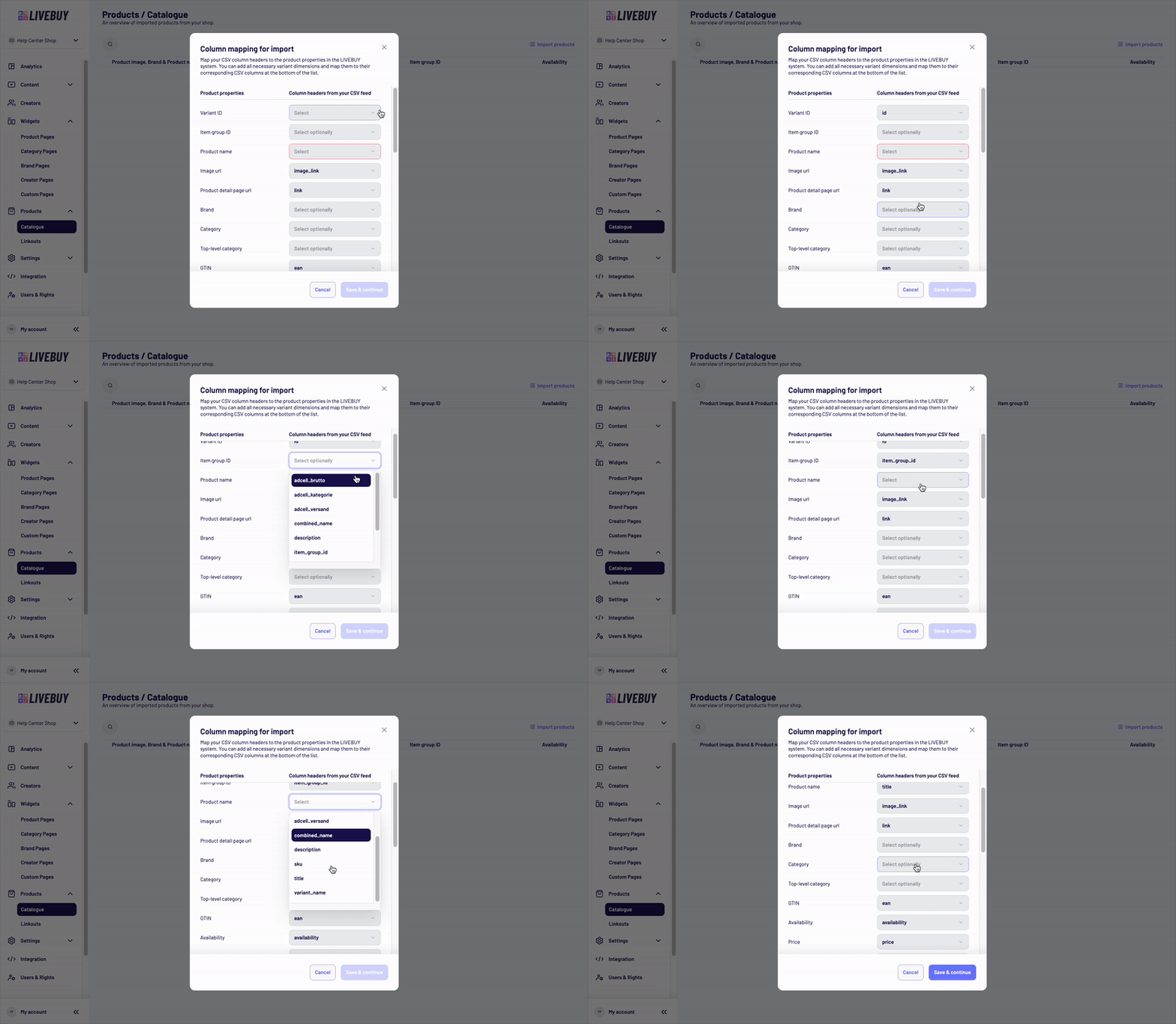
After saving, the column mapping view opens.
-
Some fields may be prefilled — please double-check that the mappings are correct.
-
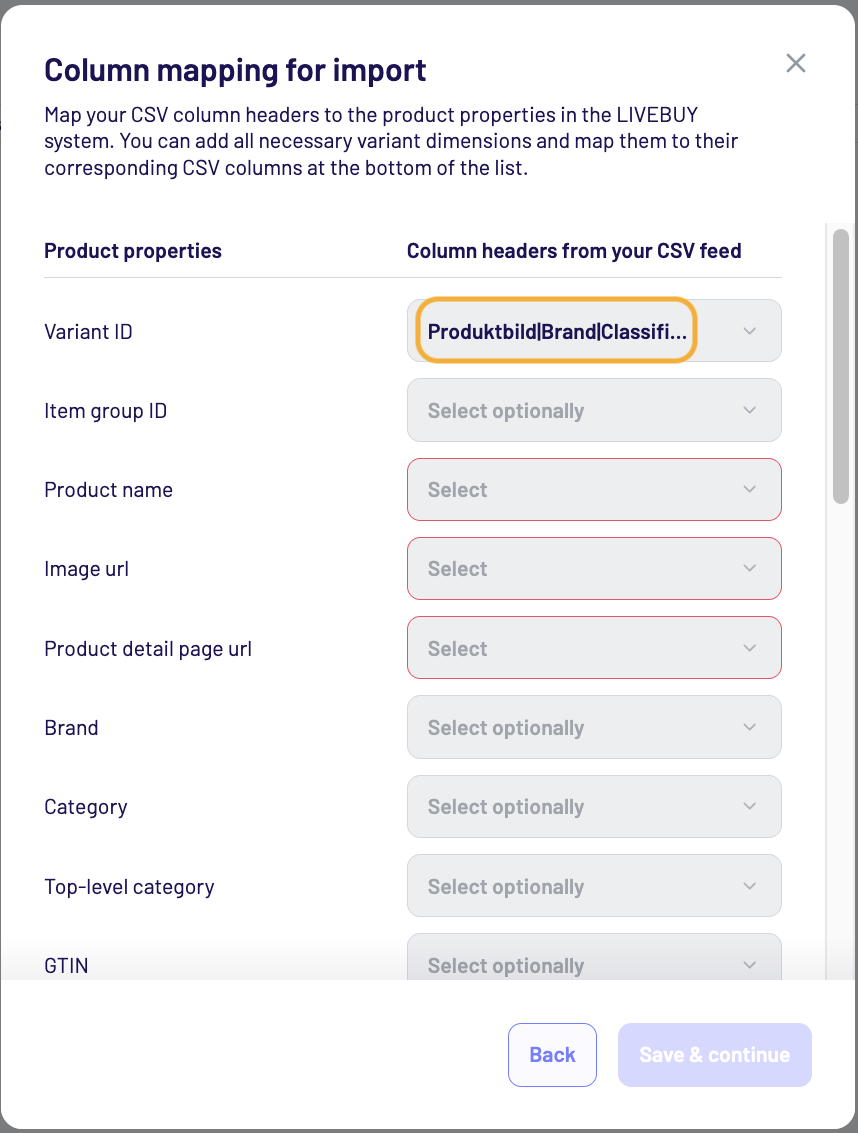
Fields outlined in red and labeled select are mandatory.
-
Fields labeled select optionally are not required.
-
Map your CSV column headers to the corresponding LIVEBUY product properties using the dropdown menus.
-
If you have further variant dimension, like “Capacity, Style, Type, etc.” please add all of them and their respective column headers in order to ensure that the viewers can select the right variant in the player.
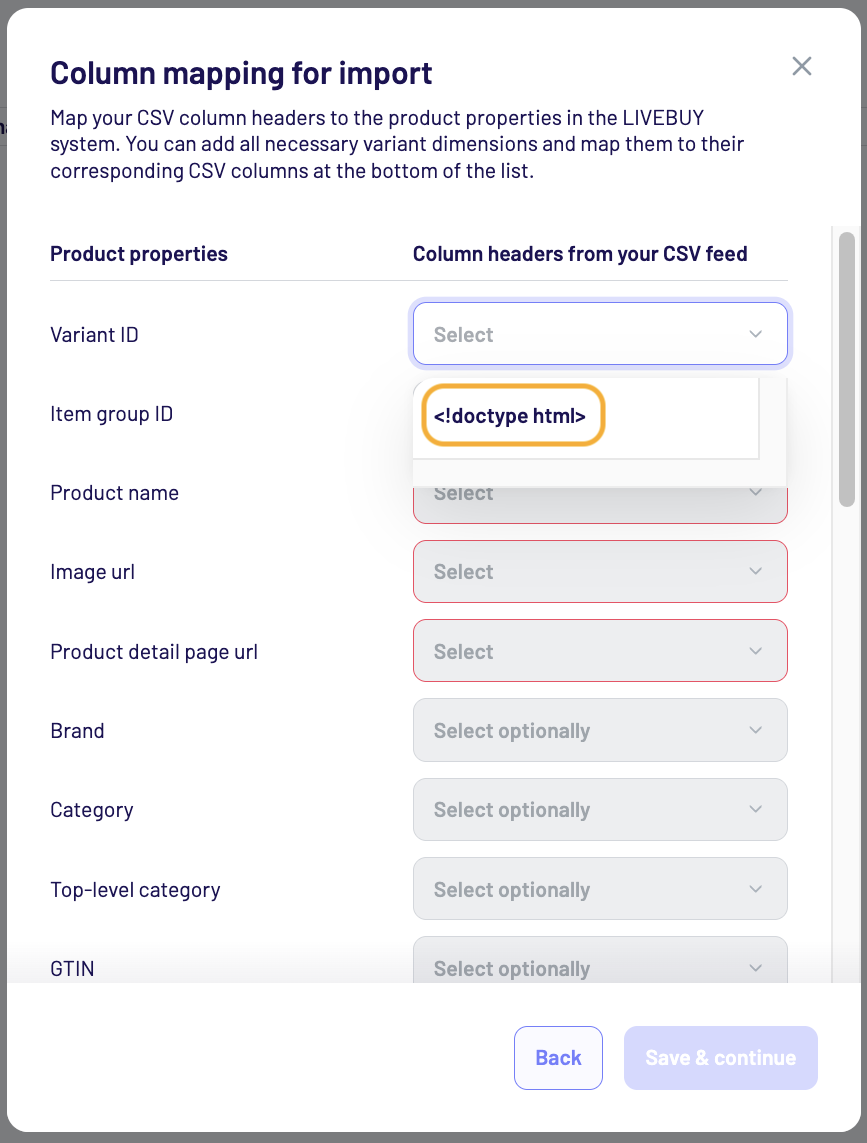
Below you can see two examples that clearly show that the product feed configuration was already incorrect. Please return to the Product Feed Configurator first before continuing with the mapping.
Adding Additional Variant Dimensions
If a required variant is not available in the default product properties:
-
Scroll down to Additional variants (e.g. size, color).
-
Add a new variant dimension.
-
Give it a name and select the corresponding CSV column from the dropdown.
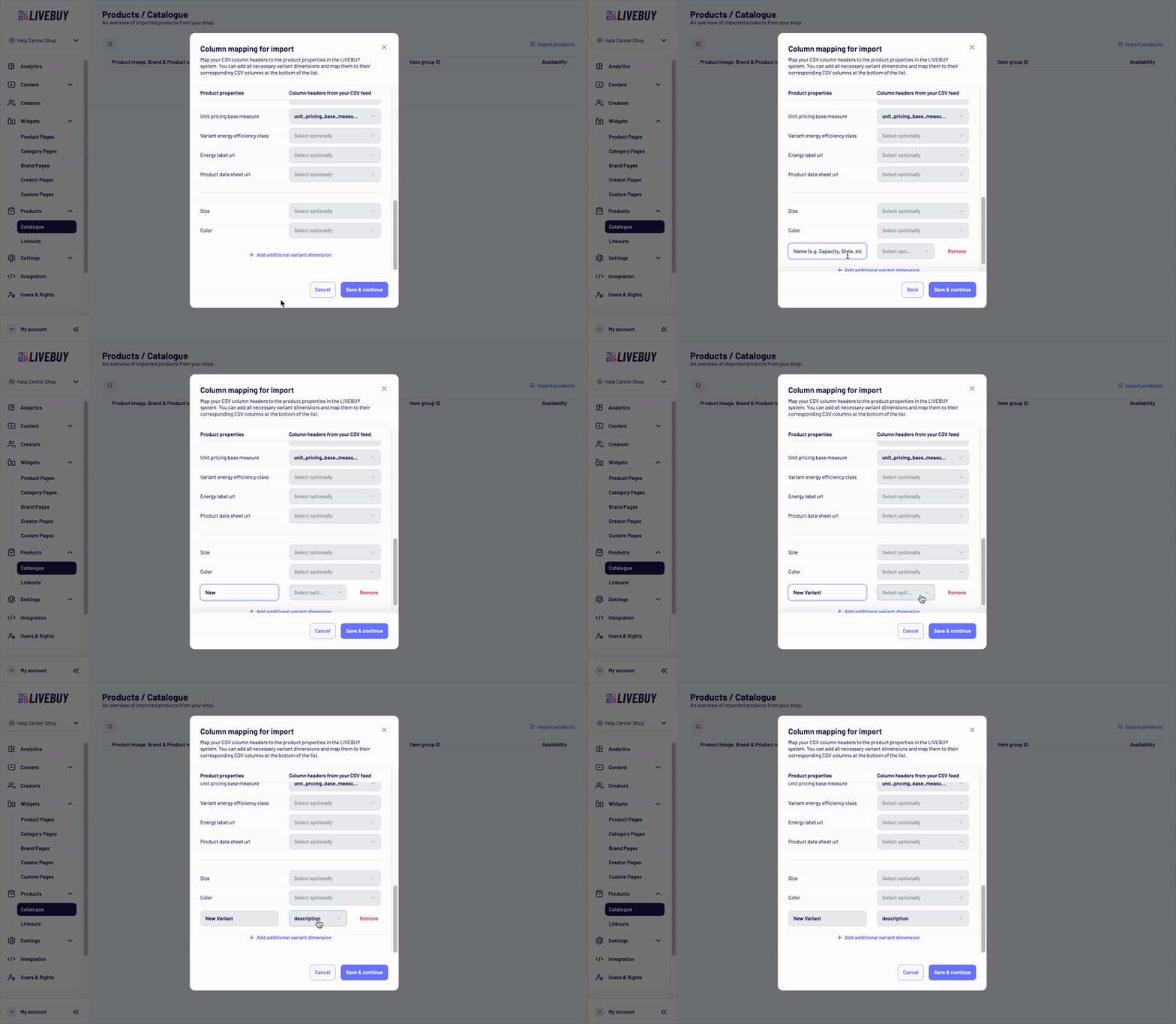
See below how the variant selection appears in the player to understand the purpose of adding variants.

Once mapping is complete, click Save & Continue.
You can adjust the mapping later, but make sure it is as accurate as possible before proceeding.
Feed Status and Import Configuration
After saving the mapping, you’ll see an overview showing:
-
Your feed URL
-
Selected column delimiter and quote character
-
The feed configuration status
In the best case, the status will be shown as Ready for import (green).
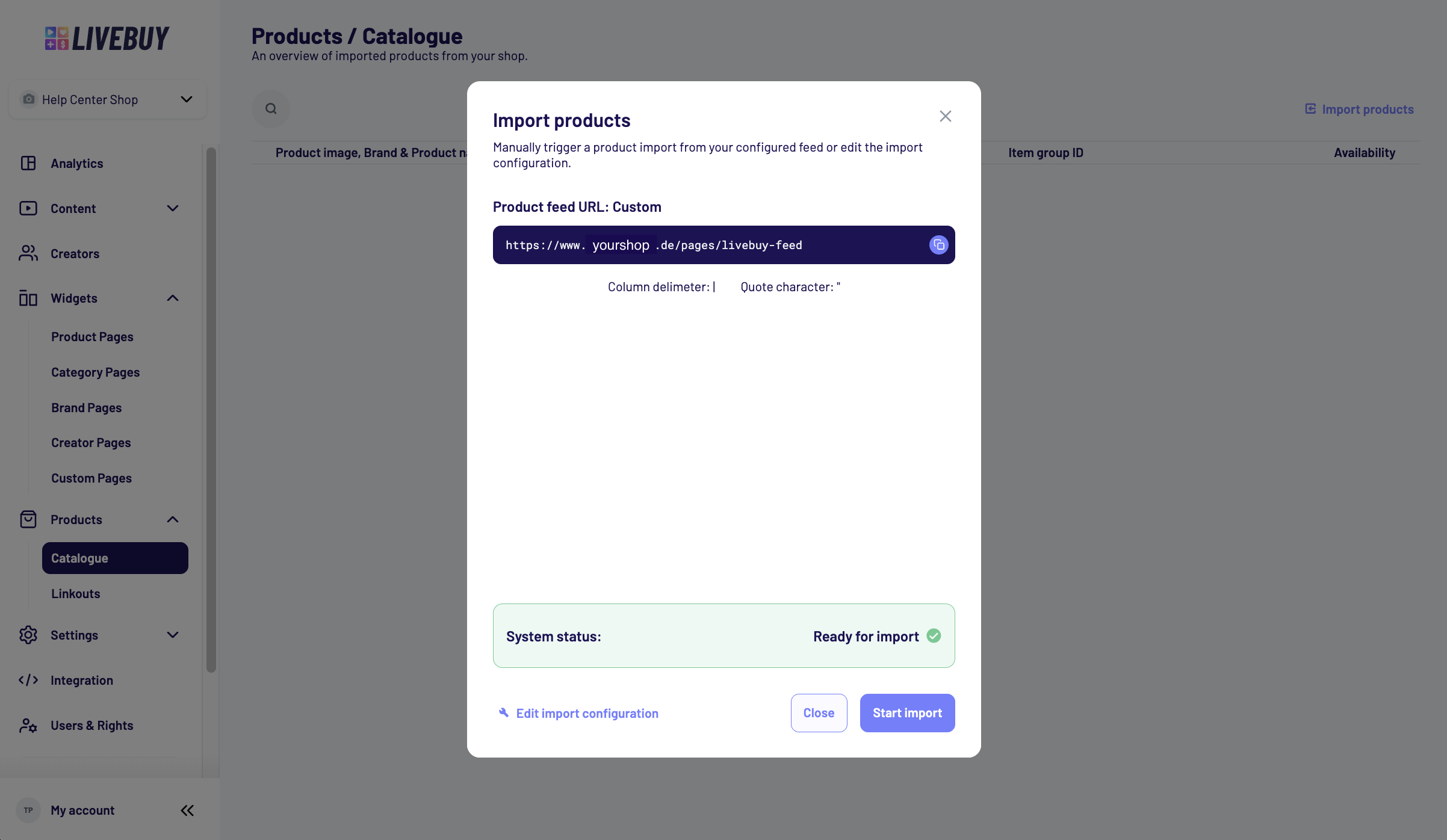
From this view, you can:
-
Edit the feed configuration and mapping by clicking Edit import configuration
-
Start the import if the status is Ready for import
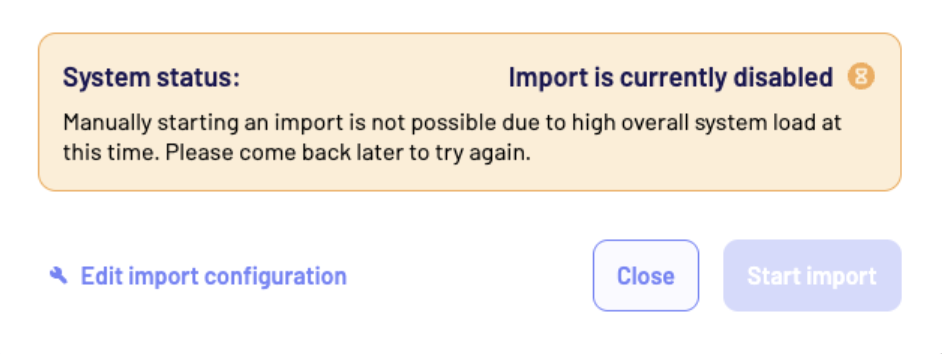
If you see the status “Import is currently disabled” and cannot proceed, please contact our support team.
Import Results and Logs
Once the import is completed, the top section of the overview displays:
-
Import status (Import complete or Import failed)
-
Date and time of the last import
-
Status of automatic imports:
-
Date and time of the next automatic import, or
-
Automatic import disabled
-
The timing for automatic imports needs to be coordinated with your Key Account Manager.
Click Import log to review the import details:
-
If no Show details option is visible, the import completed without errors.
-
If details are available, they indicate exactly what went wrong.
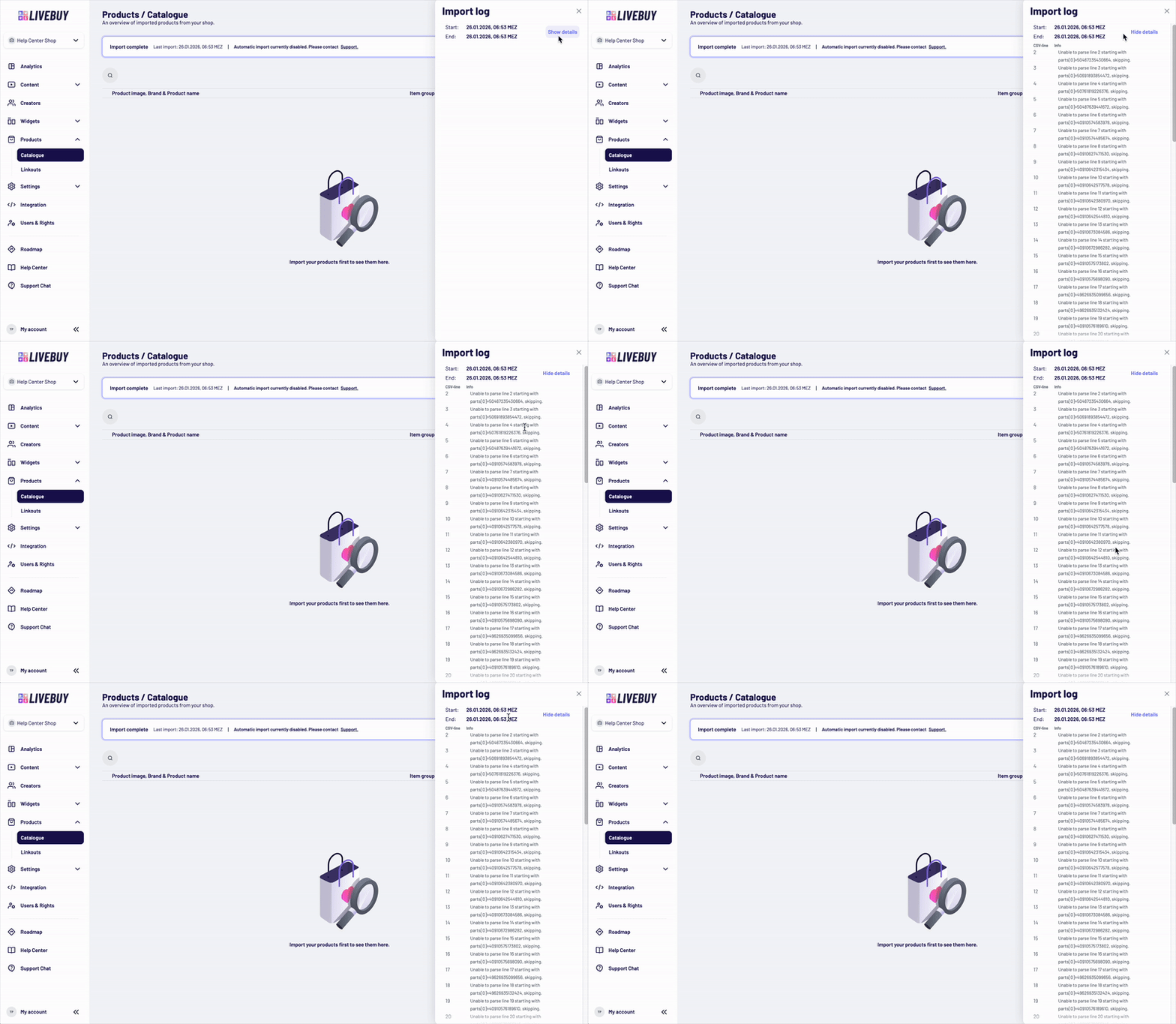
In case of import failures:
-
Review the import log
-
Double-check the feed configuration and column mapping
-
Contact your Key Account Manager or LIVEBUY Support Team for assistance
⚠️ Please note: If an import fails due to issues in the configured product feed itself, LIVEBUY cannot assist with adjusting the feed.
Managing Imported Products
All successfully imported products appear in the Catalogue overview, where you can:
-
Search for products using the search bar
-
Click on a product to view its details
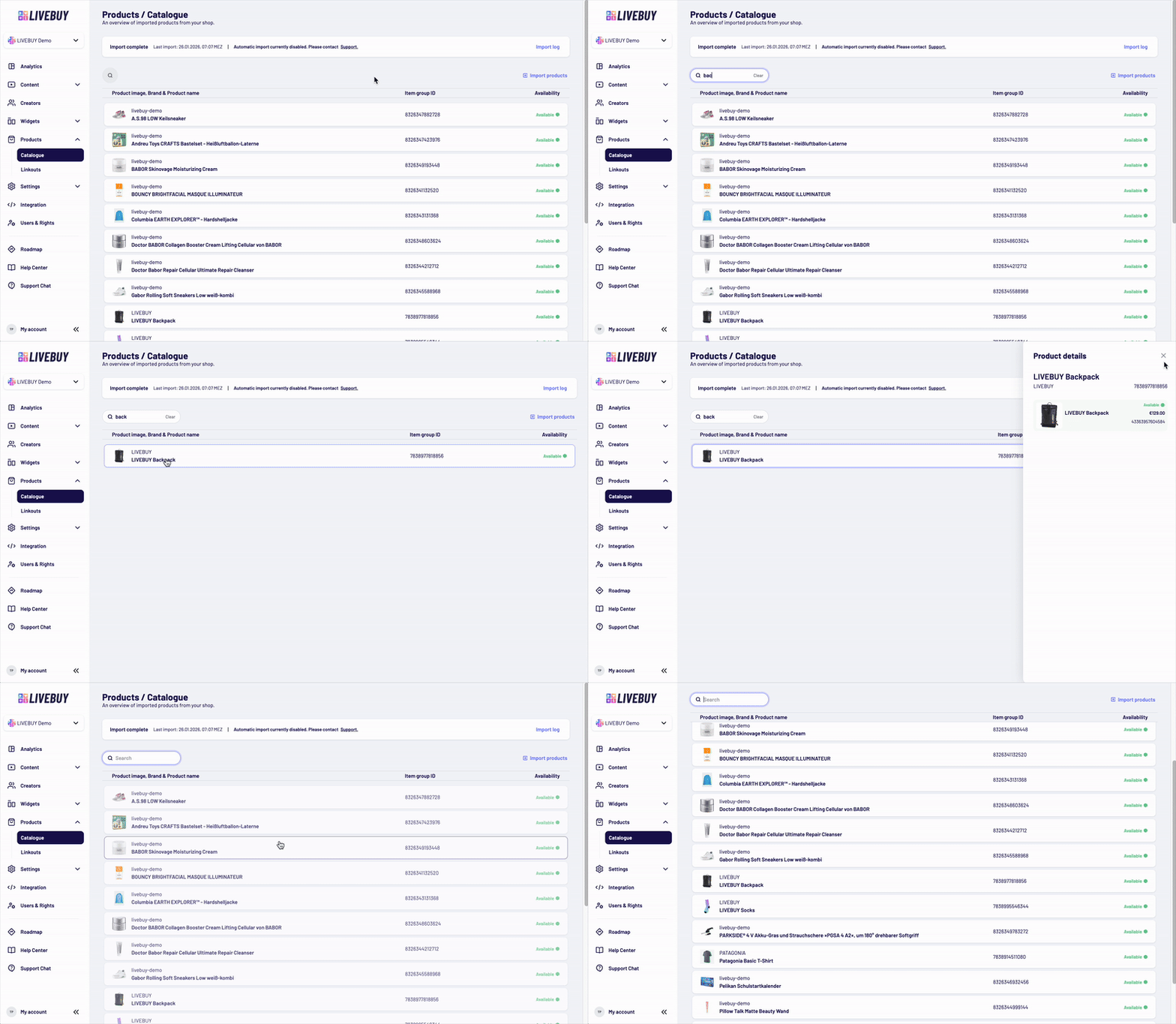
In the overview, you can see:
-
Product image
-
Brand and product name
-
Item Group ID
-
Product availability
Triggering a New Import
If your import is already configured, you can trigger a new import at any time:
-
Go to Products → Catalogue
-
Click Import products
-
Confirm the import or adjust the feed configuration and mapping if needed
Need Help?
For assistance with product feeds or imports, please contact your Key Account Manager or the LIVEBUY Support Team.