
Plan a show
-
Log in to the Creator App and select the shop where you want to broadcast if you can access two or more shops.
-
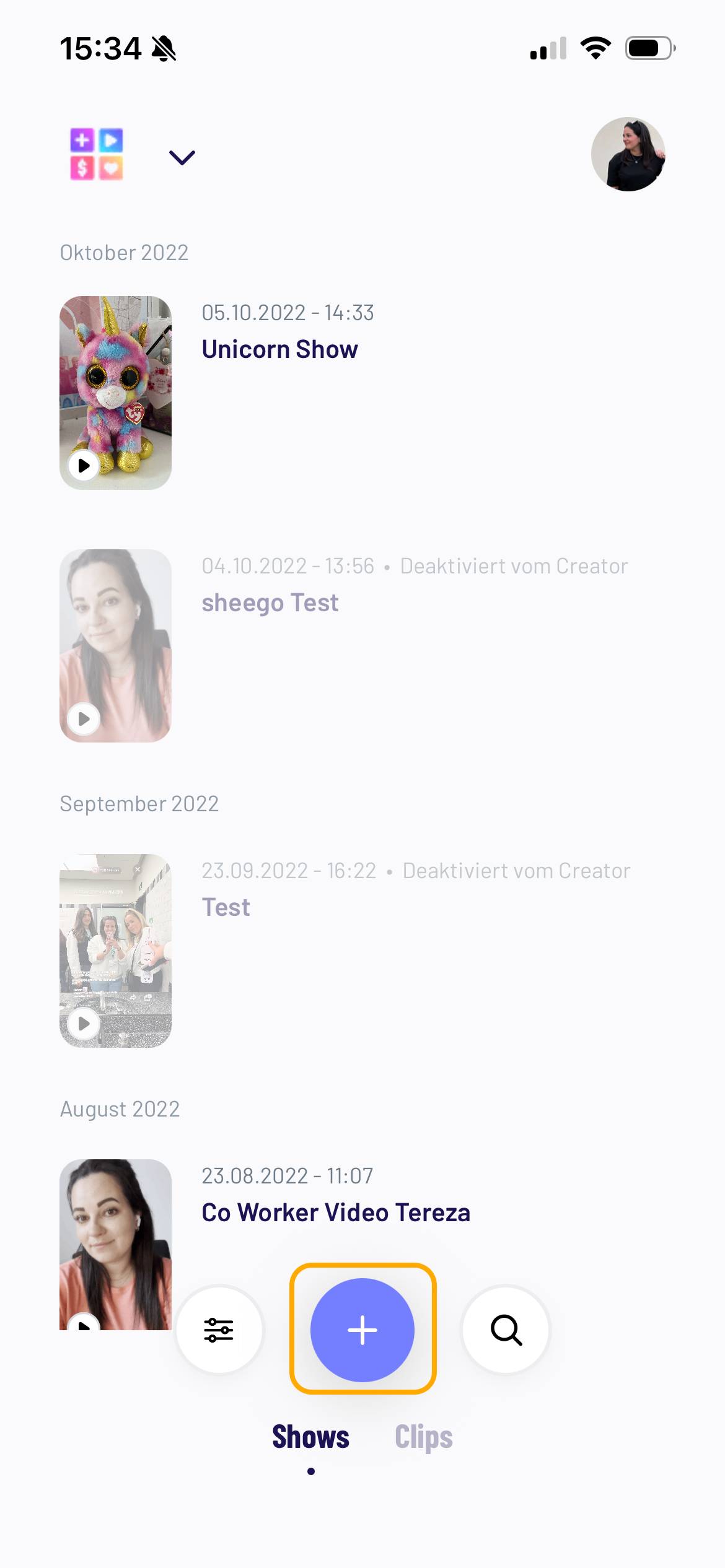
Select the Shows tab at the bottom of the Creator app, then click on the plus "+" icon.
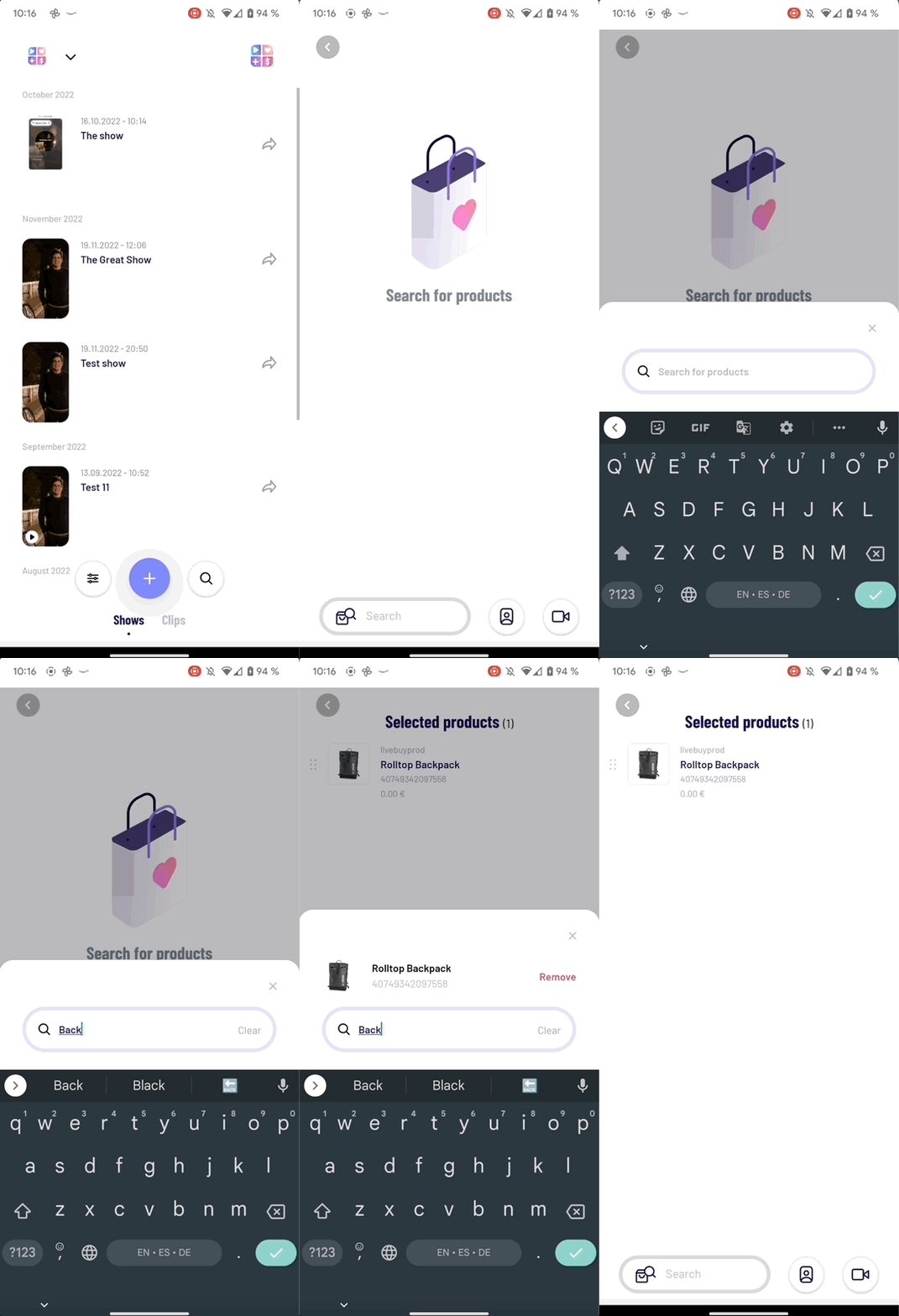
Select Products
The products you select will be available to all users viewing your show. We recommend you have the selected products for your show in hand so you can present them to your viewers.
Adding Show Details
After adding products, it's time to add the show date, time, title and show cover. To do this, click on the avatar icon at the bottom of the app next to the search bar:
Add the show date, time, title and an image to be used as the show cover.
Go Live
Tap the camera icon on the bottom right to open the live view. After granting permission to access your camera, you can now start your live show by tapping the go live button. Note that at least one product must be added before going live.
Highlight Products
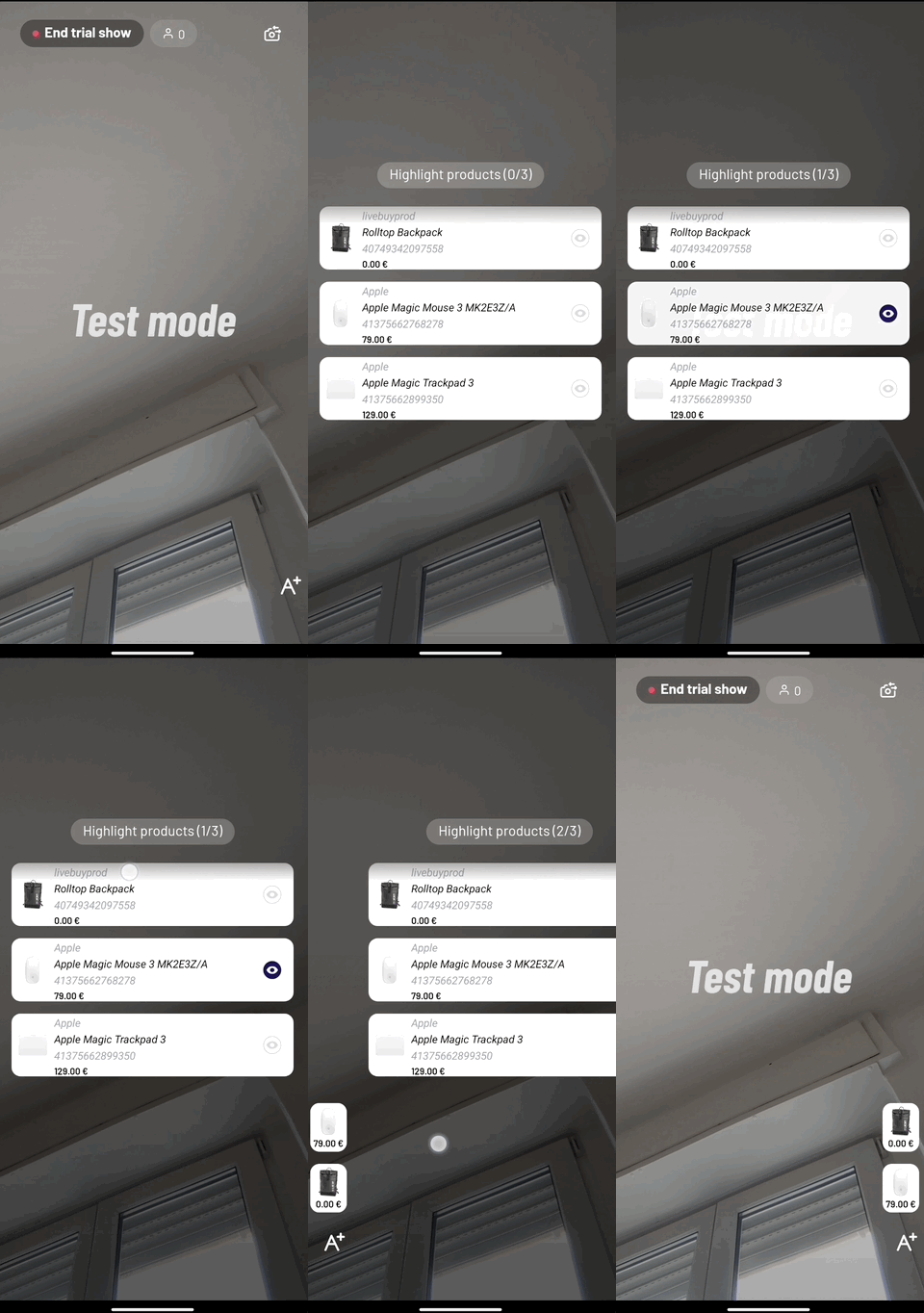
Highlighted products are displayed in a small tile above the video and are easier to reach for the viewer. While being live you can highlight up to 3 products at the same time.
To highlight a product, swipe left and choose the desired product:
Test Mode
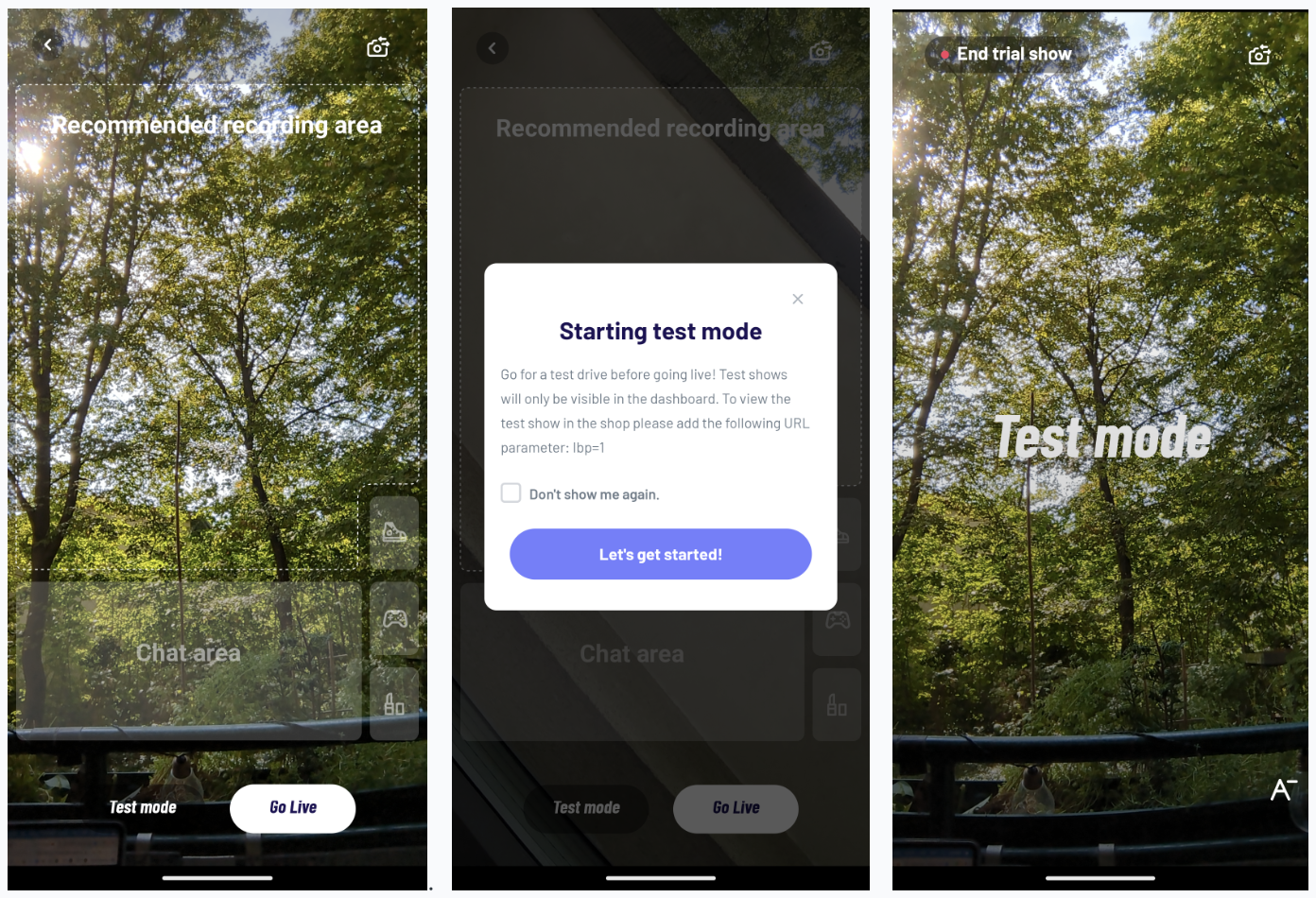
Test mode allows you to perform a live show as a test and practice run to ensure everything works as intended. The show will not be marked as started in our system and will not be visible to the visitors of your website.
Using Test Mode
To start the test mode, go to the app and select a planned show. After you have selected the products you can continue by clicking on the camera icon. Here you can select the go live option as well as the test mode.
How do I see the video?
-
To view a practice run you can either go into the dashboard or use the practice run URL parameter.
-
In the dashboard select the show you are currently testing and then select Open player
-
Add the parameter lbp=1 to your online shop's URL.
Example URL:
yourshop.com/live?lbp=1
Example with an added URL parameter:yourshop.com/live?parameter1&lbp=1
As long as this parameter is attached to your URL, you will be able to see the test run while other users will still only be able to see the pre-show screen.
Good vibes!
Congrats! You're now ready to go live! Viewers can connect with you and buy products through the show. Have lots of fun and enjoy!